> ## Documentation Index
> Fetch the complete documentation index at: https://docs.sezzle.com/llms.txt
> Use this file to discover all available pages before exploring further.
# Checkout Installments Widget
## Purpose
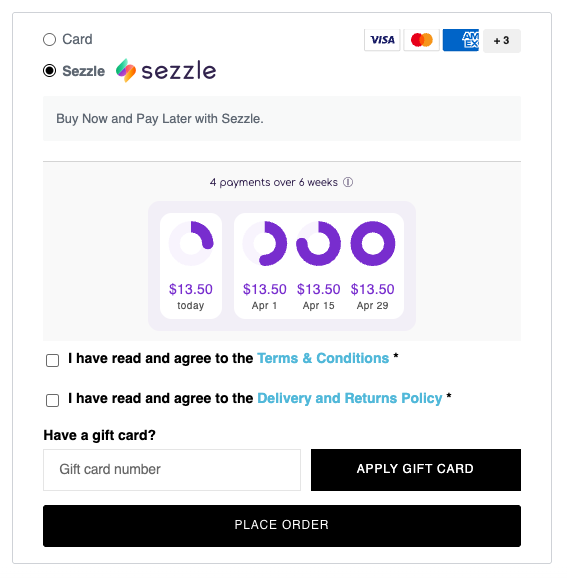
The checkout installments widget shows a sample installment plan, including installment amounts and due dates, at the point of final decision.
 ## Installation
Select the implementation that fits your needs:
* [NPM Package](#npm-implementation)
* [Code Snippet (auto-updates)](#cdn-implementation)
* [Code Snippet (static file)](#static-implementation)
### NPM Implementation
Using npm: `npm install @sezzle/sezzle-installment-widget@latest`
Within your checkout page, add the following code snippet to import the library:
```html theme={"system"}
import SezzleInstallmentWidget from @sezzle/sezzle-installment-widget
```
Where you want the widget to render, add the snippet from the [Configuration](#configuration) section below, updating options to determine the price.
### CDN Implementation
Within your checkout page, add the following code snippet to import the library:
```html theme={"system"}
```
Where you want the widget to render, add the snippet from the [Configuration](#configuration) section below, updating options to determine the price.
### Static Implementation
Language will auto-detect, first by HTML lang attribute, then by user's brownser default, and finally to EN.
#### Shopify Method
Compatible with Shopify Plus stores only.
1. Log in to your Shopify Admin
2. Go to `Online Store` > `Themes`
3. On the theme you wish to edit, click `...` then select `Edit Code`
4. In the `Assets` folder, click `New File` and name it `sezzle-installment-widget.js`
5. Copy+paste the code from [Github](https://github.com/sezzle/static-widgets/blob/production/src/sezzle-checkout-installment-widget/sezzle-checkout-installment-widget.js), then click `Save`
6. Paste the following into the bottom of the `templates/checkout.liquid` file in Shopify, then click `Save`:
```html theme={"system"}
{{ "sezzle-installment-widget.js" | asset_url | script_tag }}
```
7. Back in the Javascript file, update the values of the following options as applicable, then click Save:
* merchantLocale (optional): The country code. Currently Sezzle is only available in the United States and its territories, and Canada. Defaults to "US".
* currencySymbol (optional): The currency symbol to display in the installment widget. If unassigned, the currency symbol will be automatically detected in the targeted checkout total element contents or default to \$
* checkoutTotal (required): The element where the checkout total is rendered. (Example value is given for Shopify default)
#### Platform-Agnostic Method
1. Create a copy of the code from [Github](https://github.com/sezzle/static-widgets/blob/production/src/sezzle-checkout-installment-widget/sezzle-checkout-installment-widget.js) within your store's theme code, then import it into the checkout page code.
2. Invocation:
* Option 1 (recommended): To inject the placeholder element dynamically, add the following lines of code to run once the rest of the page has loaded, updating `sezzlePaymentLine` to target the Sezzle payment method line, below which the installment widget asset will display:
```html theme={"system"}
```
* Option 2: Enter the following two lines of code where the installment widget should appear:
```html theme={"system"}
```
3. Back in the Javascript file, update the values of the following options as applicable, then Save changes:
* merchantLocale (optional): The country code. Currently Sezzle is only available in the United States and its territories, and Canada. Defaults to "US".
* currencySymbol (optional): The currency symbol to display in the installment widget. If unassigned, the currency symbol will be automatically detected in the targeted checkout total element contents or default to \$
* checkoutTotal (required): The element where the checkout total is rendered. (Example value is given for Shopify default, other top platform values saved as comments)
### Configuration
Not applicable for static implementation
```html theme={"system"}
```
```html theme={"system"}
```
Either `platform` or `checkoutTotalElemTargetPath` is required, but not both.
The ecommerce platform which hosts the checkout page. If not supported, please refer to checkoutTotalElemTargetPath.
Available options: `shopify`, `woocommerce`, `3dcart`, `commentsold`, `magento2`, `prestashop`, `shopware`, `opencart`
The ID or class name of the element containing the total order amount.
The currency symbol to show in the price. By default, the widget will mimic the currency from the total order amount targeted element if present and fallback to \$ if not provided.
## Installation
Select the implementation that fits your needs:
* [NPM Package](#npm-implementation)
* [Code Snippet (auto-updates)](#cdn-implementation)
* [Code Snippet (static file)](#static-implementation)
### NPM Implementation
Using npm: `npm install @sezzle/sezzle-installment-widget@latest`
Within your checkout page, add the following code snippet to import the library:
```html theme={"system"}
import SezzleInstallmentWidget from @sezzle/sezzle-installment-widget
```
Where you want the widget to render, add the snippet from the [Configuration](#configuration) section below, updating options to determine the price.
### CDN Implementation
Within your checkout page, add the following code snippet to import the library:
```html theme={"system"}
```
Where you want the widget to render, add the snippet from the [Configuration](#configuration) section below, updating options to determine the price.
### Static Implementation
Language will auto-detect, first by HTML lang attribute, then by user's brownser default, and finally to EN.
#### Shopify Method
Compatible with Shopify Plus stores only.
1. Log in to your Shopify Admin
2. Go to `Online Store` > `Themes`
3. On the theme you wish to edit, click `...` then select `Edit Code`
4. In the `Assets` folder, click `New File` and name it `sezzle-installment-widget.js`
5. Copy+paste the code from [Github](https://github.com/sezzle/static-widgets/blob/production/src/sezzle-checkout-installment-widget/sezzle-checkout-installment-widget.js), then click `Save`
6. Paste the following into the bottom of the `templates/checkout.liquid` file in Shopify, then click `Save`:
```html theme={"system"}
{{ "sezzle-installment-widget.js" | asset_url | script_tag }}
```
7. Back in the Javascript file, update the values of the following options as applicable, then click Save:
* merchantLocale (optional): The country code. Currently Sezzle is only available in the United States and its territories, and Canada. Defaults to "US".
* currencySymbol (optional): The currency symbol to display in the installment widget. If unassigned, the currency symbol will be automatically detected in the targeted checkout total element contents or default to \$
* checkoutTotal (required): The element where the checkout total is rendered. (Example value is given for Shopify default)
#### Platform-Agnostic Method
1. Create a copy of the code from [Github](https://github.com/sezzle/static-widgets/blob/production/src/sezzle-checkout-installment-widget/sezzle-checkout-installment-widget.js) within your store's theme code, then import it into the checkout page code.
2. Invocation:
* Option 1 (recommended): To inject the placeholder element dynamically, add the following lines of code to run once the rest of the page has loaded, updating `sezzlePaymentLine` to target the Sezzle payment method line, below which the installment widget asset will display:
```html theme={"system"}
```
* Option 2: Enter the following two lines of code where the installment widget should appear:
```html theme={"system"}
```
3. Back in the Javascript file, update the values of the following options as applicable, then Save changes:
* merchantLocale (optional): The country code. Currently Sezzle is only available in the United States and its territories, and Canada. Defaults to "US".
* currencySymbol (optional): The currency symbol to display in the installment widget. If unassigned, the currency symbol will be automatically detected in the targeted checkout total element contents or default to \$
* checkoutTotal (required): The element where the checkout total is rendered. (Example value is given for Shopify default, other top platform values saved as comments)
### Configuration
Not applicable for static implementation
```html theme={"system"}
```
```html theme={"system"}
```
Either `platform` or `checkoutTotalElemTargetPath` is required, but not both.
The ecommerce platform which hosts the checkout page. If not supported, please refer to checkoutTotalElemTargetPath.
Available options: `shopify`, `woocommerce`, `3dcart`, `commentsold`, `magento2`, `prestashop`, `shopware`, `opencart`
The ID or class name of the element containing the total order amount.
The currency symbol to show in the price. By default, the widget will mimic the currency from the total order amount targeted element if present and fallback to \$ if not provided.