> ## Documentation Index
> Fetch the complete documentation index at: https://docs.sezzle.com/llms.txt
> Use this file to discover all available pages before exploring further.
# BigCommerce
This guide explains how to add Sezzle as a payment option on your BigCommerce website, enabling customers to use Sezzle at checkout.
This integration is only available with [BigCommerce's Optimized One Page
Checkout](https://support.bigcommerce.com/s/article/Optimized-Single-Page-Checkout?language=en_US).
### Enable Sezzle as an online payment method
[Get the app](https://www.bigcommerce.com/apps/sezzle/)
1. Go to `Store Setup` > `Payments`
2. Go to `Online Payment Methods`, find `Sezzle` and click `Set up`
3. Copy your Public Key and Private Key from your [Sezzle Merchant Dashboard](https://dashboard.sezzle.com/merchant/)
* Paste them into the corresponding fields
4. Select the `Transaction Type`
If you select `Authorize only`, payment will only be authorized and
will have to be captured later in BigCommerce.
5. Select the `Test Mode` (`No` (Recommended) or `Yes` for testing)
6. Click `Save`
### Install the Sezzle BigCommerce App
1. Log in to your website's BigCommerce store admin page
2. In the left sidebar, click `Apps > Marketplace`
3. Click `BigCommerce.com/Apps`
4. Search for `Sezzle`
5. Click `Sezzle`, then click `Get This App`
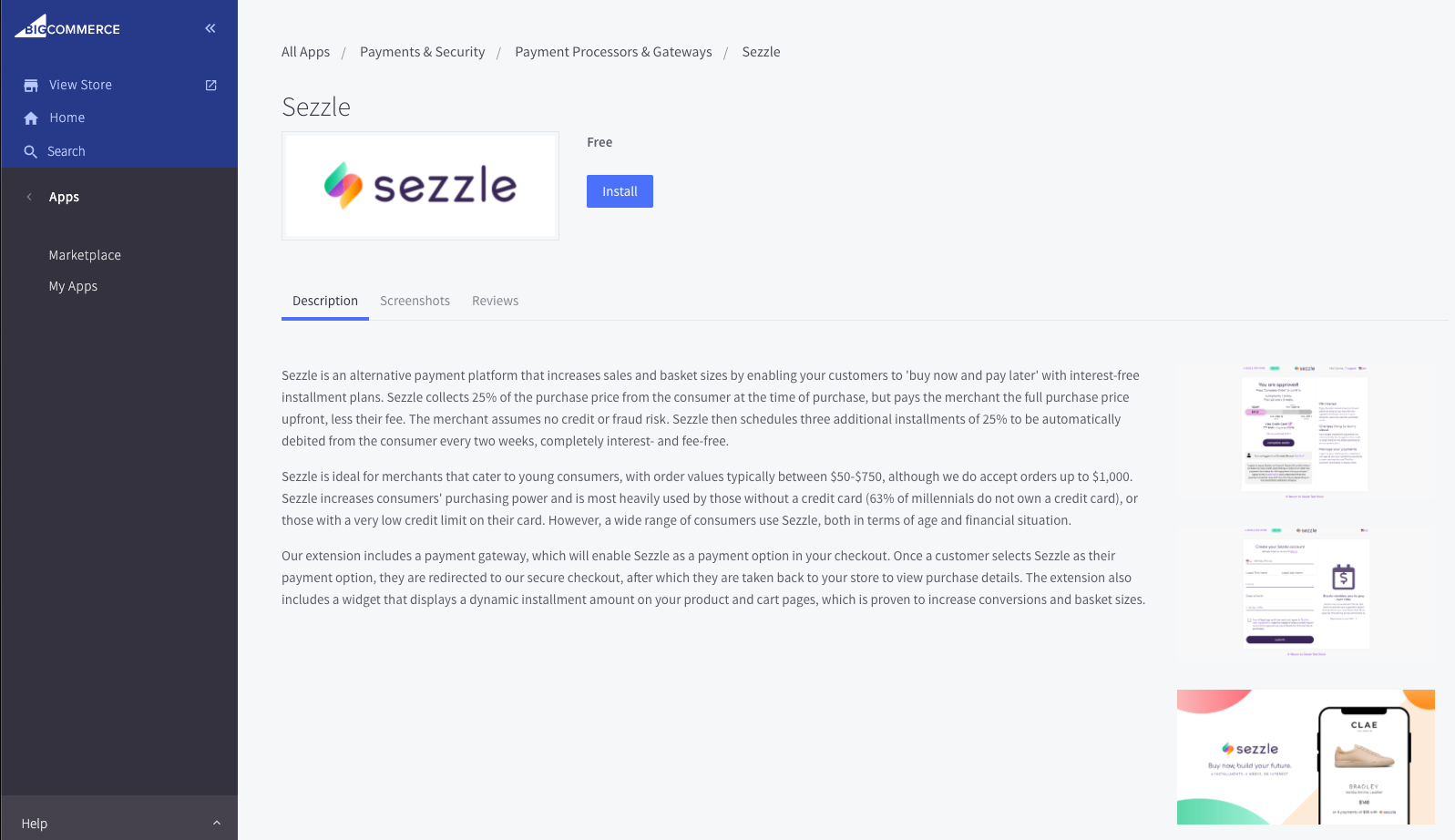
6. Click `Install`
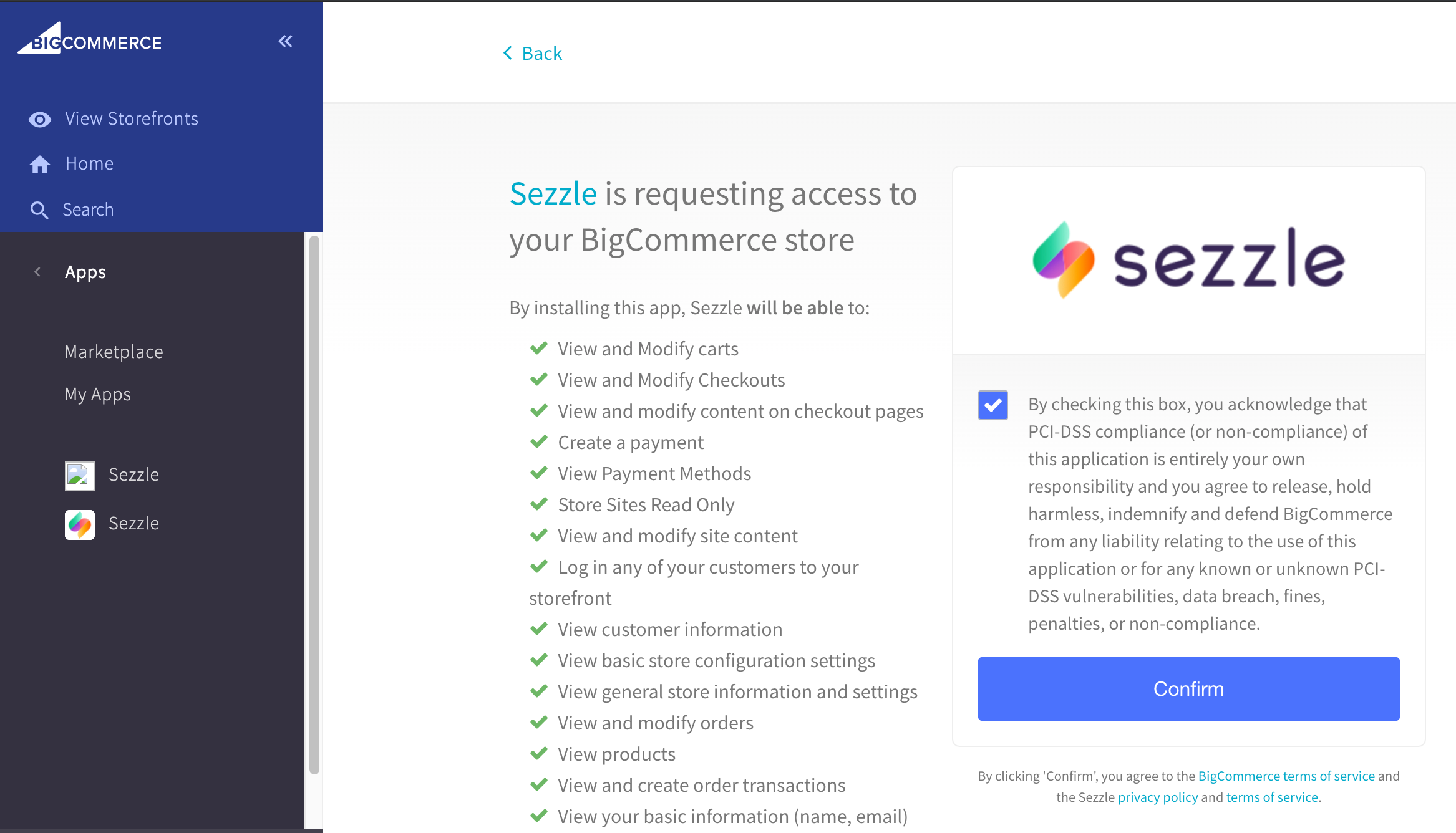
7. Check the PCI Compliance box, then click `Confirm` to start the installation
### On-Site Messaging Widget
1. Make sure you have the Sezzle App installed in your store
2. Go to `Apps` > `Sezzle`
3. Copy your Merchant ID from your [Sezzle Merchant Dashboard](https://dashboard.sezzle.com/merchant/)
* Paste them into the corresponding fields in the Sezzle App of your BigCommerce admin
4. Check the Add Sezzle Widget Script box
* This will inject the widget script into the product and cart pages of your store
5. Save the configuration
* After saving if you don't see the widget in PDP, contact [merchantsupport@sezzle.com](mailto:merchantsupport@sezzle.com).
### Validate
Step through a [test checkout](/docs/api/test-cards#checkout-testing) to validate the integration is properly installed.
### Troubleshooting
If testing was unsuccessful, review the following:
1. Site has Optimized One-Page Checkout enabled
* Go to `Advanced Settings` > `Checkout`
2. API Keys were entered correctly
* To avoid typos or extra spaces, use the Copy icon in the [Sezzle Merchant Dashboard](https://dashboard.sezzle.com/merchant/settings/apikeys)
3. If you have multiple accounts with Sezzle, each store has its own merchant ID and API Keys that are tied to the store's URL
4. Add Sezzle Widget Script box is checked
5. Widget script is present on your website and reflects the Merchant ID from your [Sezzle Merchant Dashboard](https://dashboard.sezzle.com/merchant/settings/business)
* Go to a product page on your website
* Right-click then select `Inspect`
* In the `Elements` tab, search for `widget.sezzle`
### Manual Theme Integration
If the Sezzle App fails to maintain the widget script on the product pages, or to add the script manually for additional pages, complete the following steps:
1. Go to `Storefront` > `Script Manager`
2. Click the `Create a Script` button
3. Set `Name of script` to `Sezzle Widget`
4. Set `Location on page` to `Footer`
5. Set `Select pages` where script will be added to `All pages`
6. Set `Script category` to `Essential`
7. Set `Script type` to `Script`
8. In the Script content area, copy and paste the script, then click `Save`
The script to be inserted into your webpage is as follows:
#### Template
```javascript theme={"system"}
```
Update `{sezzle_merchant_uuid}` in the above script template with your
site’s Merchant ID (removing the curly brackets), which can be found in the
[Sezzle Merchant
Dashboard](https://dashboard.sezzle.com/merchant/settings/business).
#### Example
```javascript theme={"system"}
```
Instructions may vary slightly depending on your active plug-ins. If the issue persists after completing the above steps, look for other available features that allow the addition of a custom HTML code snippet to the site footer. If no such feature is found, the below steps may be followed as a last resort:
1. Go to `Storefront` > `My Themes`
2. In your Current Theme, click `Advanced` then select `Edit Theme Files`
3. In the confirmation window, click `Edit Theme Files`
4. In the file list, go to `templates` > `pages`, then select `product.html`
5. Copy and paste the script into the very bottom of the file, then click `Save` and `Apply Files`
6. Repeat the previous step for the `cart.html` file
For any kind of assistance, reach out to
[**merchantsupport@sezzle.com**](mailto:merchantsupport@sezzle.com).
### Uninstall Steps
1. Go to `Apps` > `My Apps`
2. Under the Sezzle App, click `Uninstall`
3. Toggle the button against Sezzle under `Store Setup` > `Payments` > `Online Payment Methods` to disable Sezzle as a payment option
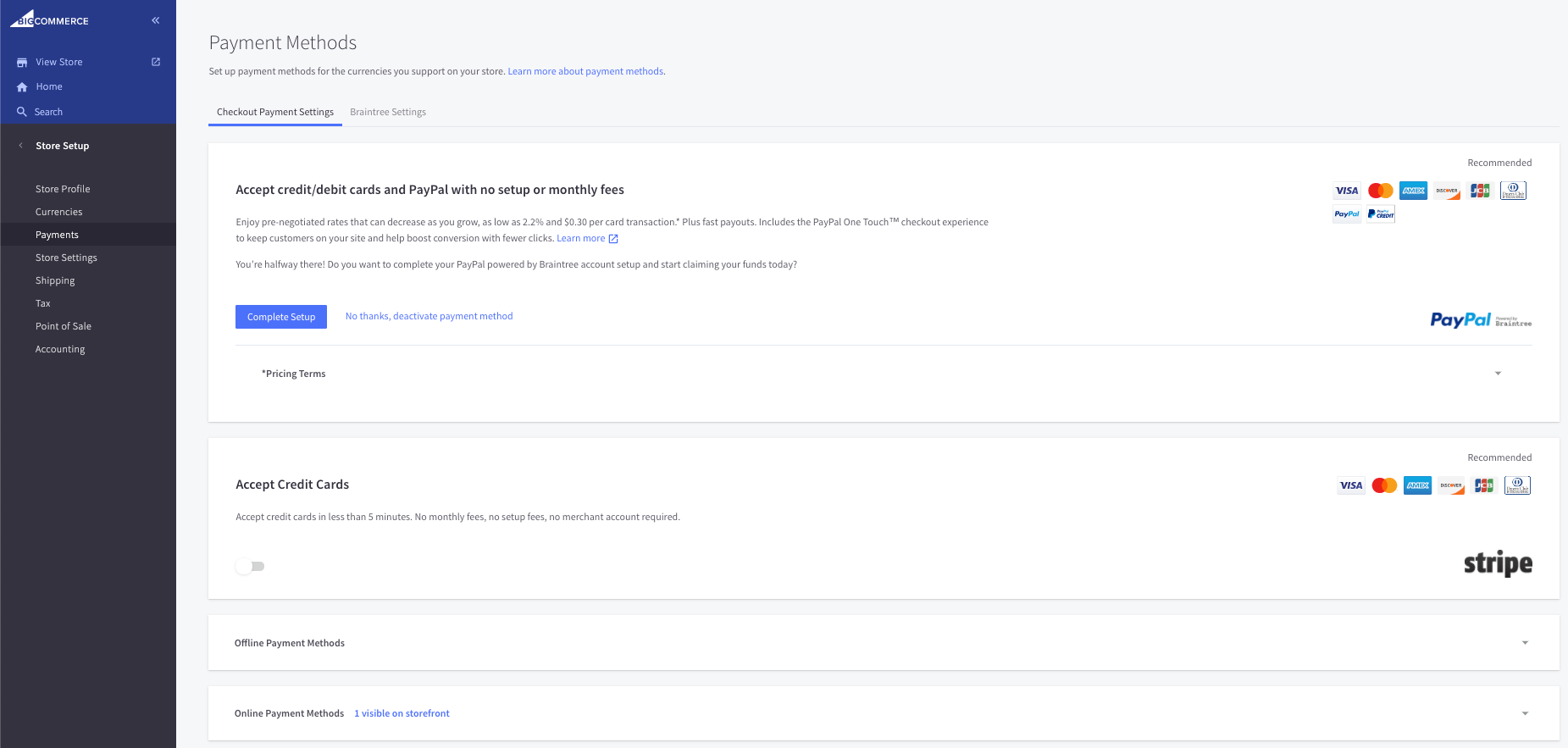 2. Go to `Online Payment Methods`, find `Sezzle` and click `Set up`
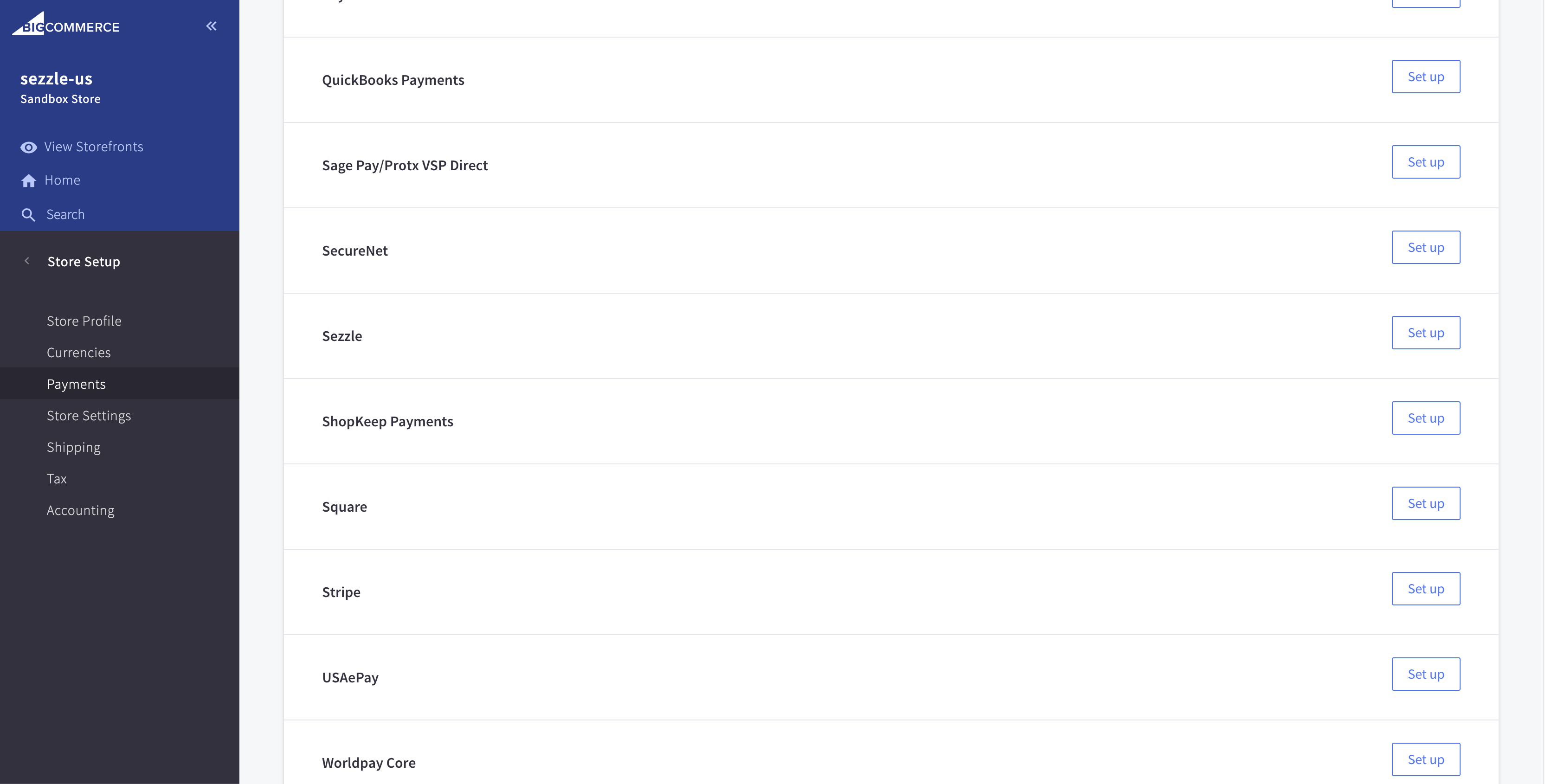 3. Copy your Public Key and Private Key from your [Sezzle Merchant Dashboard](https://dashboard.sezzle.com/merchant/)
* Paste them into the corresponding fields
4. Select the `Transaction Type`
3. Copy your Public Key and Private Key from your [Sezzle Merchant Dashboard](https://dashboard.sezzle.com/merchant/)
* Paste them into the corresponding fields
4. Select the `Transaction Type`
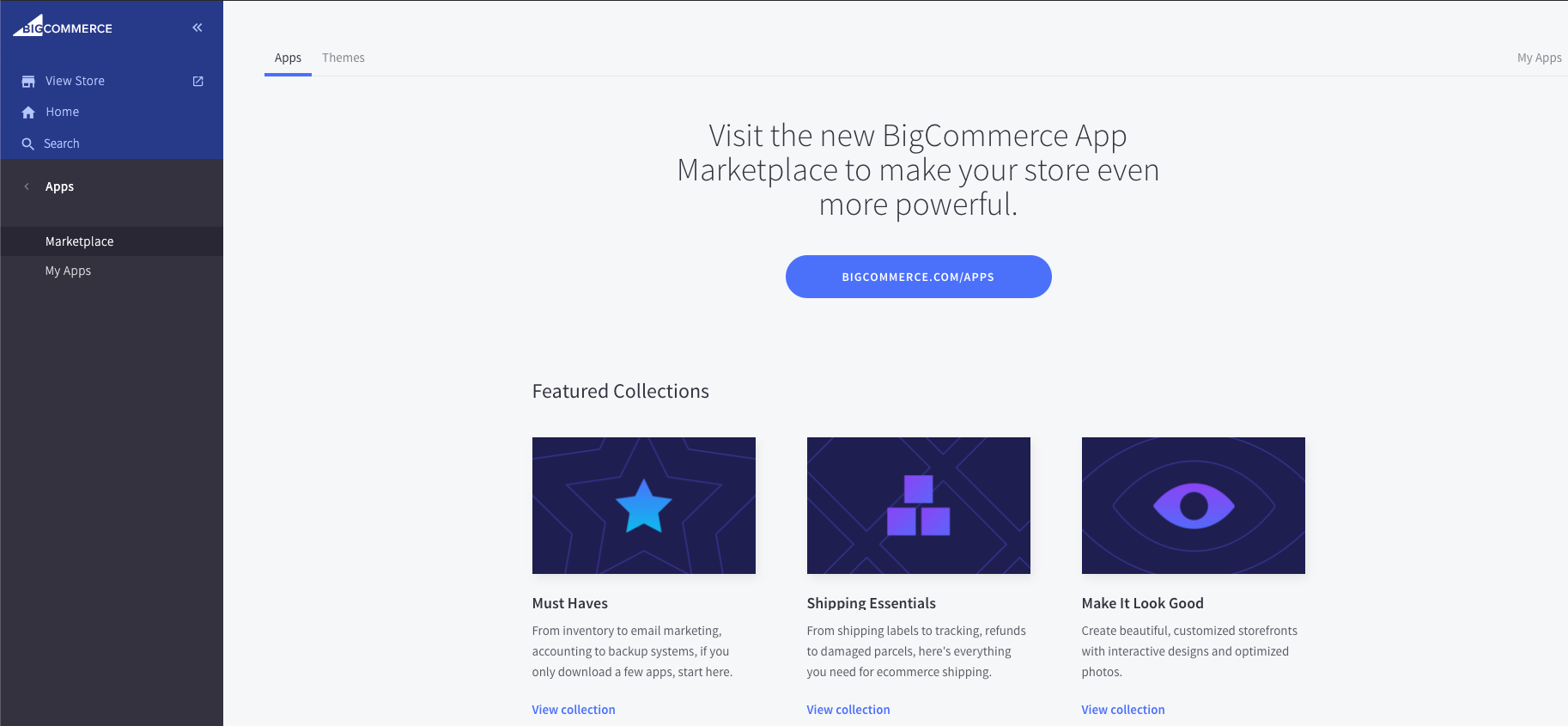 4. Search for `Sezzle`
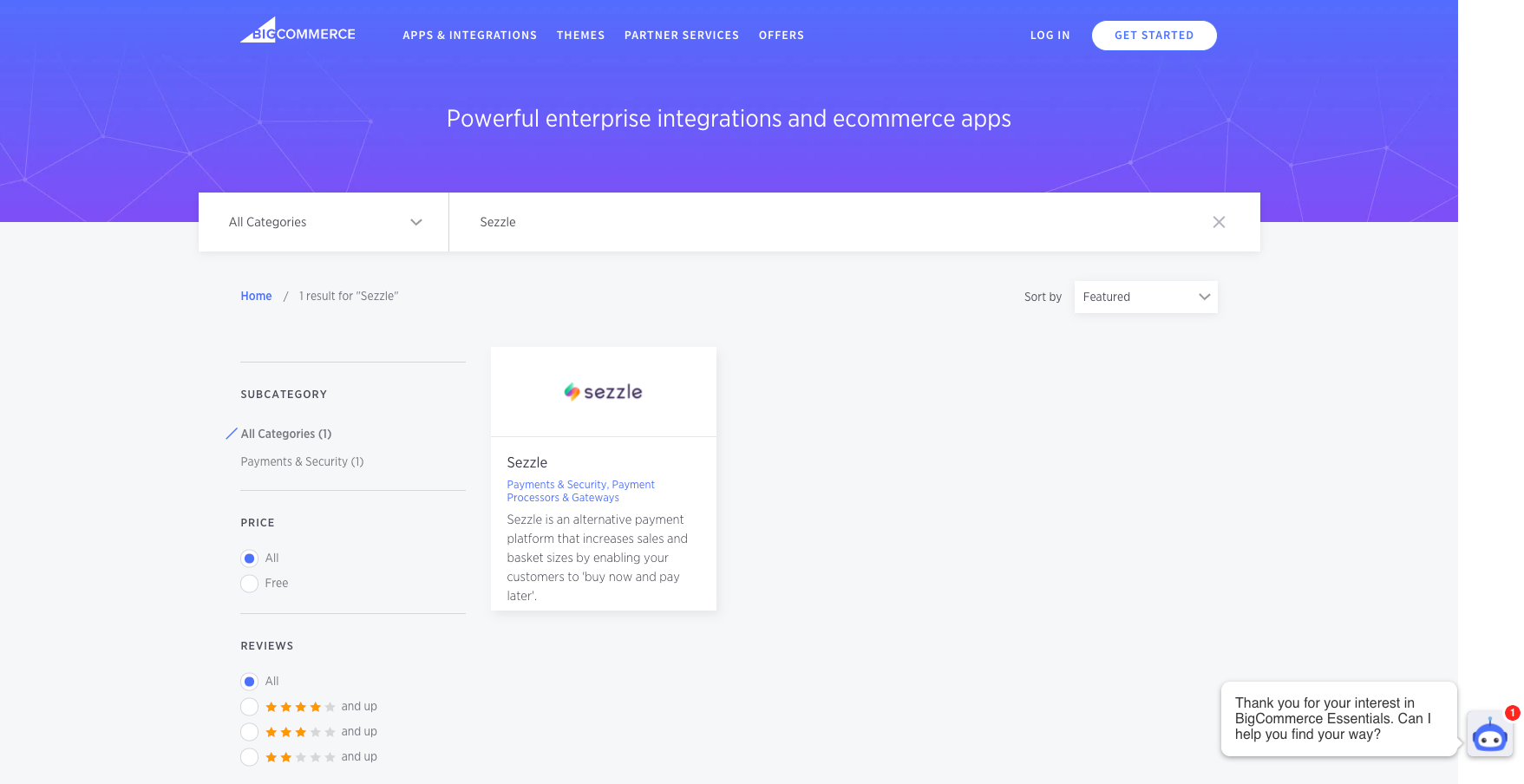 5. Click `Sezzle`, then click `Get This App`
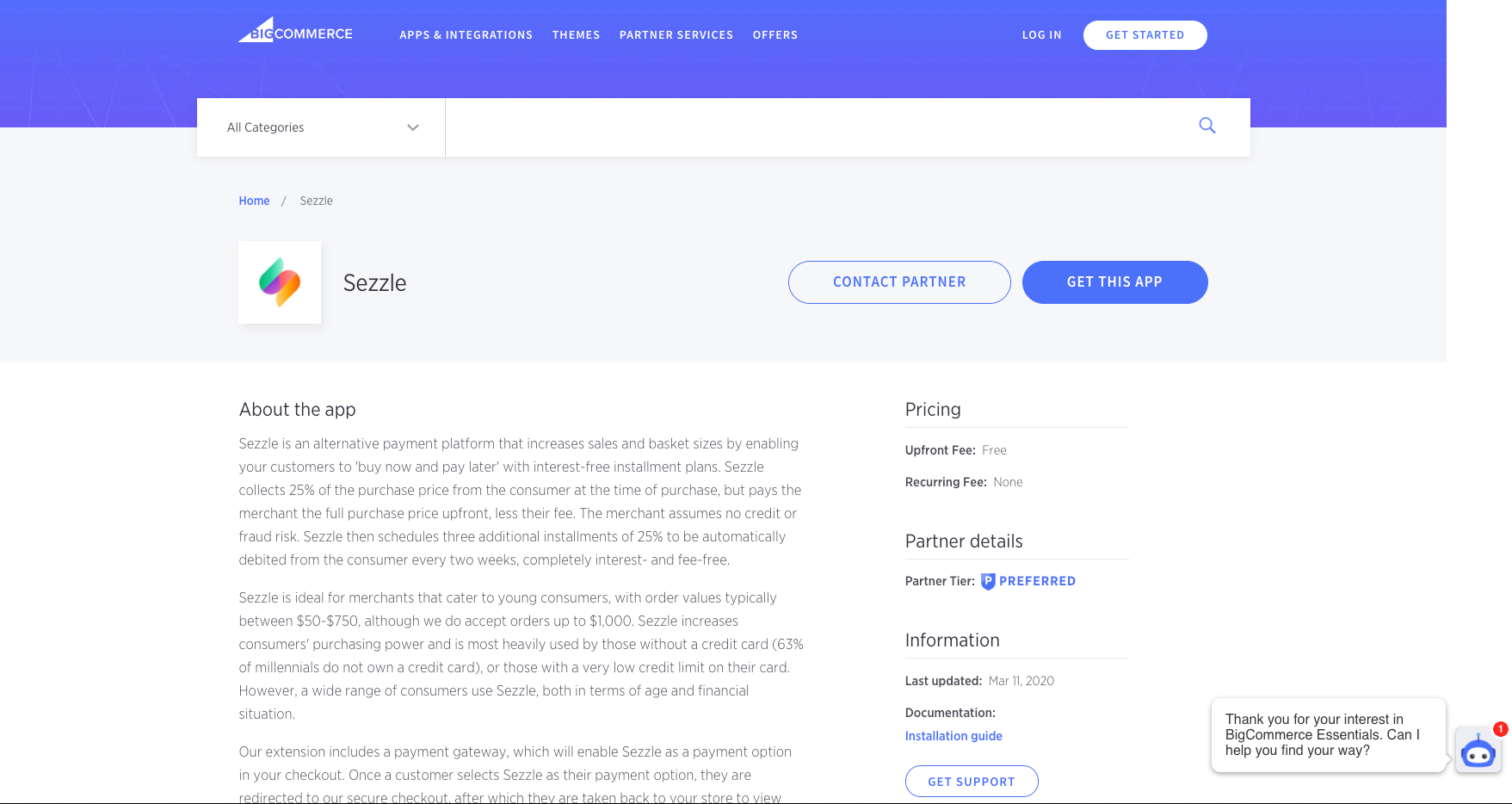 6. Click `Install`
 7. Check the PCI Compliance box, then click `Confirm` to start the installation
 ### On-Site Messaging Widget
1. Make sure you have the Sezzle App installed in your store
2. Go to `Apps` > `Sezzle`
3. Copy your Merchant ID from your [Sezzle Merchant Dashboard](https://dashboard.sezzle.com/merchant/)
* Paste them into the corresponding fields in the Sezzle App of your BigCommerce admin
4. Check the Add Sezzle Widget Script box
* This will inject the widget script into the product and cart pages of your store
5. Save the configuration
* After saving if you don't see the widget in PDP, contact [merchantsupport@sezzle.com](mailto:merchantsupport@sezzle.com).
### Validate
Step through a [test checkout](/docs/api/test-cards#checkout-testing) to validate the integration is properly installed.
### Troubleshooting
If testing was unsuccessful, review the following:
1. Site has Optimized One-Page Checkout enabled
* Go to `Advanced Settings` > `Checkout`
2. API Keys were entered correctly
* To avoid typos or extra spaces, use the Copy icon in the [Sezzle Merchant Dashboard](https://dashboard.sezzle.com/merchant/settings/apikeys)
3. If you have multiple accounts with Sezzle, each store has its own merchant ID and API Keys that are tied to the store's URL
4. Add Sezzle Widget Script box is checked
5. Widget script is present on your website and reflects the Merchant ID from your [Sezzle Merchant Dashboard](https://dashboard.sezzle.com/merchant/settings/business)
* Go to a product page on your website
* Right-click then select `Inspect`
* In the `Elements` tab, search for `widget.sezzle`
### Manual Theme Integration
If the Sezzle App fails to maintain the widget script on the product pages, or to add the script manually for additional pages, complete the following steps:
1. Go to `Storefront` > `Script Manager`
2. Click the `Create a Script` button
3. Set `Name of script` to `Sezzle Widget`
4. Set `Location on page` to `Footer`
5. Set `Select pages` where script will be added to `All pages`
6. Set `Script category` to `Essential`
7. Set `Script type` to `Script`
8. In the Script content area, copy and paste the script, then click `Save`
The script to be inserted into your webpage is as follows:
#### Template
```javascript theme={"system"}
```
### On-Site Messaging Widget
1. Make sure you have the Sezzle App installed in your store
2. Go to `Apps` > `Sezzle`
3. Copy your Merchant ID from your [Sezzle Merchant Dashboard](https://dashboard.sezzle.com/merchant/)
* Paste them into the corresponding fields in the Sezzle App of your BigCommerce admin
4. Check the Add Sezzle Widget Script box
* This will inject the widget script into the product and cart pages of your store
5. Save the configuration
* After saving if you don't see the widget in PDP, contact [merchantsupport@sezzle.com](mailto:merchantsupport@sezzle.com).
### Validate
Step through a [test checkout](/docs/api/test-cards#checkout-testing) to validate the integration is properly installed.
### Troubleshooting
If testing was unsuccessful, review the following:
1. Site has Optimized One-Page Checkout enabled
* Go to `Advanced Settings` > `Checkout`
2. API Keys were entered correctly
* To avoid typos or extra spaces, use the Copy icon in the [Sezzle Merchant Dashboard](https://dashboard.sezzle.com/merchant/settings/apikeys)
3. If you have multiple accounts with Sezzle, each store has its own merchant ID and API Keys that are tied to the store's URL
4. Add Sezzle Widget Script box is checked
5. Widget script is present on your website and reflects the Merchant ID from your [Sezzle Merchant Dashboard](https://dashboard.sezzle.com/merchant/settings/business)
* Go to a product page on your website
* Right-click then select `Inspect`
* In the `Elements` tab, search for `widget.sezzle`
### Manual Theme Integration
If the Sezzle App fails to maintain the widget script on the product pages, or to add the script manually for additional pages, complete the following steps:
1. Go to `Storefront` > `Script Manager`
2. Click the `Create a Script` button
3. Set `Name of script` to `Sezzle Widget`
4. Set `Location on page` to `Footer`
5. Set `Select pages` where script will be added to `All pages`
6. Set `Script category` to `Essential`
7. Set `Script type` to `Script`
8. In the Script content area, copy and paste the script, then click `Save`
The script to be inserted into your webpage is as follows:
#### Template
```javascript theme={"system"}
```
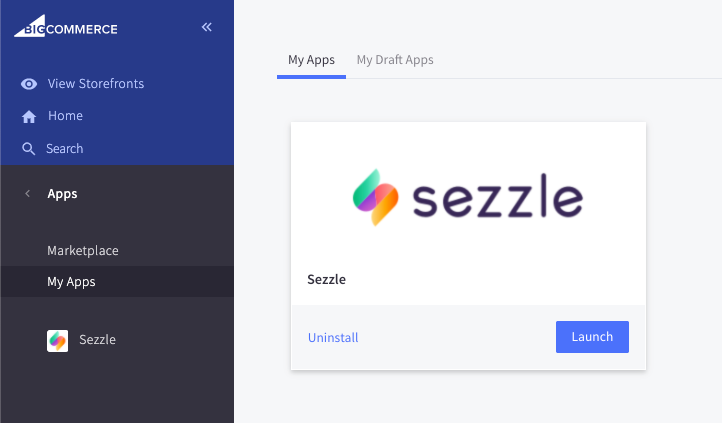 3. Toggle the button against Sezzle under `Store Setup` > `Payments` > `Online Payment Methods` to disable Sezzle as a payment option