> ## Documentation Index
> Fetch the complete documentation index at: https://docs.sezzle.com/llms.txt
> Use this file to discover all available pages before exploring further.
# Lightspeed
This guide explains how to add Sezzle as a payment option on your Lightspeed website, enabling customers to use Sezzle at checkout.
Sezzle's Lightspeed App is certified and available [here](https://www.lightspeedhq.com/ecommerce/store/apps/sezzle/) in the App Store.
The app is built for C-Series - to install Sezzle on E-Series, please contact Lightspeed Support.
### Install the Sezzle Lightspeed App
1. Log in to your Lightspeed back office
2. Navigate to `Apps` > `App Store`
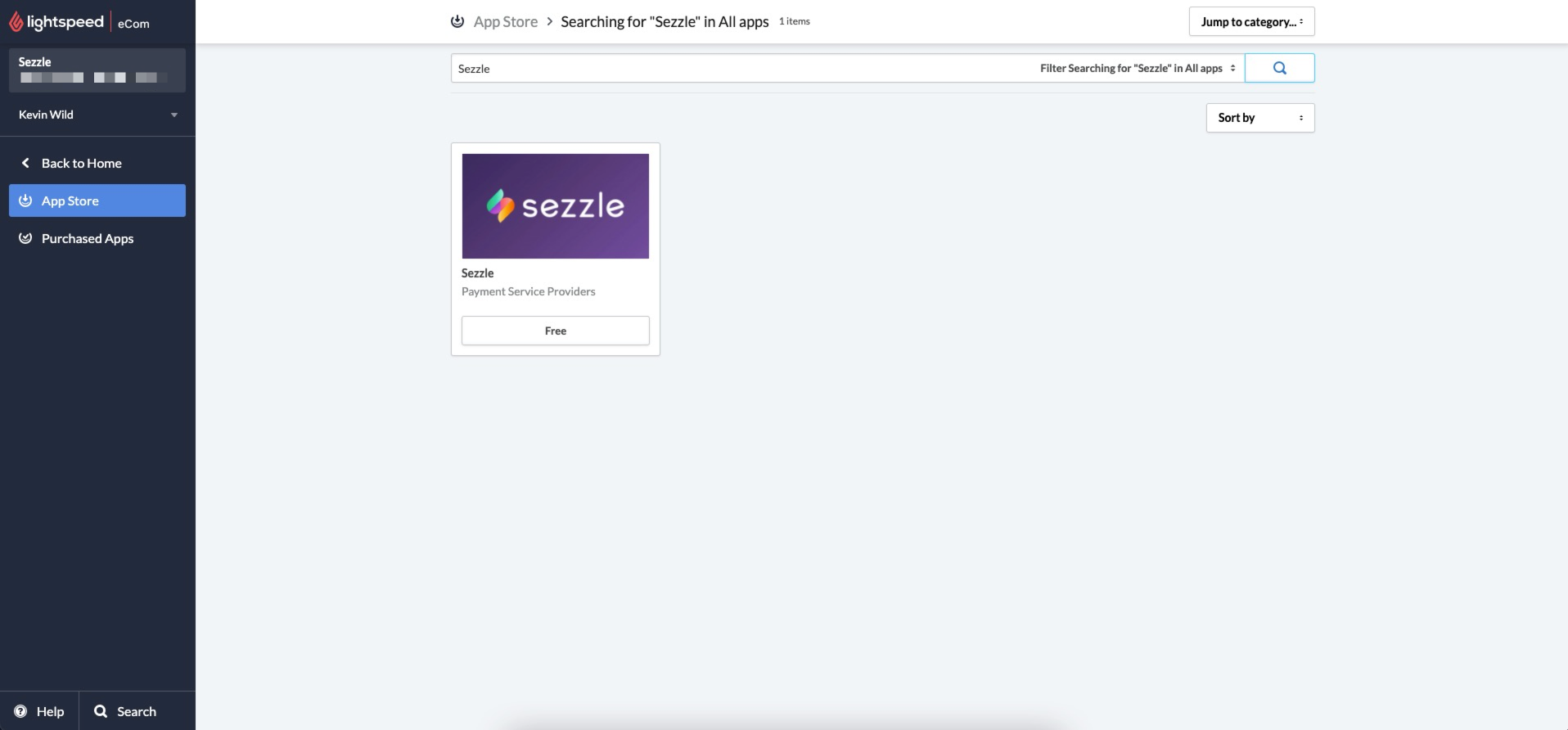
3. Search for `Sezzle` in the search bar and click on the Sezzle app
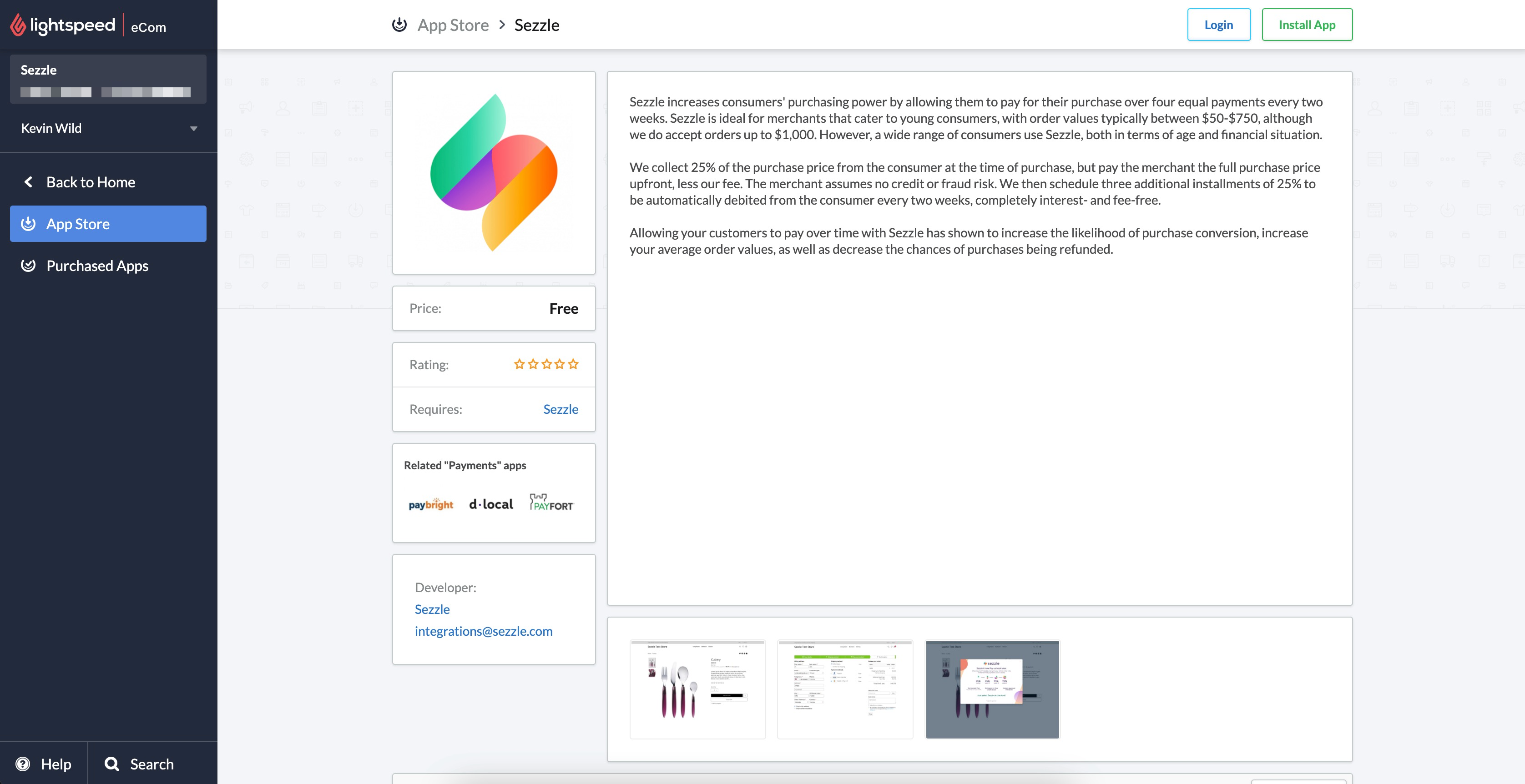
 4. Click `Install App` in the top right corner
 5. On successful install, you will be redirected to Sezzle App
 ### Configure Sezzle
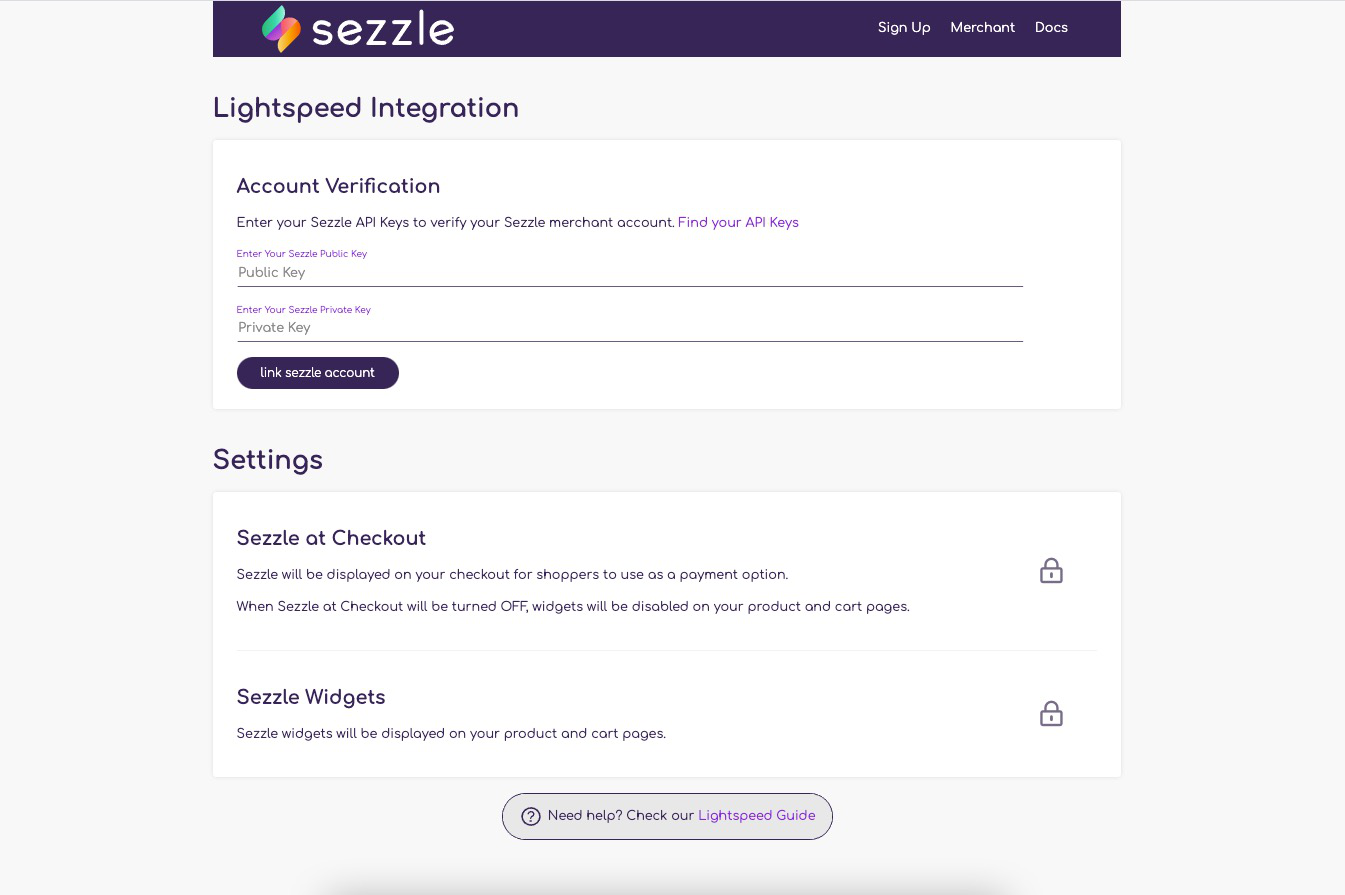
1. Navigate to the Sezzle App by clicking on `Go to App` located at `Apps` > `Purchased Apps` > `Sezzle`
2. Copy your Public Key and Private Key from your [Sezzle Merchant Dashboard](https://dashboard.sezzle.com/merchant/settings/apikeys)
* Paste them into the corresponding fields
3. Click on `link sezzle account` to link your Sezzle account with your Lightspeed store
The message `Account successfully linked` is displayed when the account is verified
### Settings
Toggle the `Sezzle at Checkout` checkbox to enable (`On`) or disable (`Off`) Sezzle as a payment option in the checkout page.
### Configure Sezzle
1. Navigate to the Sezzle App by clicking on `Go to App` located at `Apps` > `Purchased Apps` > `Sezzle`
2. Copy your Public Key and Private Key from your [Sezzle Merchant Dashboard](https://dashboard.sezzle.com/merchant/settings/apikeys)
* Paste them into the corresponding fields
3. Click on `link sezzle account` to link your Sezzle account with your Lightspeed store
The message `Account successfully linked` is displayed when the account is verified
### Settings
Toggle the `Sezzle at Checkout` checkbox to enable (`On`) or disable (`Off`) Sezzle as a payment option in the checkout page.
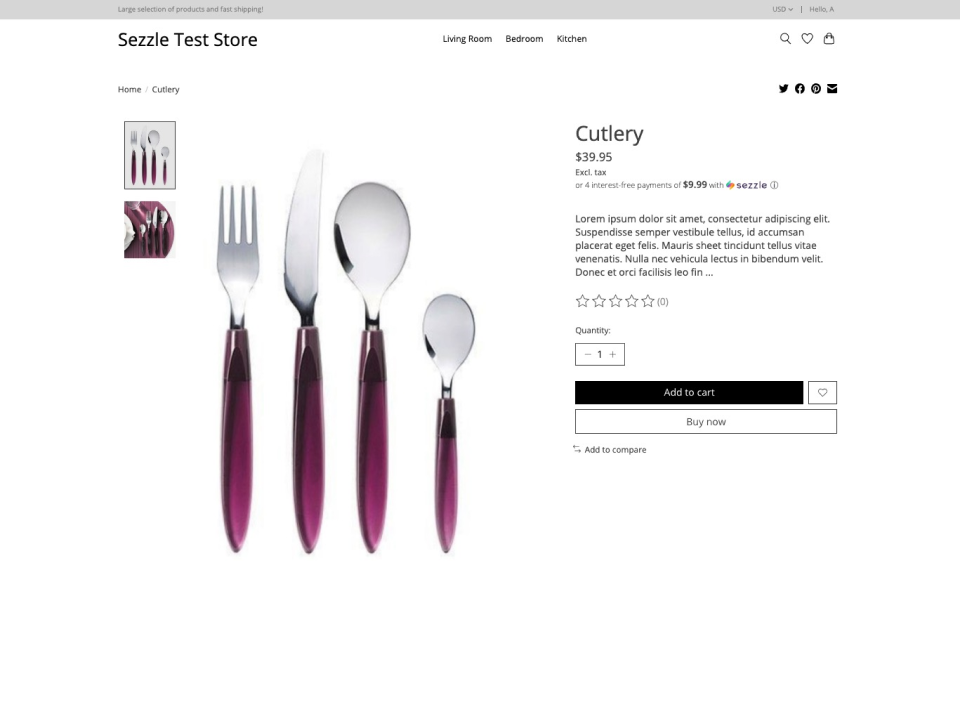
 Toggle the `Sezzle Widgets` checkbox to enable (`On`) or disable (`Off`) Sezzle on-site messaging widget in the PDP and Cart pages.
 ### Payment Refund
1. In your Lightspeed back office, go to `Orders` > `Orders`
2. Select the order to be refunded
3. Click `Add Credit Invoice`
4. Select the item and enter the quantity
5. Ensure that `Status` `=` `Not Paid`
6. Click `Add`
7. Cancelling a Paid order will also refund the payments for the Paid Invoices
**On Successful Refund**
* An invoice with the status of `Not Paid` will be created in the `Orders > Invoices` section.
* The Order Status will be displayed as `Refunded` in your Sezzle Merchant Dashboard.
### Validate
A Lightspeed test store must be used for Sandbox testing.
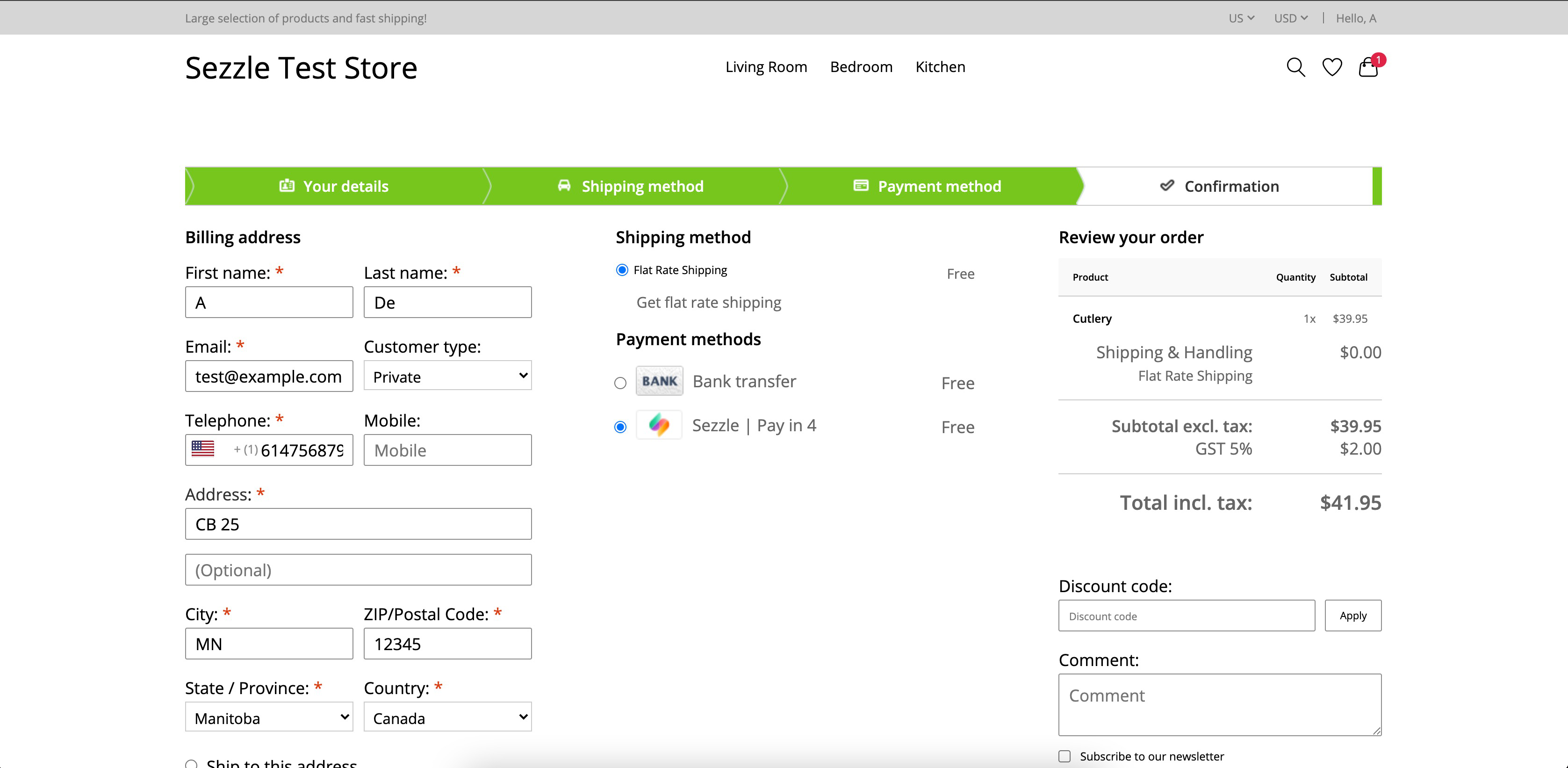
Step through a [test checkout](/docs/api/test-cards#checkout-testing) to validate the integration is properly installed.
### Payment Refund
1. In your Lightspeed back office, go to `Orders` > `Orders`
2. Select the order to be refunded
3. Click `Add Credit Invoice`
4. Select the item and enter the quantity
5. Ensure that `Status` `=` `Not Paid`
6. Click `Add`
7. Cancelling a Paid order will also refund the payments for the Paid Invoices
**On Successful Refund**
* An invoice with the status of `Not Paid` will be created in the `Orders > Invoices` section.
* The Order Status will be displayed as `Refunded` in your Sezzle Merchant Dashboard.
### Validate
A Lightspeed test store must be used for Sandbox testing.
Step through a [test checkout](/docs/api/test-cards#checkout-testing) to validate the integration is properly installed.