> ## Documentation Index
> Fetch the complete documentation index at: https://docs.sezzle.com/llms.txt
> Use this file to discover all available pages before exploring further.
# Mojo
This guide explains how to add Sezzle as a payment option on your Mojo website, enabling customers to use Sezzle at checkout.
### Add Payment Method
1. Log into your Mojo admin account and navigate to the Integrations tab
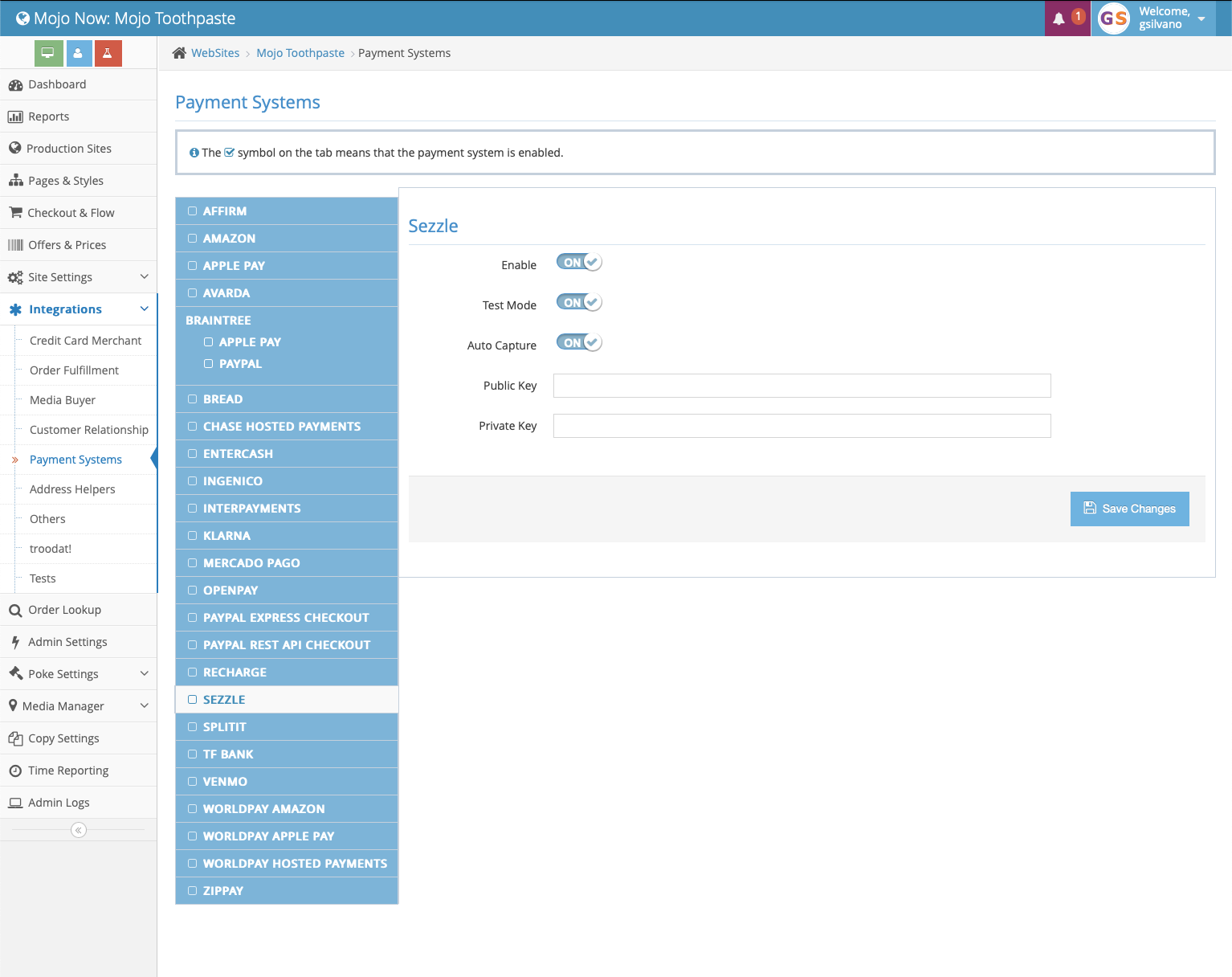
2. Select `Payment Systems` in the dropdown menu and click on `Sezzle` in the next window
3. Toggle `Enable` to `ON`
4. Toggle `Test Mode` to `OFF` unless you are testing your integration in Sandbox
5. Enter your Sezzle Public and Private Key within the appropriate fields
 6. Ensure consistency between your webpage offers and payment options upon final checkout
* Navigate to your Site Settings to enable or disable those features that you want enabled with Sezzle
The `Hide pay-over-time solutions` switch will be automatically hidden for those customers that choose the multi-pay order option.
7. Once satisfied with your transaction flow, click the blue `Save Changes` button
* Mojo will use customer tokenization for upsells
* See [customer tokenization](http://localhost:3000/docs/api/tokenization/intro) or contact Mojo for more information
### Validate
Step through a [test checkout](/docs/api/test-cards#checkout-testing) to validate the integration is properly installed.
6. Ensure consistency between your webpage offers and payment options upon final checkout
* Navigate to your Site Settings to enable or disable those features that you want enabled with Sezzle
The `Hide pay-over-time solutions` switch will be automatically hidden for those customers that choose the multi-pay order option.
7. Once satisfied with your transaction flow, click the blue `Save Changes` button
* Mojo will use customer tokenization for upsells
* See [customer tokenization](http://localhost:3000/docs/api/tokenization/intro) or contact Mojo for more information
### Validate
Step through a [test checkout](/docs/api/test-cards#checkout-testing) to validate the integration is properly installed.