> ## Documentation Index
> Fetch the complete documentation index at: https://docs.sezzle.com/llms.txt
> Use this file to discover all available pages before exploring further.
# NopCommerce
This guide explains how to add Sezzle as a payment option on your NopCommerce website, enabling customers to use Sezzle at checkout.
### Install the Sezzle NopCommerce Extension
Go to [https://www.nopcommerce.com/sezzle](https://www.nopcommerce.com/sezzle) and click`Get Extension`.
### Admin Configuration
1. Go to `Configuration` > `Local Plugins`
2. Click `Upload Plugin or Theme` and select the downloaded zipped file per the instructions given
3. After the extension has been uploaded, click `Install`
4. Under `Configuration`, go to `Payment Methods` and then click `Configure` under `Sezzle`
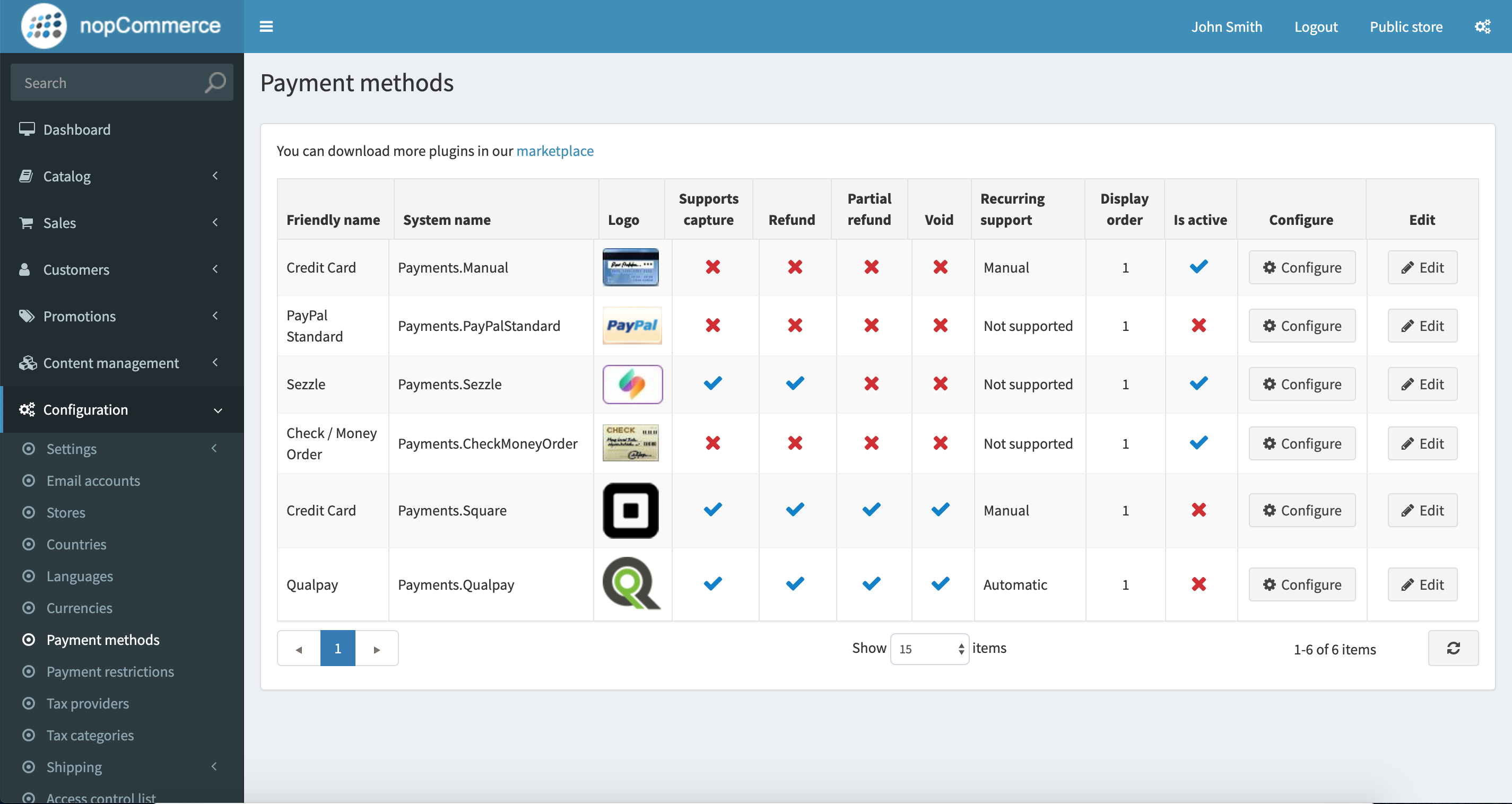 5. Click `Edit` from the Payment Method list
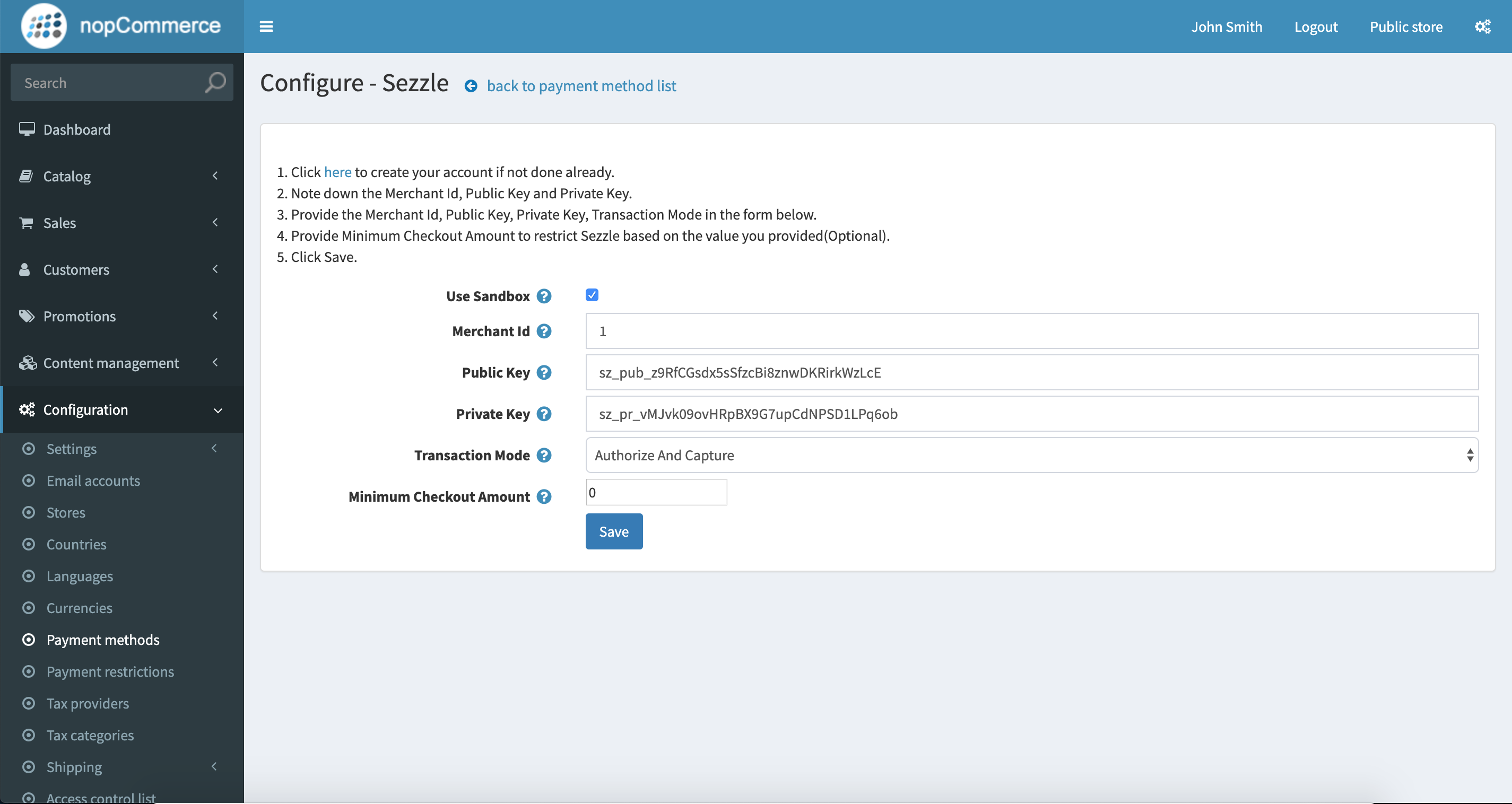
6. Copy your Merchant ID from your [Sezzle Merchant Dashboard](https://dashboard.sezzle.com/merchant/settings/business)
* Paste it into the corresponding field in the Sezzle configuration page of your NopCommerce admin
7. Copy your Public Key and Private Key from your [Sezzle Merchant Dashboard](https://dashboard.sezzle.com/merchant/settings/business)
* Paste it into the corresponding field in the Sezzle configuration page of your NopCommerce admin
8. Set `Transaction Mode` to either `Authorize` or `Authorize and Capture`
See [Authorize Only vs Authorize and Capture](/docs/guides/auth-and-capture) for details about the difference between the two choices.
9. Save the configuration
5. Click `Edit` from the Payment Method list
6. Copy your Merchant ID from your [Sezzle Merchant Dashboard](https://dashboard.sezzle.com/merchant/settings/business)
* Paste it into the corresponding field in the Sezzle configuration page of your NopCommerce admin
7. Copy your Public Key and Private Key from your [Sezzle Merchant Dashboard](https://dashboard.sezzle.com/merchant/settings/business)
* Paste it into the corresponding field in the Sezzle configuration page of your NopCommerce admin
8. Set `Transaction Mode` to either `Authorize` or `Authorize and Capture`
See [Authorize Only vs Authorize and Capture](/docs/guides/auth-and-capture) for details about the difference between the two choices.
9. Save the configuration
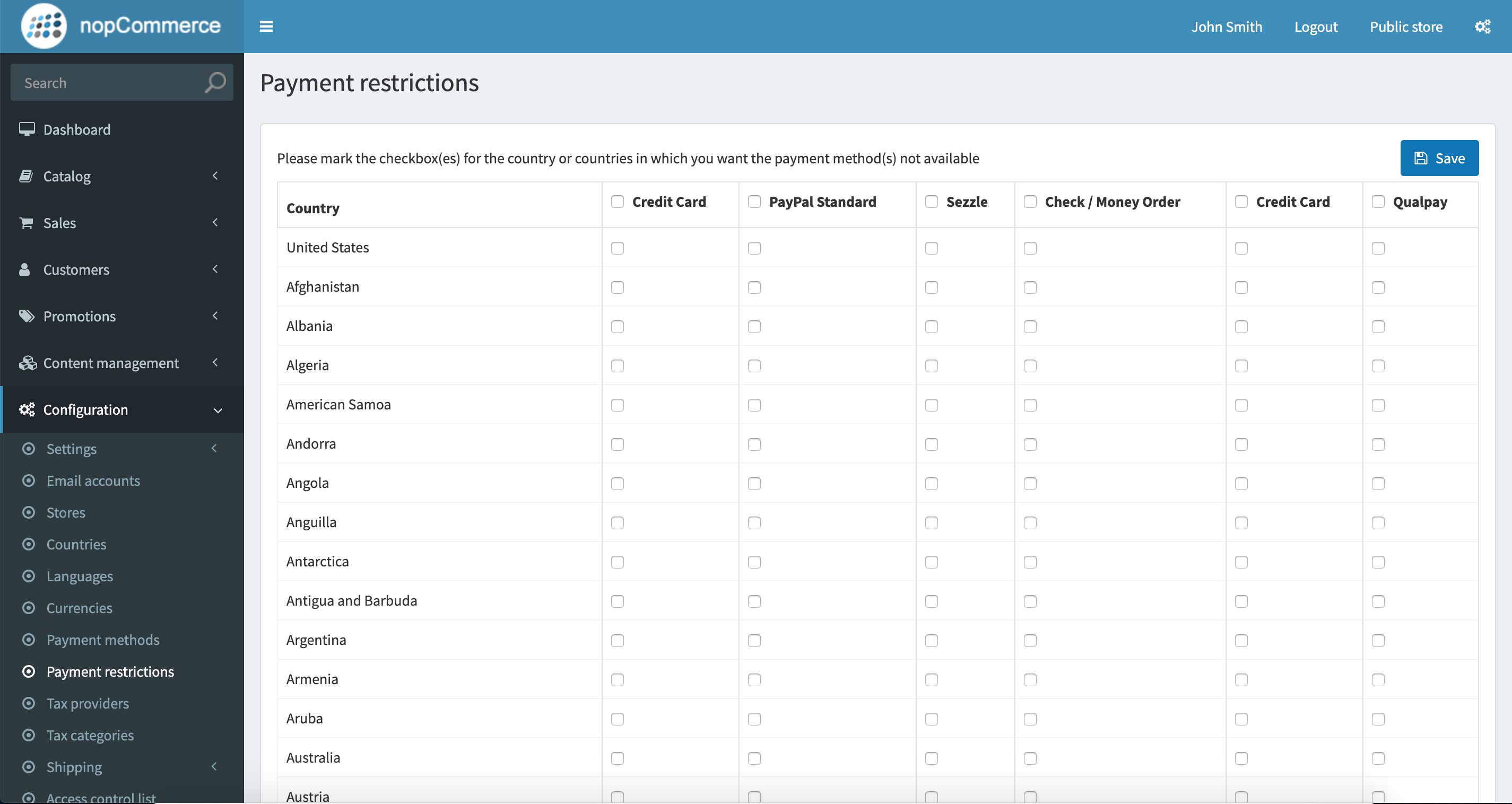
 10. To restrict Sezzle usage based on billing country, go to `Configuration` > `Payment Restrictions`
11. Choose the country you want to restrict for Sezzle
Sezzle is currently available for customers from `The United States` and `Canada`.
You may wish to restrict all countries where Sezzle is not available.
10. To restrict Sezzle usage based on billing country, go to `Configuration` > `Payment Restrictions`
11. Choose the country you want to restrict for Sezzle
Sezzle is currently available for customers from `The United States` and `Canada`.
You may wish to restrict all countries where Sezzle is not available.
 12. Integration is complete
### Validate
Step through a [test checkout](/docs/api/test-cards#checkout-testing) to validate the integration is properly installed.
12. Integration is complete
### Validate
Step through a [test checkout](/docs/api/test-cards#checkout-testing) to validate the integration is properly installed.