> ## Documentation Index
> Fetch the complete documentation index at: https://docs.sezzle.com/llms.txt
> Use this file to discover all available pages before exploring further.
# Prestashop
The Sezzle module for PrestaShop can be [downloaded from GitHub](https://github.com/sezzle/sezzle-prestashop).
1. Click `<> Code`
2. Select `Download ZIP`
3. Open the downloaded zip file, rename the unpacked folder to `sezzle`, then re-zip it
The main folder inside the zip file must be named `sezzle` for the module upload to be accepted by Prestashop - simply renaming the zip file will not work.
### Installation
1. In your PrestaShop back office, go to `Modules` > `Module Manager`
2. Select `Upload a module`, then select the .zip file that you downloaded on your computer
3. Go to `Payment` > `Payment methods`
4. Find `Sezzle`, and select `Enable Module`
* The plugin is now ready to be configured
To learn how to install the plugin after you've downloaded it, watch the official [PrestaShop video tutorial](https://www.youtube.com/watch?v=nG3VSMQ593s)
### Configuration
1. In your PrestaShop back office, go to `Modules` > `Module Manager`
2. In the `Payment` section, find `Sezzle` and select `Configure`
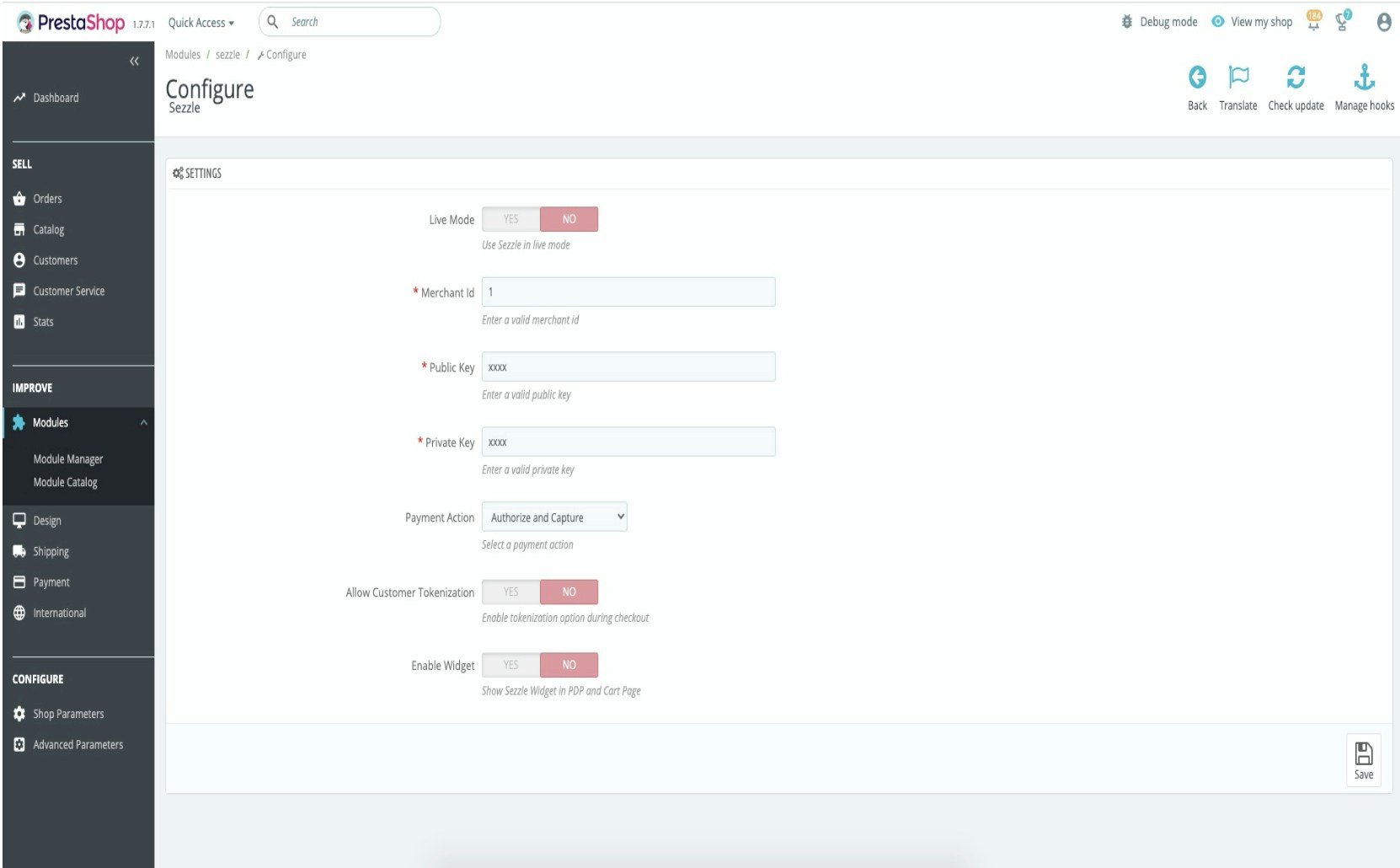
* Fill out the following fields:
| Field | Value |
| :-------------------------- | :------------------------------------------------------------------------------------------------------------------------------------------------------------------------------------------------------------------------------------------------------------------------------------------------------------------ |
| Live Mode | Enable or Disable for testing |
| Merchant ID | Merchant ID that you got from [Merchant Dashboard](https://dashboard.sezzle.com/merchant/settings/business) |
| Public Key | Public Key that you got from [Merchant Dashboard](https://dashboard.sezzle.com/merchant/settings/apikeys) |
| Private Key | Private Key that you got from [Merchant Dashboard](https://dashboard.sezzle.com/merchant/settings/apikeys) |
| Payment Action | `Authorize and Capture` for instant capture and `Authorize Only` for just authorization (needs to be captured manually from backoffice) See [Authorize Only vs Authorize and Capture](/docs/guides/auth-and-capture) for details about the difference between the two choices |
| Allow Customer Tokenization | Enable to offer returning shoppers a faster checkout experience by saving their card details |
| Enable Widget | Enable for showing Sezzle on-site messaging widget in PDP and Cart Page |
After saving if you don't see the widget in PDP, contact [merchantsupport@sezzle.com](mailto:merchantsupport@sezzle.com).
 ### Payment Capture
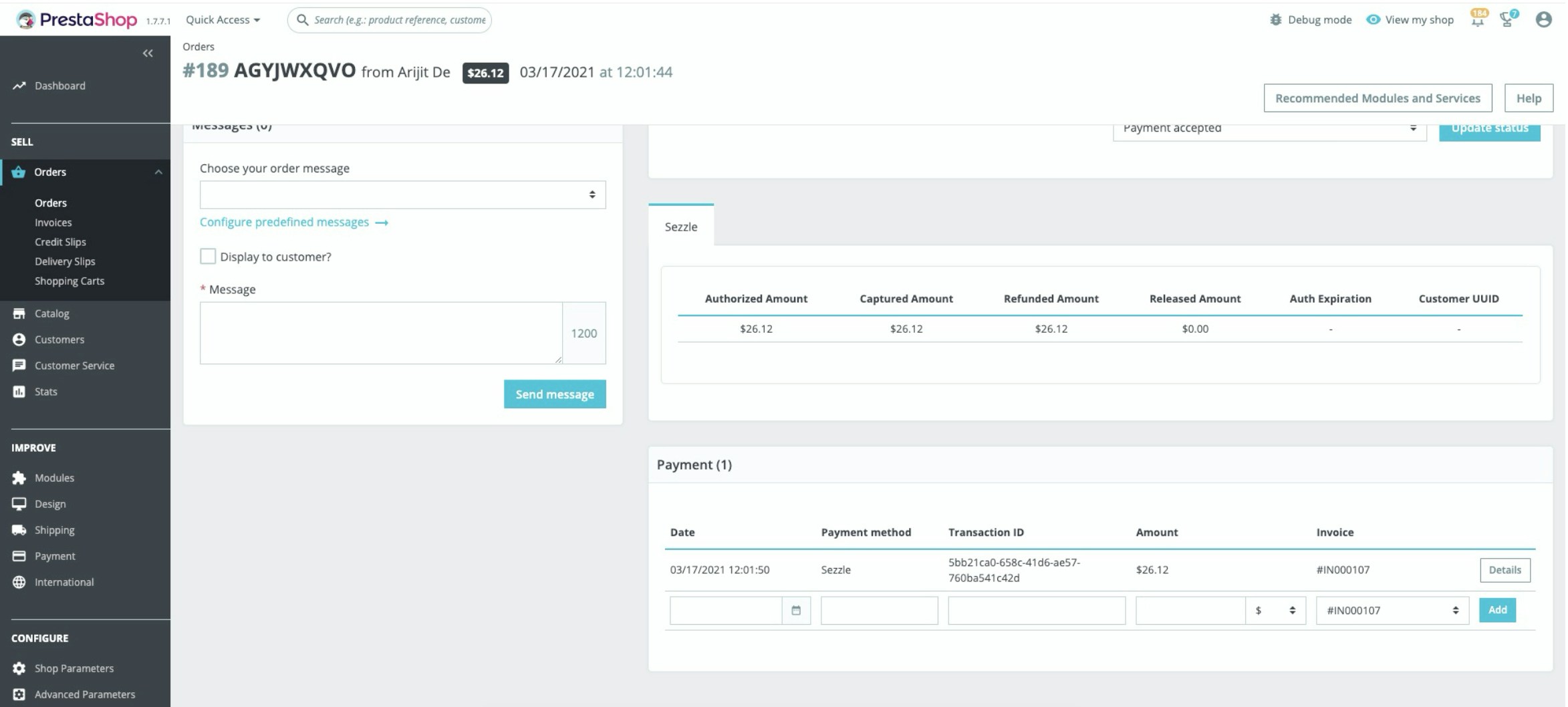
* Payment will automatically be captured during the checkout process.
1. 1. In your Opencart backoffice, go to `Orders` > `Orders`
2. 2. Select the order for which you want to capture the payment
3. 3. In the `Payment` section right below, enter the below information and click `Add`
4. * Date
5. * Payment method
6. * Amount
7. 4. Change the `Order Status` to `Payment Accepted` if capture is successful
### Payment Capture
* Payment will automatically be captured during the checkout process.
1. 1. In your Opencart backoffice, go to `Orders` > `Orders`
2. 2. Select the order for which you want to capture the payment
3. 3. In the `Payment` section right below, enter the below information and click `Add`
4. * Date
5. * Payment method
6. * Amount
7. 4. Change the `Order Status` to `Payment Accepted` if capture is successful
 ### Payment Refund
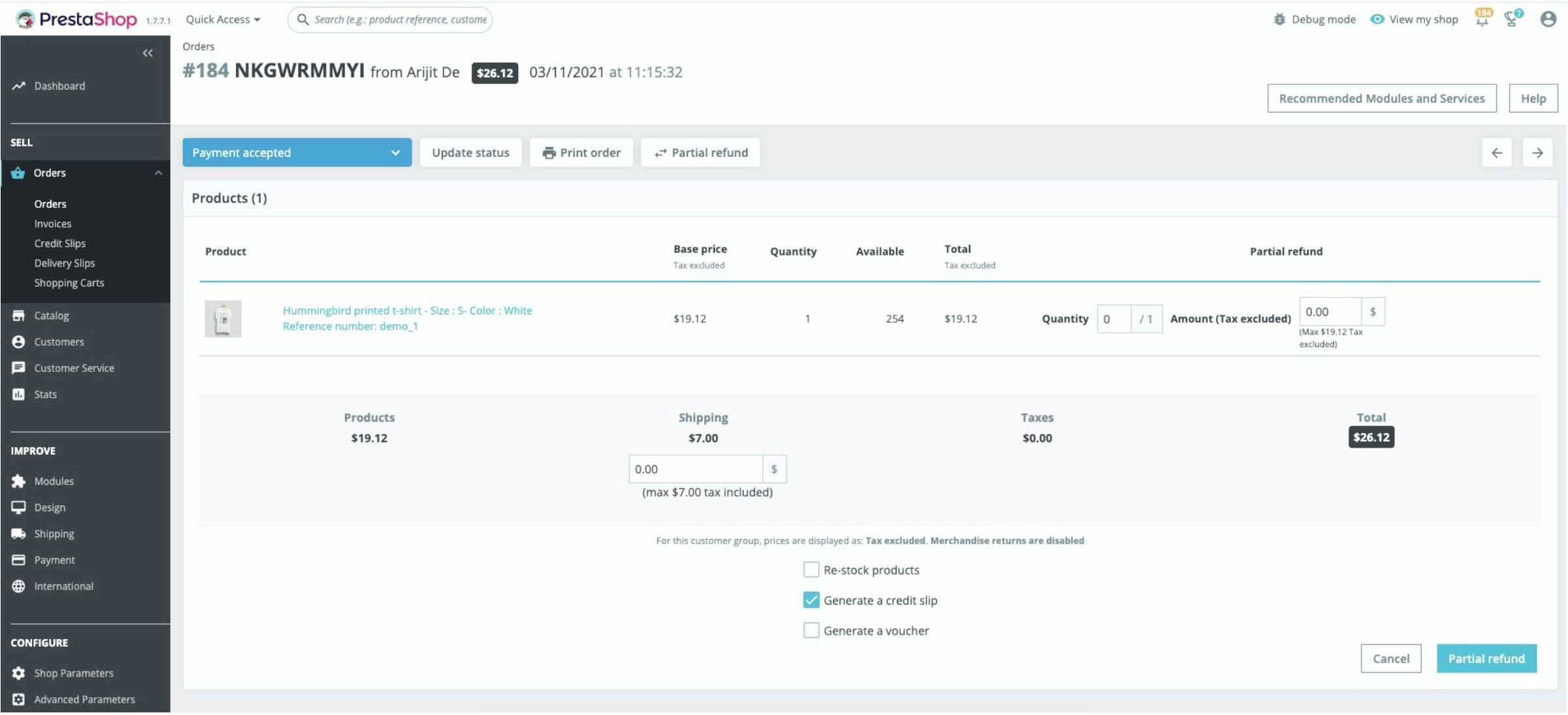
1. In your PrestaShop backoffice, go to Orders > Orders
2. Select the order for which you want to refund the payment
3. Click on Partial Refund, enter the amount and click on Partial Refund right below
4. For Full Refund, you have to fill up all the order related amounts in respective places
5. Change the Order Status to Refunded only if full refund is successful
### Payment Refund
1. In your PrestaShop backoffice, go to Orders > Orders
2. Select the order for which you want to refund the payment
3. Click on Partial Refund, enter the amount and click on Partial Refund right below
4. For Full Refund, you have to fill up all the order related amounts in respective places
5. Change the Order Status to Refunded only if full refund is successful
 ### Payment Release
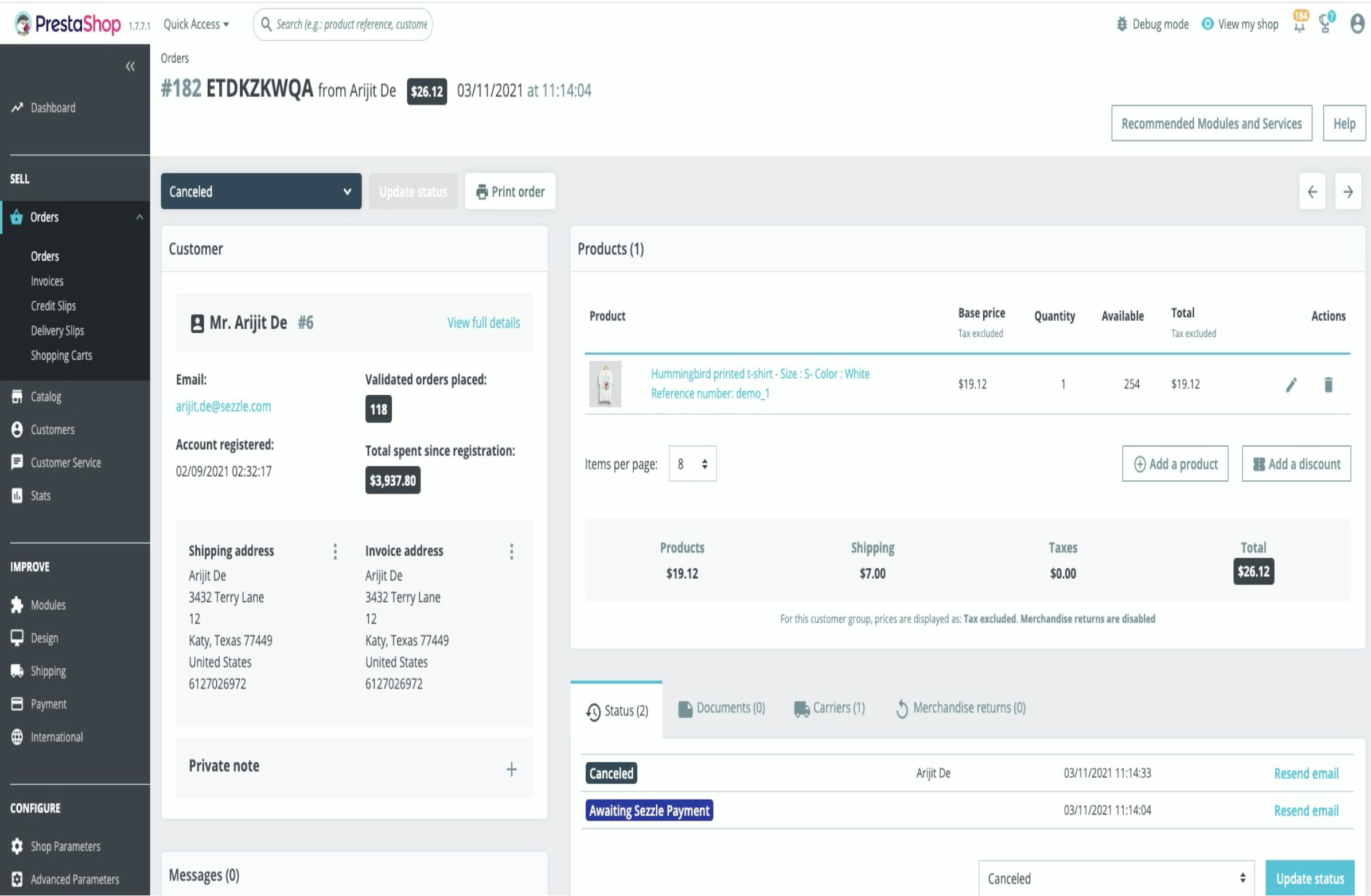
1. In your PrestaShop backoffice, go to `Orders` > `Orders`
2. Select the order for which you want to refund the payment
3. Change the `Order status` to `Cancelled` and click `Update Status`
### Payment Release
1. In your PrestaShop backoffice, go to `Orders` > `Orders`
2. Select the order for which you want to refund the payment
3. Change the `Order status` to `Cancelled` and click `Update Status`
 ### Upgrading the module
If you have an existing Sezzle PrestaShop module installed and want to upgrade a new version, proceed as follows:
1. Uninstall the existing Sezzle module
2. In the Upgrade drop-down menu select `Uninstall`
Manually remove the `/sezzle` folder from the `/modules` folder (if not removed during uninstall action)
3. [Install](https://docs.sezzle.com/docs/plugins/prestashop#installation) the latest plugin version
4. [Configure](https://docs.sezzle.com/docs/plugins/prestashop#configuration) the latest plugin version
### Reinstallation
When you reinstall the plugin, the plugin takes care of most of its configurations and functions except for the items listed below. We recommend that you follow the steps here to make sure that when you reinstall the plugin, it won't pick up settings from a previous installation.
**Order status**
* The plugin keeps the `Awaiting Sezzle Payment` order status because existing orders might still use them. If you would also like to remove these statuses, first make sure that these are no longer in use.
* To check if the status is in use:
1. Go to the `Orders` page in your Prestashop admin panel
2. Filter the orders for the `Awaiting Sezzle Payment` order status
3. If there are any, move them to another status that you would like to use
* When there are no more orders using this status, you can delete the status from your order status list
**Configurations**
The plugin keeps the `AWAITING_SEZZLE_PAYMENT` configuration fields in your database in case there are still orders in your system with the corresponding statuses. If you have already removed the status, you can also remove these leftover configurations.
### Upgrading the module
If you have an existing Sezzle PrestaShop module installed and want to upgrade a new version, proceed as follows:
1. Uninstall the existing Sezzle module
2. In the Upgrade drop-down menu select `Uninstall`
Manually remove the `/sezzle` folder from the `/modules` folder (if not removed during uninstall action)
3. [Install](https://docs.sezzle.com/docs/plugins/prestashop#installation) the latest plugin version
4. [Configure](https://docs.sezzle.com/docs/plugins/prestashop#configuration) the latest plugin version
### Reinstallation
When you reinstall the plugin, the plugin takes care of most of its configurations and functions except for the items listed below. We recommend that you follow the steps here to make sure that when you reinstall the plugin, it won't pick up settings from a previous installation.
**Order status**
* The plugin keeps the `Awaiting Sezzle Payment` order status because existing orders might still use them. If you would also like to remove these statuses, first make sure that these are no longer in use.
* To check if the status is in use:
1. Go to the `Orders` page in your Prestashop admin panel
2. Filter the orders for the `Awaiting Sezzle Payment` order status
3. If there are any, move them to another status that you would like to use
* When there are no more orders using this status, you can delete the status from your order status list
**Configurations**
The plugin keeps the `AWAITING_SEZZLE_PAYMENT` configuration fields in your database in case there are still orders in your system with the corresponding statuses. If you have already removed the status, you can also remove these leftover configurations.