> ## Documentation Index
> Fetch the complete documentation index at: https://docs.sezzle.com/llms.txt
> Use this file to discover all available pages before exploring further.
# Shopify Payments
This guide explains how to add Sezzle as a payment option on your Shopify website, enabling customers to use Sezzle at checkout.
### Install the Sezzle Payments App
1. Log in to your website's Shopify admin
2. Install the [Sezzle Payments app](https://apps.shopify.com/sezzle-payments)
1. Go to `Settings` > `Payments`
2. Under `Additional Payment Methods`, click `Add Payment Method`
3. Search for `Sezzle`
4. Click the result in the dropdown, then click `Sezzle Payments`
5. Click `Manage Account`
6. Click `Install`
3. Enter your production Sezzle public and private API keys
* For most merchants, we are able to pre-fill the public and private API keys based on the Shopify store
* If we cannot uniquely identify the merchant based on the Shopify store, you will be required to fill in the keys
4. Click `Save` to verify your Sezzle account
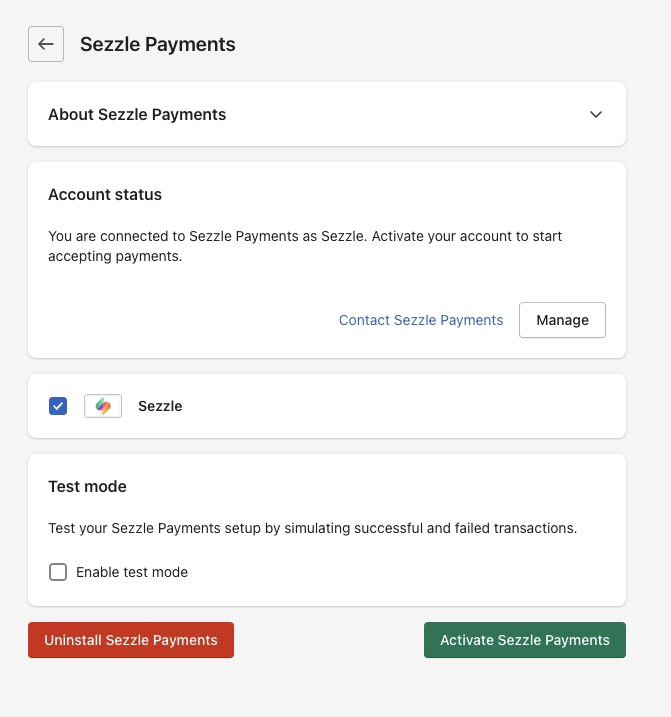
* You will be redirected to the payment settings page, where you will need to activate Sezzle Payments for your store
5. Click `Activate`
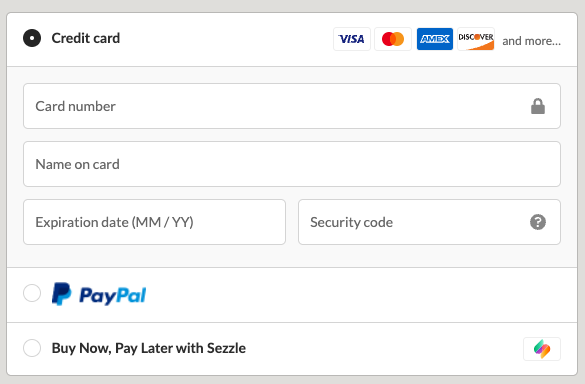
6. Verify Sezzle is available as a payment method for your store
You should see `Sezzle Payments` installed in your `Settings` > `Payments`
Without activating Sezzle Payments, Sezzle will not appear in the checkout, and the installation process is not complete. Verify this step has been completed.
### Validate
For Sandbox testing, do this step first
1. Navigate to `Settings` > `Payments` > `Sezzle Payments`
2. Click `Manage`, check `Enable test mode`, and click `Save`
3. Click the `Manage` button in Sezzle Payments, enter your sandbox API keys in the test tab
4. Click `Update settings`
For Live testing, do this step first
1. In the Sezzle configuration page of your Shopify admin, enter the API keys from your [Sezzle Merchant Dashboard](https://dashboard.sezzle.com/merchant/settings/apikeys)
2. Uncheck the `Enable Test Mode` checkbox
3. Save the configuration
Step through a [test checkout](/docs/api/test-cards#checkout-testing) to validate the integration is properly installed.
### Adding the Sezzle Tile to Accepted Payment Methods Footer
The Shopify "Accepted Payment Methods" footer widget does not support third-party payment apps by default. To show Sezzle in this section, follow the [instructions provided by Shopify](https://help.shopify.com/en/manual/online-store/themes/themes-by-shopify/vintage-themes/customizing-vintage-themes/add-credit-card-icons), adding `'sezzle'` to the list.
### Troubleshooting
If testing was unsuccessful, review the following:
**Sezzle Payments Shopify extension is the most updated version**
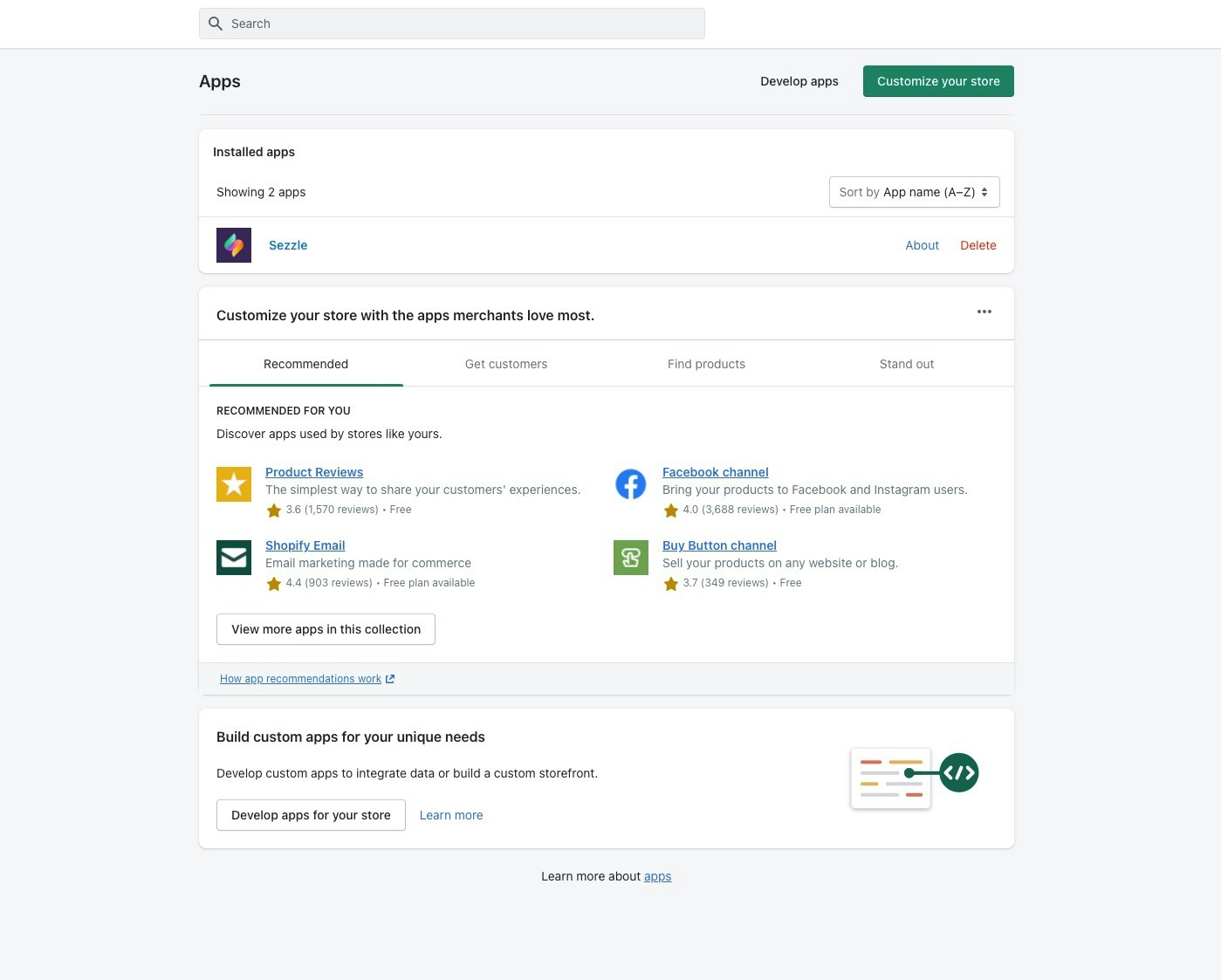
* Go to `Apps` > `Sezzle Payments`, then click `About`
* If there is an option to upgrade, do so now
**Sezzle gateway is activated**
* Go to `Settings` > `Payment Providers` and ensure "Sezzle is active" is listed under the `Alternative Payment Methods` section
**API keys were entered correctly**
* Use the Copy icon in the Sezzle Merchant Dashboard to avoid typos or extra spaces
* If you have multiple accounts with Sezzle, the merchant ID and API keys are tied to only one URL
### Uninstall the Sezzle Payments App
1. Go to `Apps`
2. Find `Sezzle Payments` and click `Delete`
### FAQs
Sezzle aligns with your Shopify `Payment Capture` settings. If set to `Manual`, you must manually capture payments for Sezzle orders. Authorization periods differ by merchant, so check the expiration in the Sezzle Merchant Dashboard under [Settings > eCommerce](https://dashboard.sezzle.com/merchant/settings/ecommerce) and adjust as needed.
Install using an incognito browser. Go to `https://your-store.myshopify.com/admin/settings/payments/alternative-providers/1057901`, replacing `your-store.myshopify.com` with your store’s URL. Log in and follow the steps to complete installation. For another store, close and start a new incognito session.
In Shopify, open the order and select `Information from the gateway`. The payment ID will match the Reference-ID in the Sezzle Merchant Dashboard.
You can also search Shopify Admin using `receipt.payment_id:`.
No, Sezzle lacks permissions to view or modify Shopify inventory, so this feature is not supported with the new payment app.
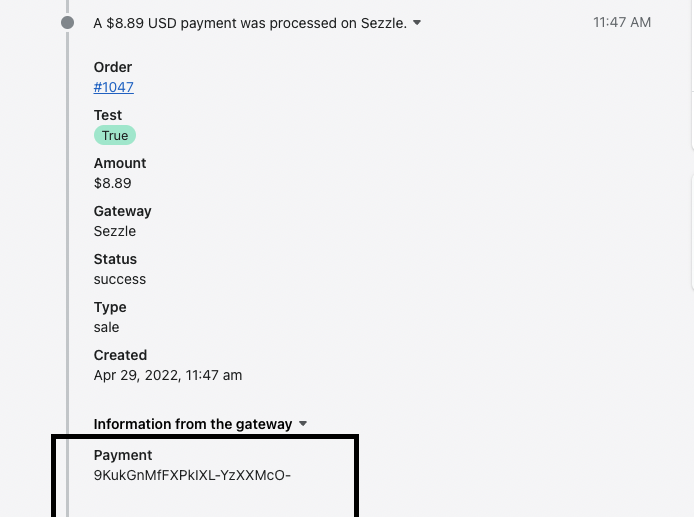
 You can also search Shopify Admin using `receipt.payment_id: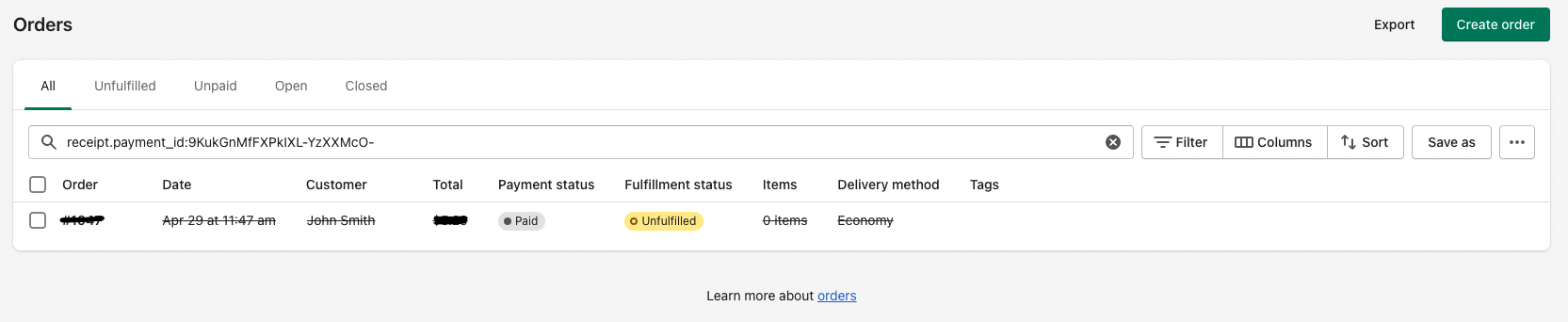
 ### Validate
For Sandbox testing, do this step first
1. Navigate to `Settings` > `Payments` > `Sezzle Payments`
2. Click `Manage`, check `Enable test mode`, and click `Save`
3. Click the `Manage` button in Sezzle Payments, enter your sandbox API keys in the test tab
4. Click `Update settings`
For Live testing, do this step first
1. In the Sezzle configuration page of your Shopify admin, enter the API keys from your [Sezzle Merchant Dashboard](https://dashboard.sezzle.com/merchant/settings/apikeys)
2. Uncheck the `Enable Test Mode` checkbox
3. Save the configuration
### Validate
For Sandbox testing, do this step first
1. Navigate to `Settings` > `Payments` > `Sezzle Payments`
2. Click `Manage`, check `Enable test mode`, and click `Save`
3. Click the `Manage` button in Sezzle Payments, enter your sandbox API keys in the test tab
4. Click `Update settings`
For Live testing, do this step first
1. In the Sezzle configuration page of your Shopify admin, enter the API keys from your [Sezzle Merchant Dashboard](https://dashboard.sezzle.com/merchant/settings/apikeys)
2. Uncheck the `Enable Test Mode` checkbox
3. Save the configuration
 ### FAQs