> ## Documentation Index
> Fetch the complete documentation index at: https://docs.sezzle.com/llms.txt
> Use this file to discover all available pages before exploring further.
# Shopify Widgets
Shopify has disabled the legacy `Sezzle` private/unpublished widget app. If you are currently using the `Sezzle` app, please update to the `Sezzle Widget` public app now.
## Purpose
Increase AOV and conversions by promoting Sezzle on your storefront. Easily install assets to product and cart pages with the Sezzle Widget app at no additional cost!
## Prerequisites
1. You should have a Sezzle merchant account
* Please visit our [signup page](https://dashboard.sezzle.com/merchant/signup) if you don't have an account
2. [Install and configure](https://docs.sezzle.com/docs/plugins/shopify-payments/) the Sezzle Payments App
## Getting Started
1. Log in to your website's Shopify admin
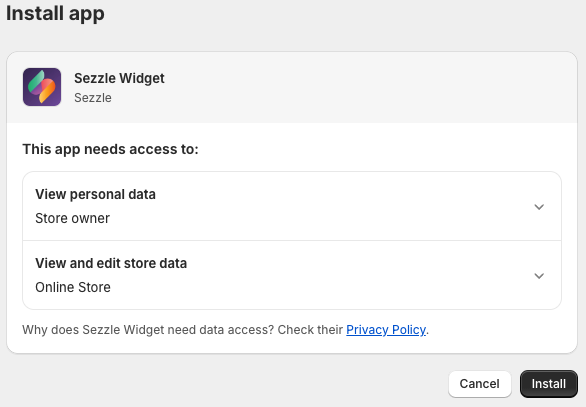
2. Install the [Sezzle Widget app](https://apps.shopify.com/sezzle-widget)
* Alternatively, click the `Get the Widgets App` button under the `Add Sezzle to your product and cart pages` step of the Sezzle Merchant Dashboard Setup Checklist
3. Click `Install`
4. Within the Sezzle Widget app, enter your Public API Key and click `Link Sezzle Account`
* For most merchants, we are able to pre-fill the public API key based on the Shopify store URL
* To enter the API key manually, copy from the API Keys page within the [Sezzle Merchant Dashboard Settings](https://dashboard.sezzle.com/merchant/settings/apikeys)
## Installation
Please select ONE of the following installation methods:
[Jump to section](#installation-wizard)
[Jump to section](#installing-as-embed-blocks-manual)
[Jump to section](#installing-as-app-blocks)
### Installation Wizard
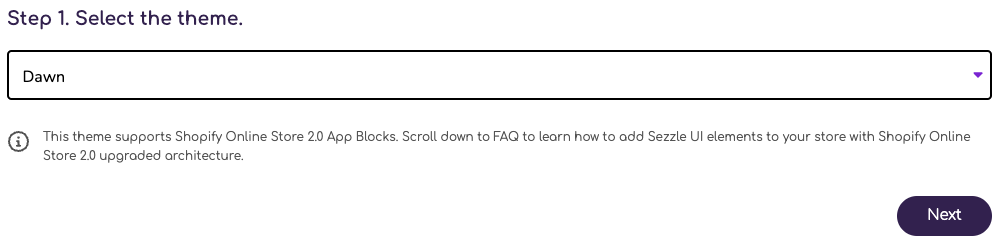
1. Select the theme you wish to edit, then click `Next`
This field does not default to your live theme - you must make a selection
2. Select the asset you wish to install, then click `Next`
3. Select the page you wish to install on, then click `Finish`
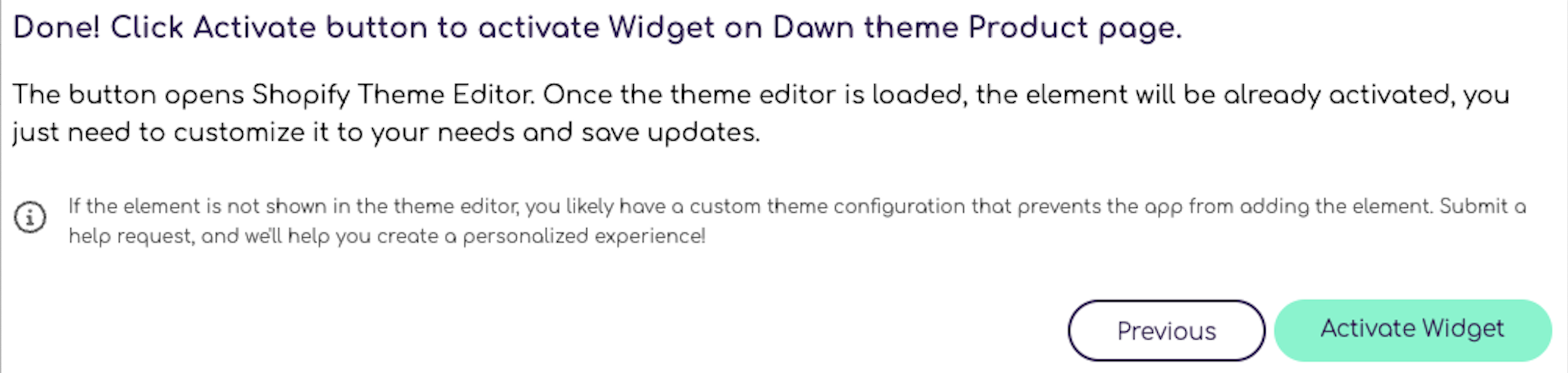
4. Click the `Activate` button
You must click Activate for changes to take effect
5. [Customize](#customizations) as desired, then click `Save`
Widgets not rendering correctly? [Request Help](#request-help)
### Installing as Embed Blocks (manual)
If you are not already in the app, you can alternatively enable the Sezzle products directly from your theme customizer window.
1. Within Shopify Admin, go to `Sales Channels` then `Online Store`
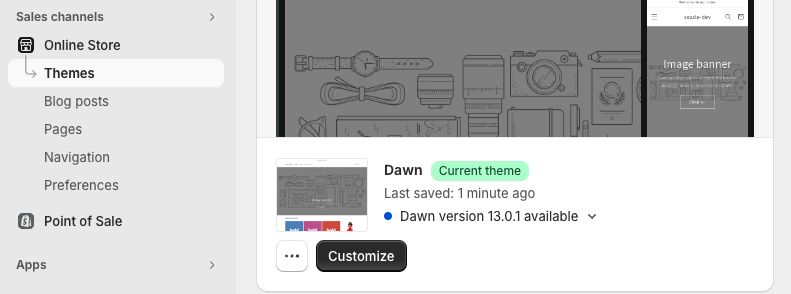
2. Under `Themes`, click `Customize` for the theme you wish to edit
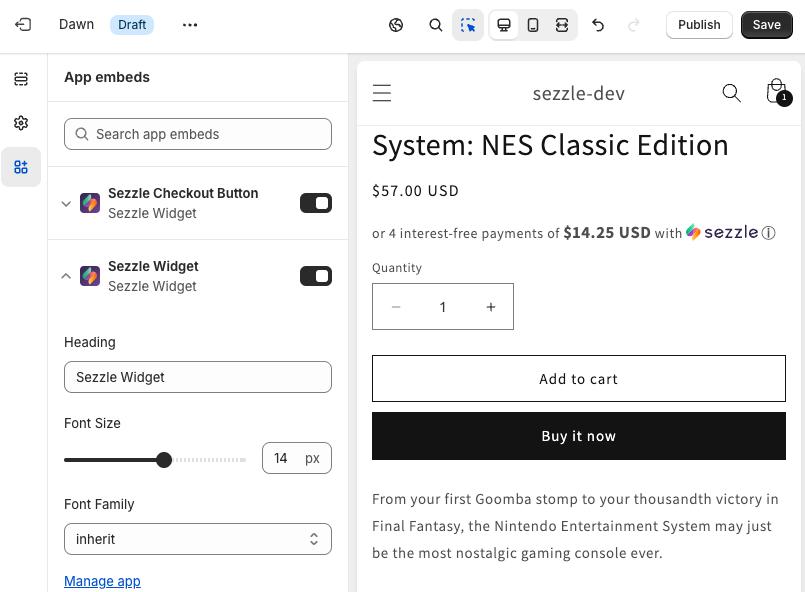
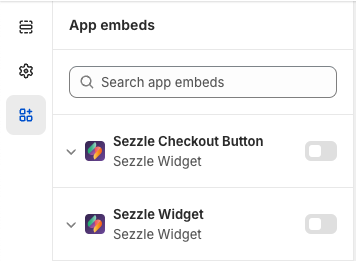
3. In the upper-left corner, click the third icon `App Embeds`
4. Search for Sezzle and activate the product(s) you wish to install
* [Customize](#customizations) as desired and click `Save`
### Installing as App Blocks
App blocks allow merchants to control product placement. Compatible with 2.0 themes only.
1. Within `Shopify Admin`, go to `Sales Channels` then `Online Store`
2. Under `Themes`, click `Customize` for the theme you wish to edit
3. In the top toolbar, ensure the third icon `Activate Inspector` is activated
#### Installing Widget App Block on Product Page
1. Navigate to a product page
2. Hover over the area where you wish to display the widget
3. If app blocks can be placed there, `+` or `Add block` will appear. Click, then select `Sezzle Widget` under the `Apps` tab
* Alternatively, open the `Sections` tab and click `Add Block`
* Under the `Apps` tab, select `Sezzle Widget`
* Drag & drop the block to the desired location in the contents menu
4. [Customize](#customizations) as desired, then click `Save`
#### Installing Widget App Block and Checkout Button on Cart Page
1. Add a product to the cart
2. Navigate to the cart page
3. Hover over the area where you wish to display a Sezzle product
4. If app blocks can be placed there, `+` or `Add block` will appear
* Click, then under the `Apps` tab, select the product
* Alternatively, open the `Sections` tab and click `Add Block`
* Under the `Apps` tab, select `Sezzle Widget`
* Drag & drop the block to the desired location in the contents menu
5. Repeat the previous two steps for the other product, if desired
6. [Customize](#customizations) as desired, then click `Save`
### Customizations
The following section covers customization options that are available through the app.
#### Widget Customization Options
| **Property** | **Default** | **Range/Options** | **Step** |
| :----------- | :---------- | :---------------- | :------- |
| Font Size | `14px` | `9px` - `18px` | `0.5` |
| Font Family | inherit | (see dropdown) | - |
#### Checkout Button Customization Options
| **Property** | **Default** | **Range/Options** | **Step** |
| :-------------------------------- | :--------------------- | :-------------------- | :------- |
| Template | `Checkout with Sezzle` | `Pay with Sezzle` | - |
| Theme | `Light` | `Dark` | - |
| Padding (left and right only) | `9px` | `0px` - `30px` | `0.5` |
| Margins (controlled individually) | `0` | `-20` - `20` | `0.5` |
| Width | `auto` | `fit-content`, `100%` | - |
### Default Placement
**If Checked**
* The Sezzle Checkout Button will be placed after the native checkout button and inherit page styles
**If Unchecked**
* The button will be placed as indicated by the app block placement
* Styles may also be affected, based on the placement selected
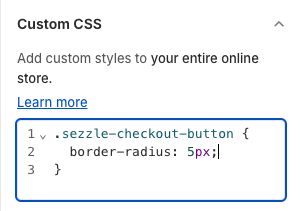
#### Custom CSS
If you are familiar with CSS and would like additional style customizations, you can write them directly to your theme.
1. In the upper-left corner, click the second icon `Theme Settings`
2. Expand Custom CSS section and write your custom snippet, then click `Save`
### Troubleshooting
You will need to uninstall and re-install the app.
If you are using app blocks and there are multiple price elements on the page, all the corresponding widgets will cluster at the app block placement.
Consider switching to embed blocks, or [contact Sezzle support](#request-help) to update the config override.
* Widgets will only show for IP addresses in US and CA. If you are viewing from a different country, please use a VPN.
* By default, widgets only show on products up to \$2500.
* Confirm that only one installation method is in use. Additionally, only use one app block of each product per page.
Check that the widget was not placed further down on the page.
* App blocks might work where embed blocks do not.
* Otherwise, [contact Sezzle support](#request-help) for a custom configuration.
*
* Please [contact Sezzle support](#request-help) to update the override.
* Remove these snippets from your theme.
* App blocks with `Default Placement` unchecked may work.
* We usually resort to installing a [manual code snippet](#checkout-button-manual-theme-code-snippet-installation).
* [Contact Sezzle support](#request-help) if you would like assistance.
If you have noticed a bug in the widget or checkout button, please [contact Sezzle support](#request-help) to notify us of the issue. We can then determine whether this is an issue for all merchants or your specific theme and work to resolve accordingly.
#### Customization
* We offer a few select customization options. Please [contact Sezzle support](#request-help) to request any of the following:
* Grayscale logo
* Reflect checkout minimum in widget
* Reflect Sezzle/Afterpay dual widget
* Style & position changes
* For position changes, you must use the embed block option.
* Conditional rendering for subscription, gift cards, etc.
* Conditional rendering above a certain price threshold
Implementing customizations may prevent widgets from showing on unpublished
themes and will require help from the Sezzle team to update widgets when a
new theme is published.
### Request Help
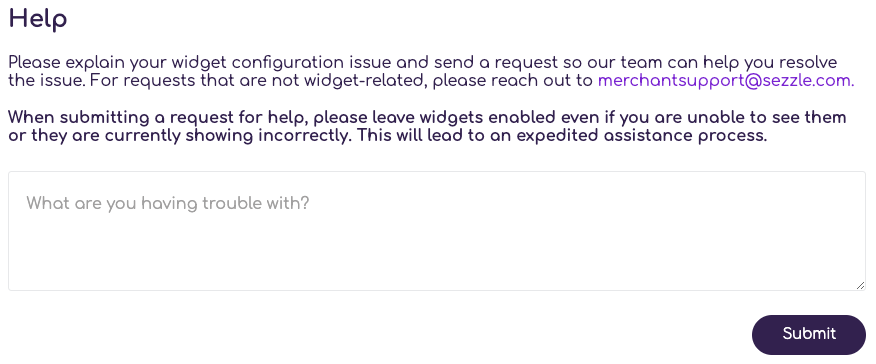
If the `Sezzle Widget` app is not able to automatically install the Sezzle widget or checkout button on your storefront, please use the Request Help form within the app to contact the Sezzle Merchant Integrations team.
The Request Help form in the `Sezzle Widget` app is for widget and checkout button help only. For questions regarding your account or issues with the Sezzle payment option at checkout, please reach out to [merchantsupport@sezzle.com](mailto:merchantsupport@sezzle.com).
The Sezzle Merchant Integrations team does not respond to inquiries. If you
request a response or if we need to contact you regarding your request, we
will forward the response through our Merchant Support team.
### Manual Theme Code Snippet Installation
Installations that require code changes directly to the theme are not recommended unless your site uses a headless CMS, and should be used as a last resort.
#### Widget Manual Theme Code Snippet Installation
1. Within `Shopify Admin`, go to `Sales Channels` then `Online Store`
2. Under Themes, click `...` then `Edit Code` for the theme you wish to edit
3. In the `Code Explorer`, go to the `Layout` folder and select the `theme.liquid` file
4. Copy and paste the script to the very bottom of the file
* Script template to be inserted into your webpage:
```
```
5. Replace `{sezzle_merchant_uuid}` (including the curly brackets) in the script template with your site’s Merchant ID
* This can be found in the [Sezzle Merchant Dashboard Business Settings](https://dashboard.sezzle.com/merchant/settings/business)
* Example with Merchant ID value updated:
```
```
6. Click `Save`
#### Checkout Button Manual Theme Code Snippet Installation
To install the checkout button directly to your theme code, please refer to the documentation and snippet on [GitHub](https://github.com/sezzle/static-widgets/tree/production/src/sezzle-checkout-button#install-as-html).
## Uninstalling
### Uninstalling Embed Blocks
1. Within `Shopify Admin`, go to `Sales Channels` then `Online Store`
2. Under `Themes`, click `Customize` for the theme you wish to edit
3. In the upper-left corner, click the third icon `App Embeds`
4. Toggle the desired embed block(s) to the `OFF` position, then click `Save`
### Uninstalling App Blocks
1. Within `Shopify Admin`, go to `Sales Channels` then `Online Store`
2. Under `Themes`, click `Customize` for the theme you wish to edit
3. Navigate to a product page
4. In the upper-left corner, click the first icon `Sections`
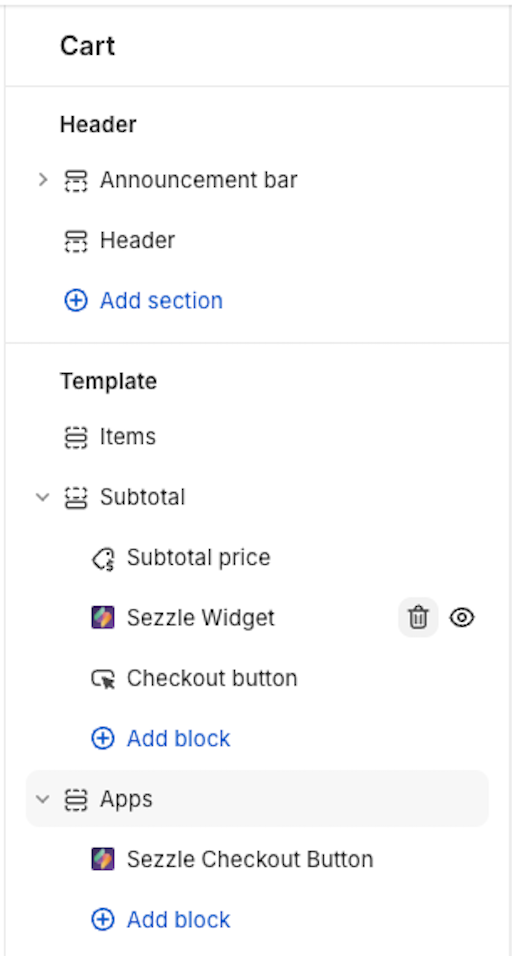
5. Next to the `Sezzle Widget` block, click the `Delete` trash can icon, then click `Save`
6. Navigate to the cart page, and repeat the previous step for each product, then click `Save`
### Uninstalling Manual Theme Code Snippet
You should only need to perform this step if you had the old `Sezzle` private app installed, or if you installed products manually
1. Within `Shopify Admin`, go to `Sales Channels` then `Online Store`
2. Under `Themes`, click `...` then `Edit Code` for the theme you wish to edit
3. Review the layout/theme.liquid file for any Sezzle code snippets
1. Remove them, then click `Save`
2. Repeat for any files containing product and cart in the name
4. Once all references are removed, search for files containing sezzle in the name, and delete
### Uninstalling the App
1. Go to `Apps` then `Sezzle Widget`
2. In the top-right corner, click the `Menu` icon, then select `App Settings`
3. Click `Delete App`
Deleting the app will automatically remove all app blocks and embed blocks from all themes. Any code change installations will not be removed automatically.
 4. Within the Sezzle Widget app, enter your Public API Key and click `Link Sezzle Account`
* For most merchants, we are able to pre-fill the public API key based on the Shopify store URL
* To enter the API key manually, copy from the API Keys page within the [Sezzle Merchant Dashboard Settings](https://dashboard.sezzle.com/merchant/settings/apikeys)
4. Within the Sezzle Widget app, enter your Public API Key and click `Link Sezzle Account`
* For most merchants, we are able to pre-fill the public API key based on the Shopify store URL
* To enter the API key manually, copy from the API Keys page within the [Sezzle Merchant Dashboard Settings](https://dashboard.sezzle.com/merchant/settings/apikeys)
 ## Installation
Please select ONE of the following installation methods:
## Installation
Please select ONE of the following installation methods:
 2. Select the asset you wish to install, then click `Next`
 3. Select the page you wish to install on, then click `Finish`
 4. Click the `Activate` button
 3. In the upper-left corner, click the third icon `App Embeds`
4. Search for Sezzle and activate the product(s) you wish to install
* [Customize](#customizations) as desired and click `Save`
3. In the upper-left corner, click the third icon `App Embeds`
4. Search for Sezzle and activate the product(s) you wish to install
* [Customize](#customizations) as desired and click `Save`
 ### Installing as App Blocks
App blocks allow merchants to control product placement. Compatible with 2.0 themes only.
1. Within `Shopify Admin`, go to `Sales Channels` then `Online Store`
2. Under `Themes`, click `Customize` for the theme you wish to edit
### Installing as App Blocks
App blocks allow merchants to control product placement. Compatible with 2.0 themes only.
1. Within `Shopify Admin`, go to `Sales Channels` then `Online Store`
2. Under `Themes`, click `Customize` for the theme you wish to edit
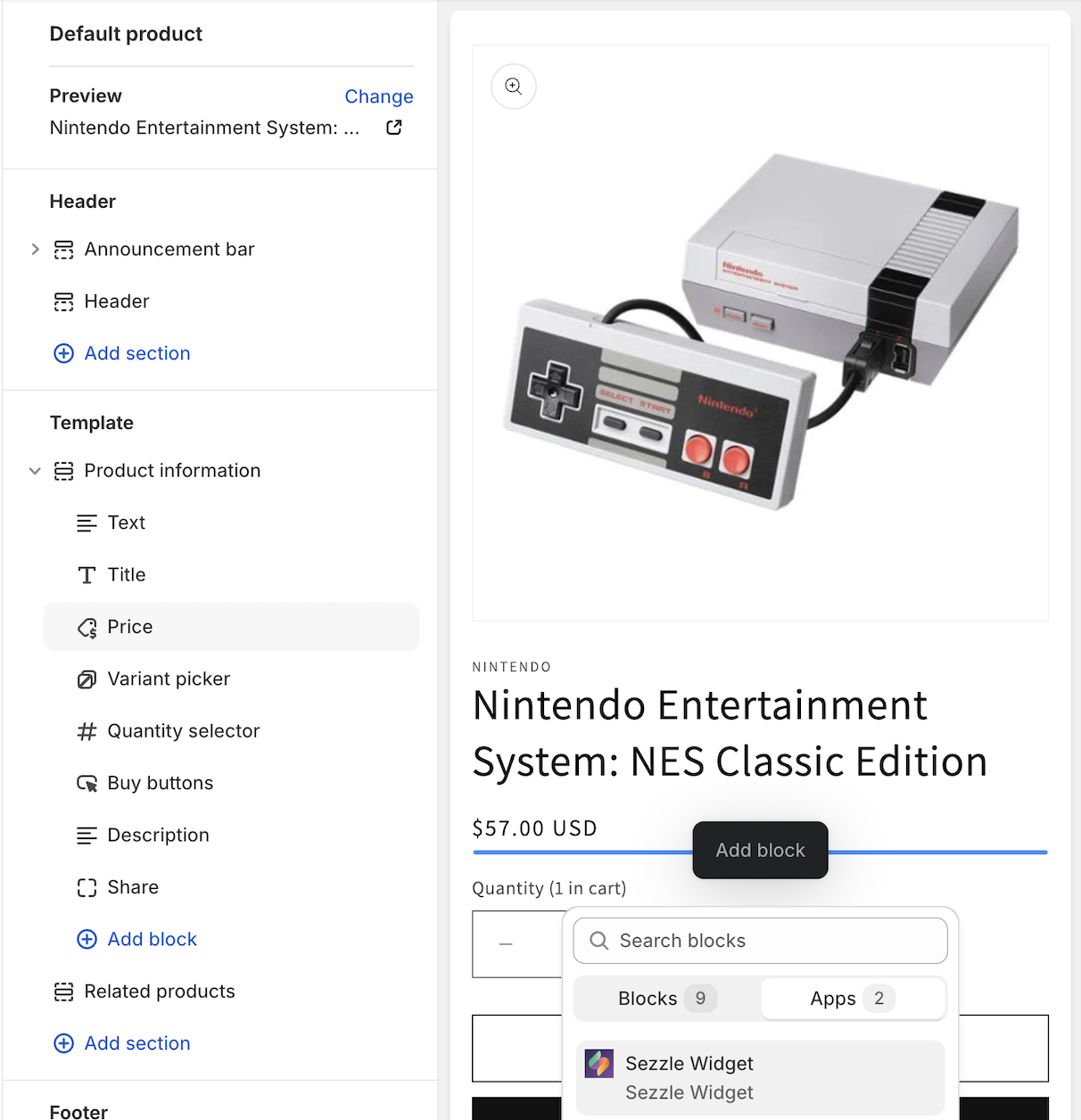 4. [Customize](#customizations) as desired, then click `Save`
#### Installing Widget App Block and Checkout Button on Cart Page
1. Add a product to the cart
2. Navigate to the cart page
3. Hover over the area where you wish to display a Sezzle product
4. If app blocks can be placed there, `+` or `Add block` will appear
* Click, then under the `Apps` tab, select the product
* Alternatively, open the `Sections` tab and click `Add Block`
* Under the `Apps` tab, select `Sezzle Widget`
* Drag & drop the block to the desired location in the contents menu
5. Repeat the previous two steps for the other product, if desired
4. [Customize](#customizations) as desired, then click `Save`
#### Installing Widget App Block and Checkout Button on Cart Page
1. Add a product to the cart
2. Navigate to the cart page
3. Hover over the area where you wish to display a Sezzle product
4. If app blocks can be placed there, `+` or `Add block` will appear
* Click, then under the `Apps` tab, select the product
* Alternatively, open the `Sections` tab and click `Add Block`
* Under the `Apps` tab, select `Sezzle Widget`
* Drag & drop the block to the desired location in the contents menu
5. Repeat the previous two steps for the other product, if desired
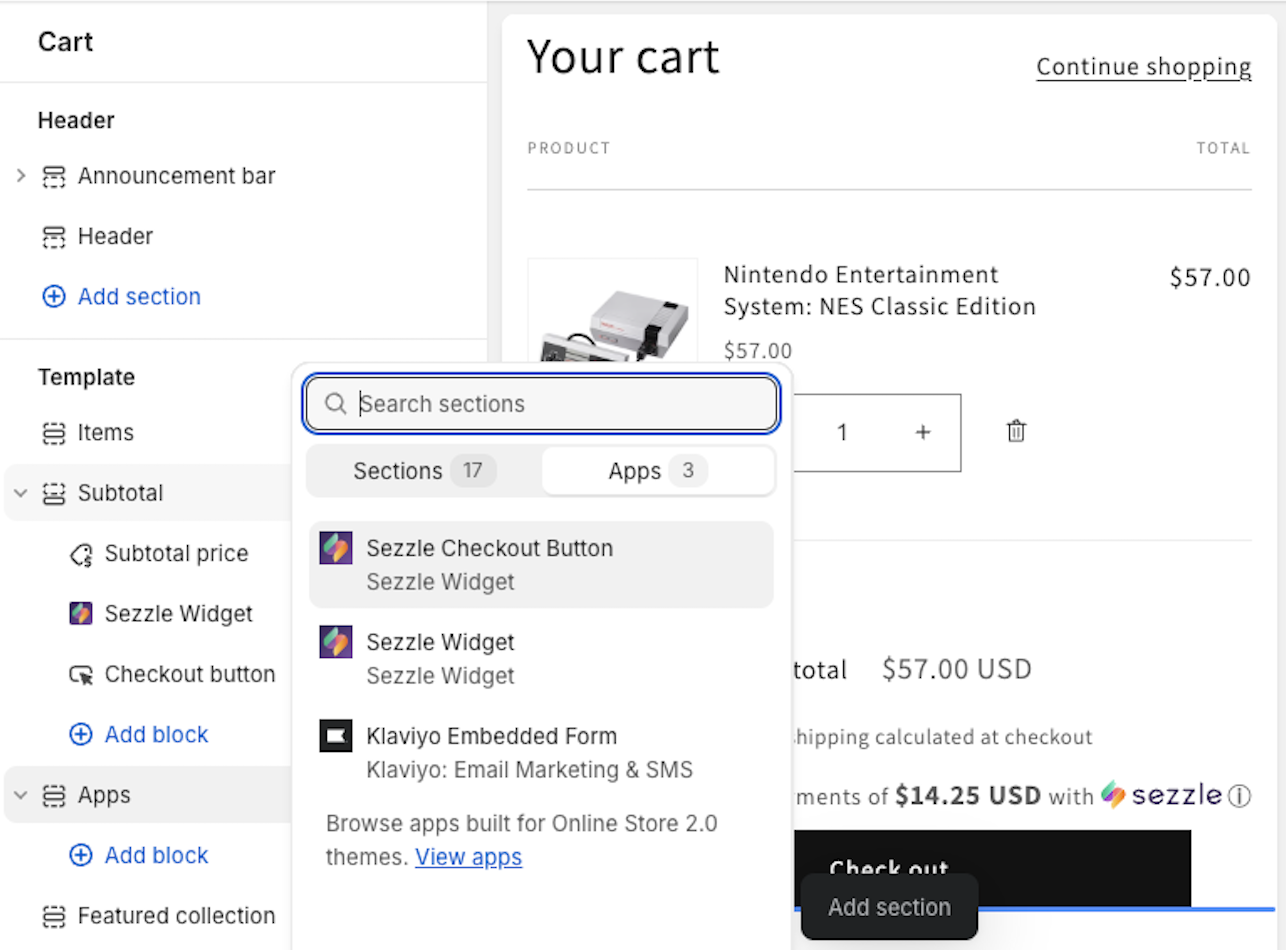 6. [Customize](#customizations) as desired, then click `Save`
### Customizations
The following section covers customization options that are available through the app.
#### Widget Customization Options
| **Property** | **Default** | **Range/Options** | **Step** |
| :----------- | :---------- | :---------------- | :------- |
| Font Size | `14px` | `9px` - `18px` | `0.5` |
| Font Family | inherit | (see dropdown) | - |
6. [Customize](#customizations) as desired, then click `Save`
### Customizations
The following section covers customization options that are available through the app.
#### Widget Customization Options
| **Property** | **Default** | **Range/Options** | **Step** |
| :----------- | :---------- | :---------------- | :------- |
| Font Size | `14px` | `9px` - `18px` | `0.5` |
| Font Family | inherit | (see dropdown) | - |
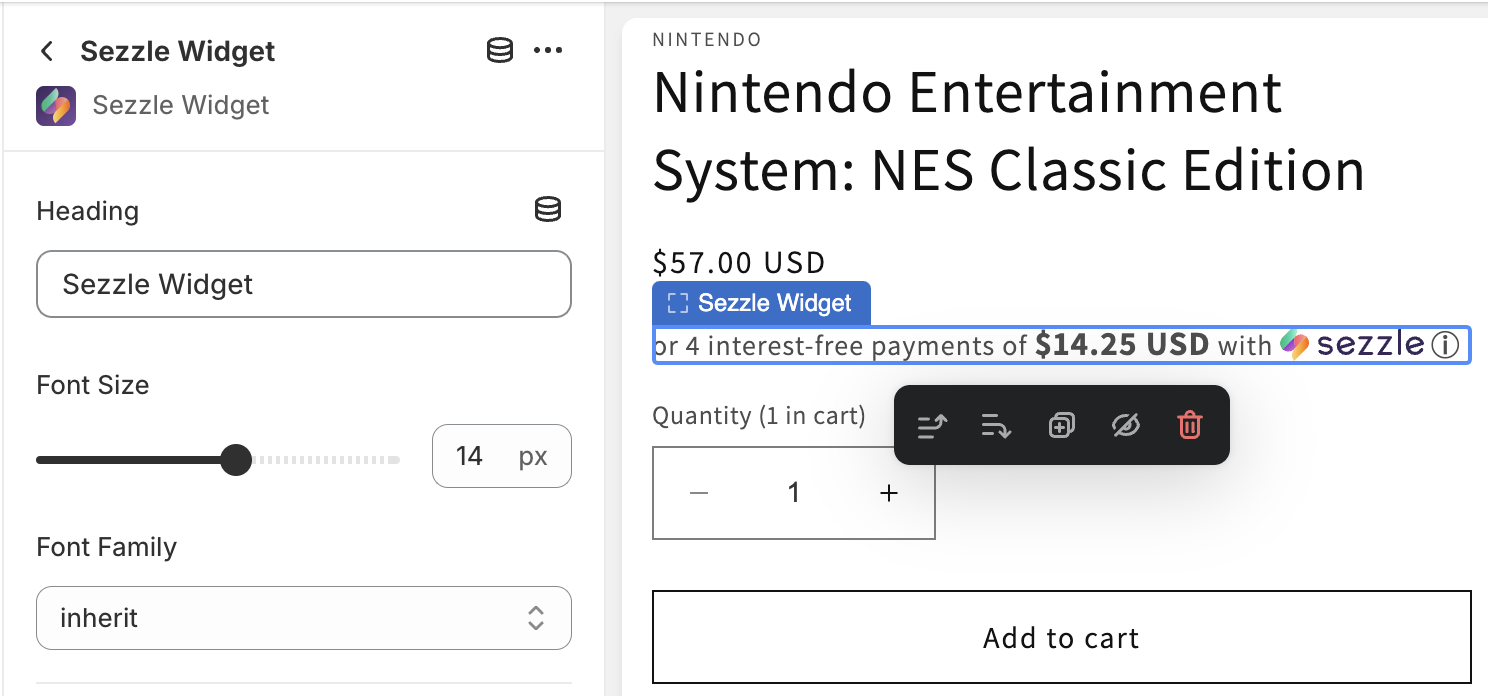 #### Checkout Button Customization Options
| **Property** | **Default** | **Range/Options** | **Step** |
| :-------------------------------- | :--------------------- | :-------------------- | :------- |
| Template | `Checkout with Sezzle` | `Pay with Sezzle` | - |
| Theme | `Light` | `Dark` | - |
| Padding (left and right only) | `9px` | `0px` - `30px` | `0.5` |
| Margins (controlled individually) | `0` | `-20` - `20` | `0.5` |
| Width | `auto` | `fit-content`, `100%` | - |
#### Checkout Button Customization Options
| **Property** | **Default** | **Range/Options** | **Step** |
| :-------------------------------- | :--------------------- | :-------------------- | :------- |
| Template | `Checkout with Sezzle` | `Pay with Sezzle` | - |
| Theme | `Light` | `Dark` | - |
| Padding (left and right only) | `9px` | `0px` - `30px` | `0.5` |
| Margins (controlled individually) | `0` | `-20` - `20` | `0.5` |
| Width | `auto` | `fit-content`, `100%` | - |
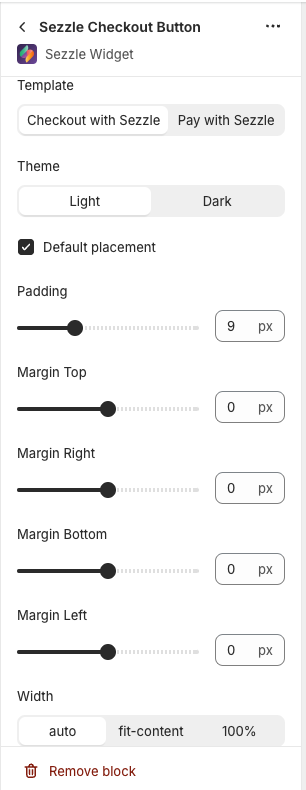 ### Default Placement
**If Checked**
* The Sezzle Checkout Button will be placed after the native checkout button and inherit page styles
**If Unchecked**
* The button will be placed as indicated by the app block placement
* Styles may also be affected, based on the placement selected
#### Custom CSS
If you are familiar with CSS and would like additional style customizations, you can write them directly to your theme.
1. In the upper-left corner, click the second icon `Theme Settings`
2. Expand Custom CSS section and write your custom snippet, then click `Save`
### Default Placement
**If Checked**
* The Sezzle Checkout Button will be placed after the native checkout button and inherit page styles
**If Unchecked**
* The button will be placed as indicated by the app block placement
* Styles may also be affected, based on the placement selected
#### Custom CSS
If you are familiar with CSS and would like additional style customizations, you can write them directly to your theme.
1. In the upper-left corner, click the second icon `Theme Settings`
2. Expand Custom CSS section and write your custom snippet, then click `Save`
 ### Troubleshooting
 ### Manual Theme Code Snippet Installation
Installations that require code changes directly to the theme are not recommended unless your site uses a headless CMS, and should be used as a last resort.
#### Widget Manual Theme Code Snippet Installation
1. Within `Shopify Admin`, go to `Sales Channels` then `Online Store`
2. Under Themes, click `...` then `Edit Code` for the theme you wish to edit
### Manual Theme Code Snippet Installation
Installations that require code changes directly to the theme are not recommended unless your site uses a headless CMS, and should be used as a last resort.
#### Widget Manual Theme Code Snippet Installation
1. Within `Shopify Admin`, go to `Sales Channels` then `Online Store`
2. Under Themes, click `...` then `Edit Code` for the theme you wish to edit
 3. In the `Code Explorer`, go to the `Layout` folder and select the `theme.liquid` file
4. Copy and paste the script to the very bottom of the file
* Script template to be inserted into your webpage:
```
```
5. Replace `{sezzle_merchant_uuid}` (including the curly brackets) in the script template with your site’s Merchant ID
* This can be found in the [Sezzle Merchant Dashboard Business Settings](https://dashboard.sezzle.com/merchant/settings/business)
* Example with Merchant ID value updated:
```
```
6. Click `Save`
#### Checkout Button Manual Theme Code Snippet Installation
To install the checkout button directly to your theme code, please refer to the documentation and snippet on [GitHub](https://github.com/sezzle/static-widgets/tree/production/src/sezzle-checkout-button#install-as-html).
## Uninstalling
### Uninstalling Embed Blocks
1. Within `Shopify Admin`, go to `Sales Channels` then `Online Store`
2. Under `Themes`, click `Customize` for the theme you wish to edit
3. In the `Code Explorer`, go to the `Layout` folder and select the `theme.liquid` file
4. Copy and paste the script to the very bottom of the file
* Script template to be inserted into your webpage:
```
```
5. Replace `{sezzle_merchant_uuid}` (including the curly brackets) in the script template with your site’s Merchant ID
* This can be found in the [Sezzle Merchant Dashboard Business Settings](https://dashboard.sezzle.com/merchant/settings/business)
* Example with Merchant ID value updated:
```
```
6. Click `Save`
#### Checkout Button Manual Theme Code Snippet Installation
To install the checkout button directly to your theme code, please refer to the documentation and snippet on [GitHub](https://github.com/sezzle/static-widgets/tree/production/src/sezzle-checkout-button#install-as-html).
## Uninstalling
### Uninstalling Embed Blocks
1. Within `Shopify Admin`, go to `Sales Channels` then `Online Store`
2. Under `Themes`, click `Customize` for the theme you wish to edit
 ### Uninstalling App Blocks
1. Within `Shopify Admin`, go to `Sales Channels` then `Online Store`
2. Under `Themes`, click `Customize` for the theme you wish to edit
### Uninstalling App Blocks
1. Within `Shopify Admin`, go to `Sales Channels` then `Online Store`
2. Under `Themes`, click `Customize` for the theme you wish to edit
 ### Uninstalling Manual Theme Code Snippet