> ## Documentation Index
> Fetch the complete documentation index at: https://docs.sezzle.com/llms.txt
> Use this file to discover all available pages before exploring further.
# Shoplazza
This guide explains how to add Sezzle as a payment option on your Shoplazza website, enabling customers to use Sezzle at checkout.
### Install the Sezzle Shoplazza app
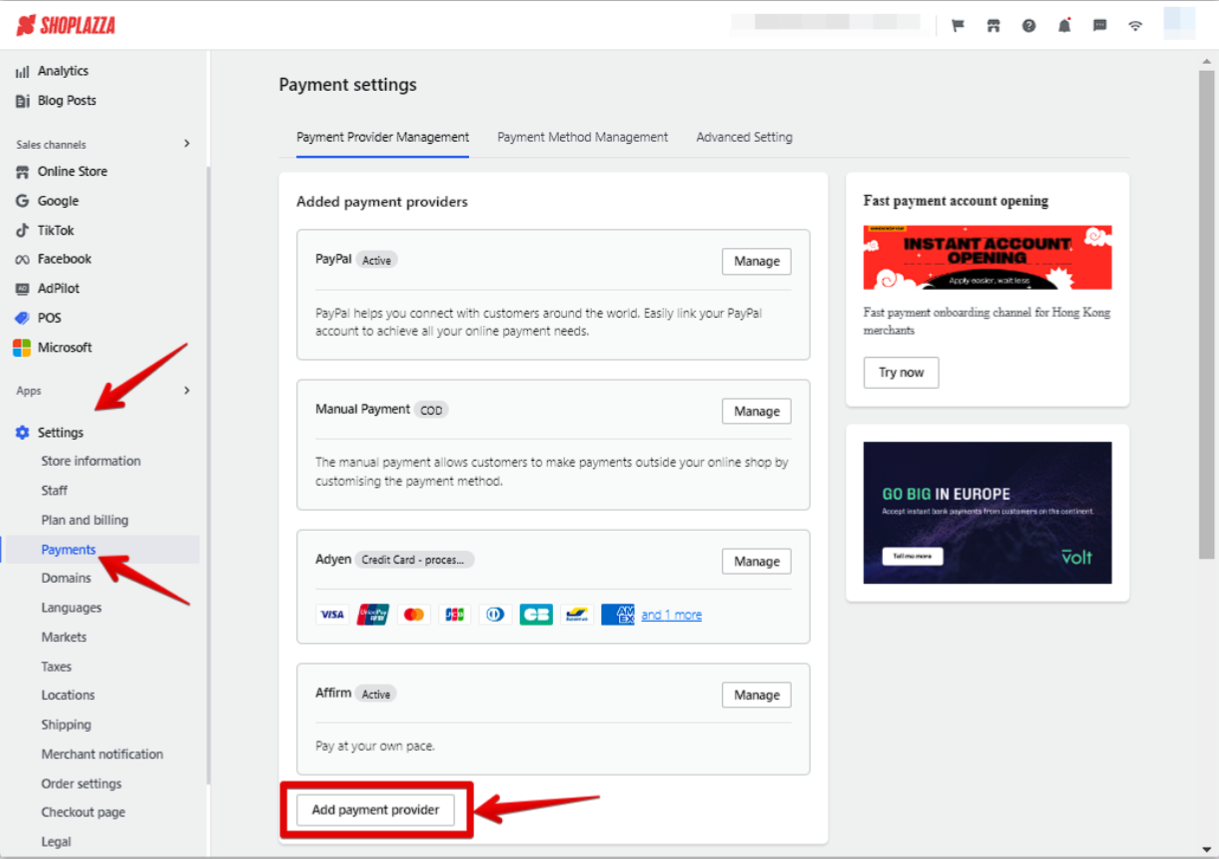
1. Log in to your website's Shoplazza admin
2. Go to `Settings` > `Payments`
3. Click `Add payment provider`
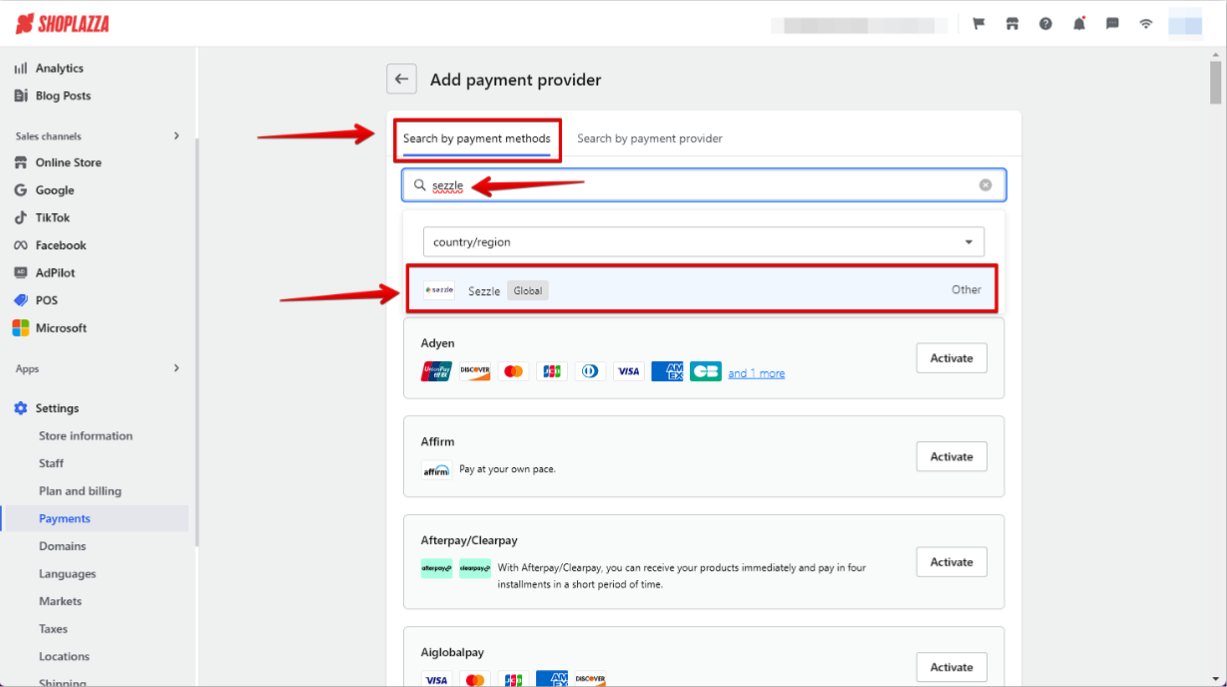
 4. On the `Search by payment methods` tab, type `Sezzle` into the search bar, and select it from the results
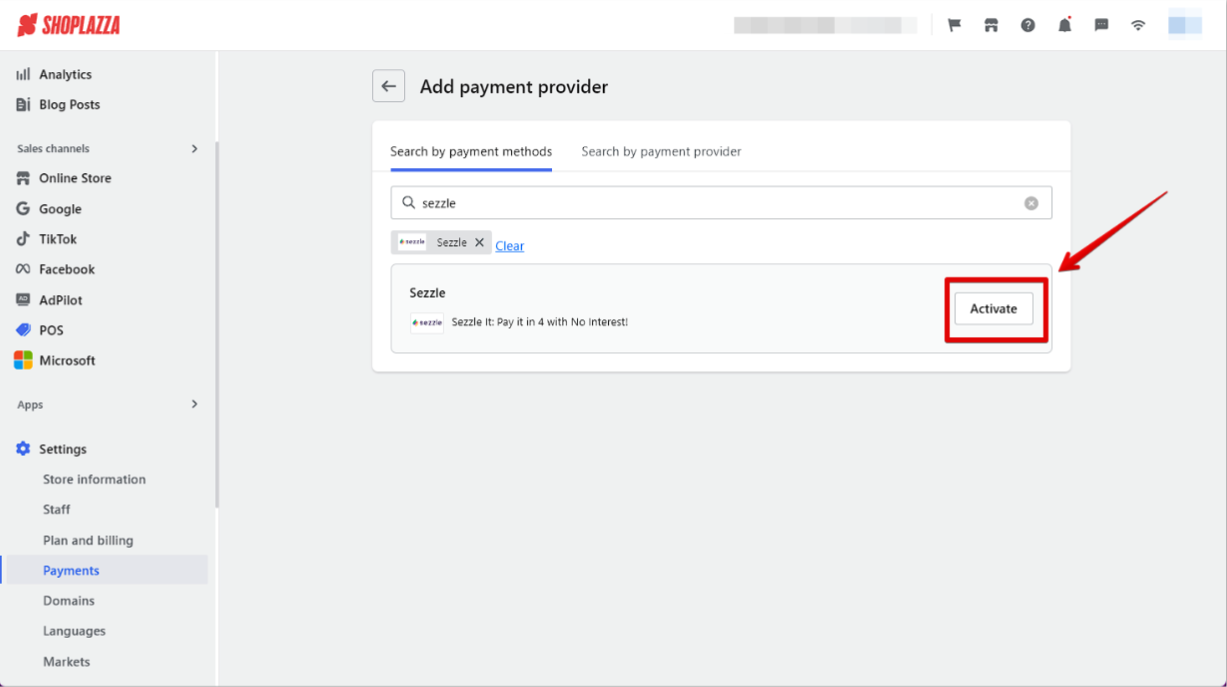
 5. Click `Activate`
 ### Admin Configuration
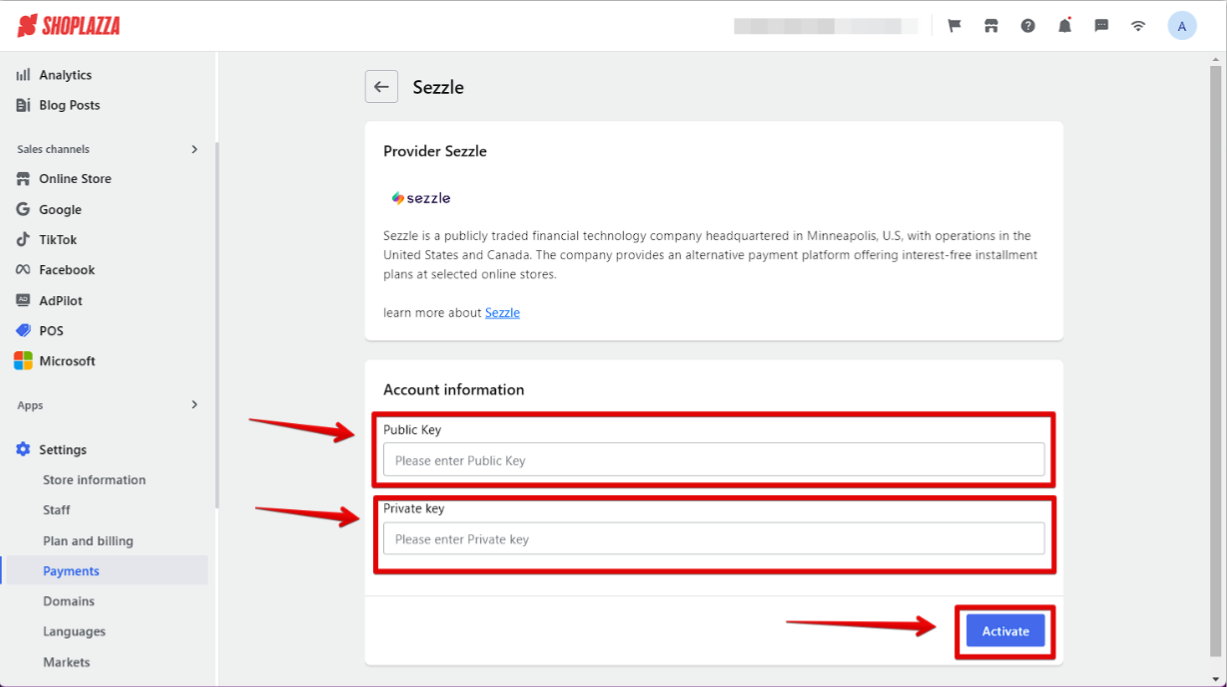
1. Go to `Settings` > `Payments`
2. Click `Manage`
3. Copy your Private Key and Public Key from your [Sezzle Merchant Dashboard](https://dashboard.sezzle.com/merchant/settings/apikeys)
* Paste them into the corresponding fields
4. Click `Activate`
### Admin Configuration
1. Go to `Settings` > `Payments`
2. Click `Manage`
3. Copy your Private Key and Public Key from your [Sezzle Merchant Dashboard](https://dashboard.sezzle.com/merchant/settings/apikeys)
* Paste them into the corresponding fields
4. Click `Activate`
 ### Validate
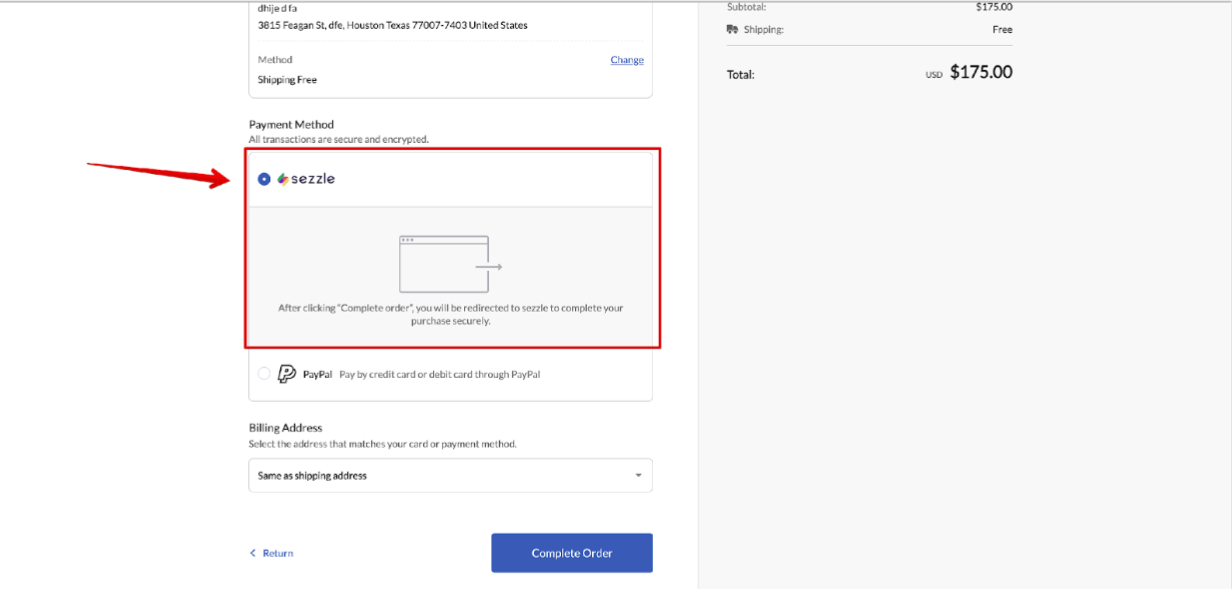
Step through a [test checkout](/docs/api/test-cards#checkout-testing) to validate the integration is properly installed.
### Validate
Step through a [test checkout](/docs/api/test-cards#checkout-testing) to validate the integration is properly installed.
 ### Troubleshooting
*Coming soon*
### Uninstall the Sezzle Shoplazza app
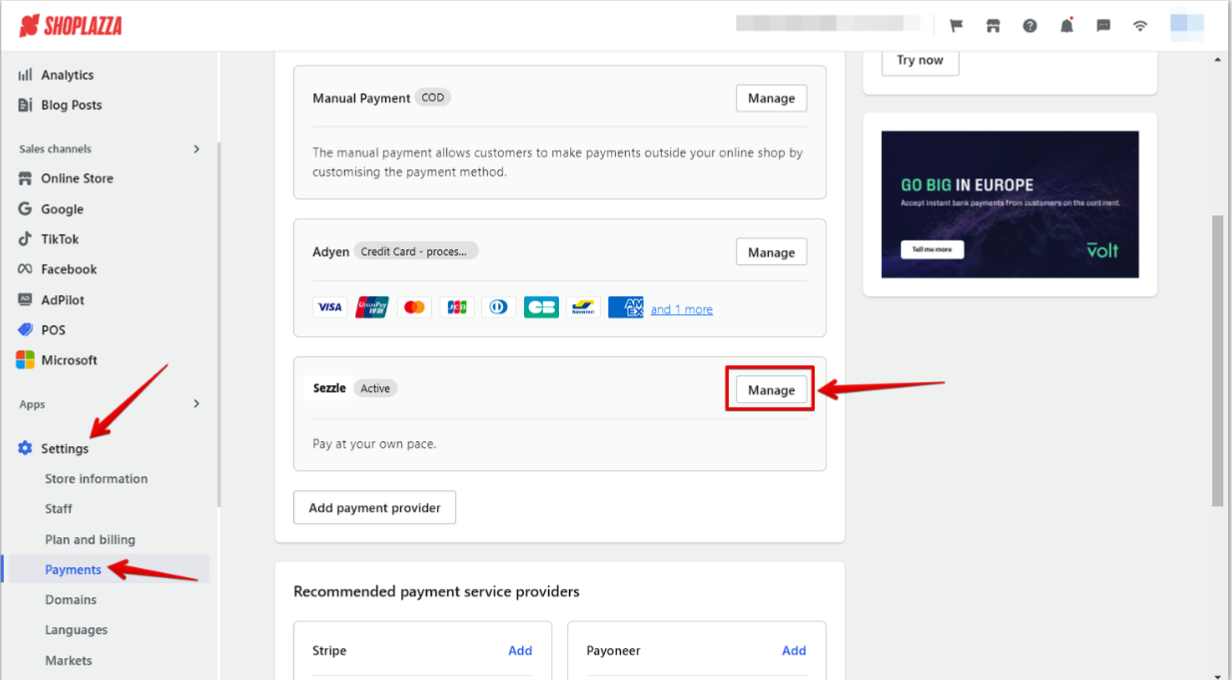
1. Go to `Settings` > `Payments`
2. Click `Manage`
### Troubleshooting
*Coming soon*
### Uninstall the Sezzle Shoplazza app
1. Go to `Settings` > `Payments`
2. Click `Manage`
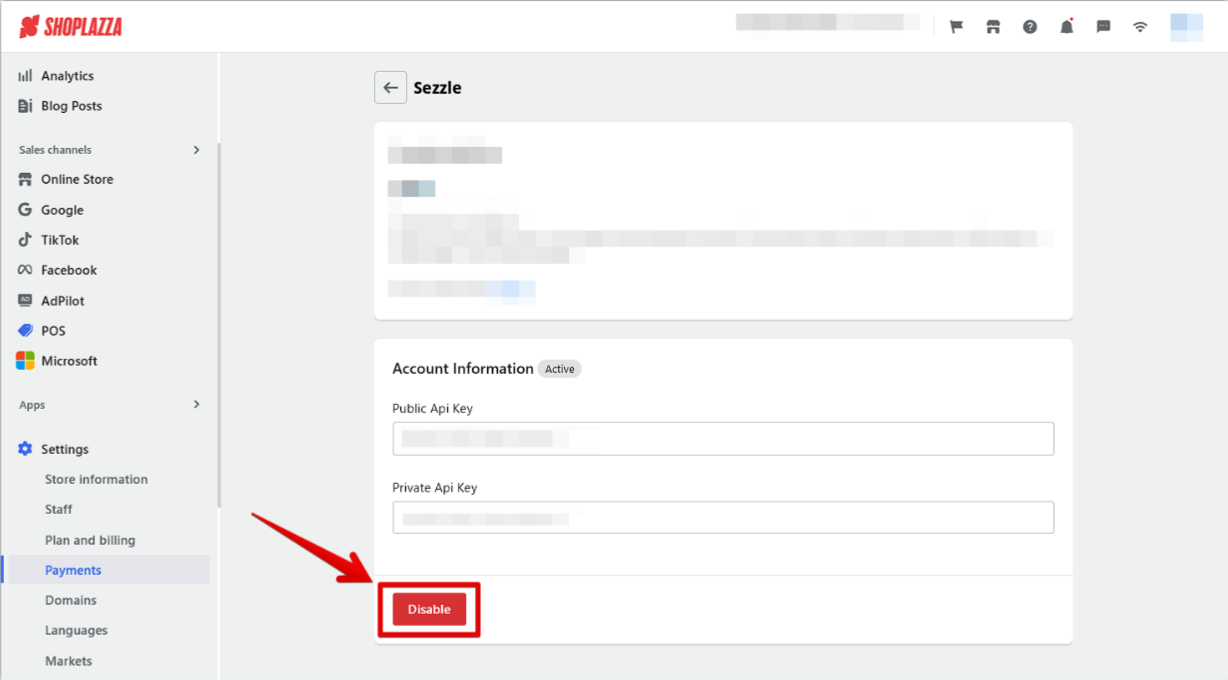
 3. Click `Disable`
 ### FAQs
*Coming soon*
### FAQs
*Coming soon*