

This integration is only available with BigCommerce’s Optimized One Page
Checkout.
Enable Sezzle as an online payment method
Get the app-
Go to
Store Setup>Payments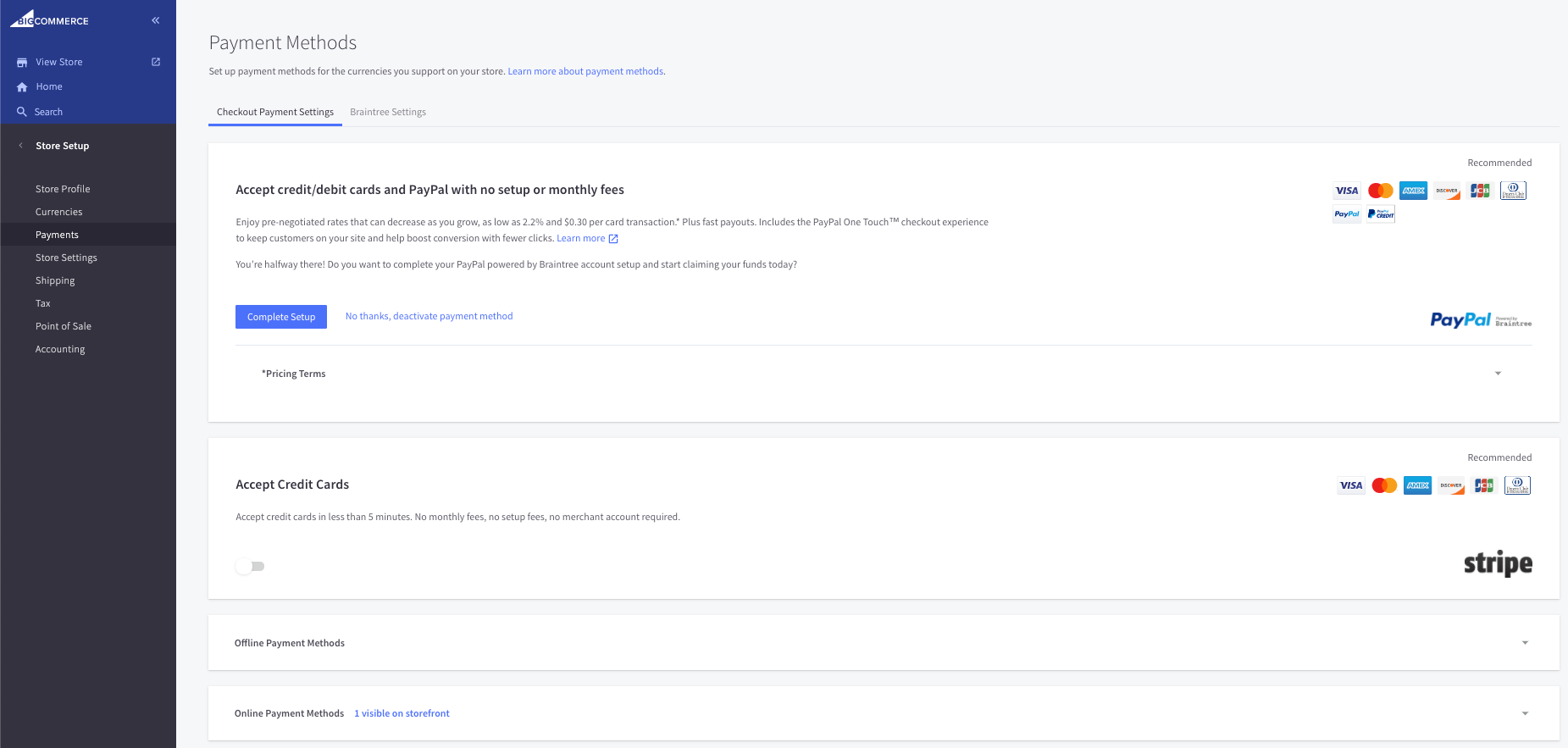
-
Go to
Online Payment Methods, findSezzleand clickSet up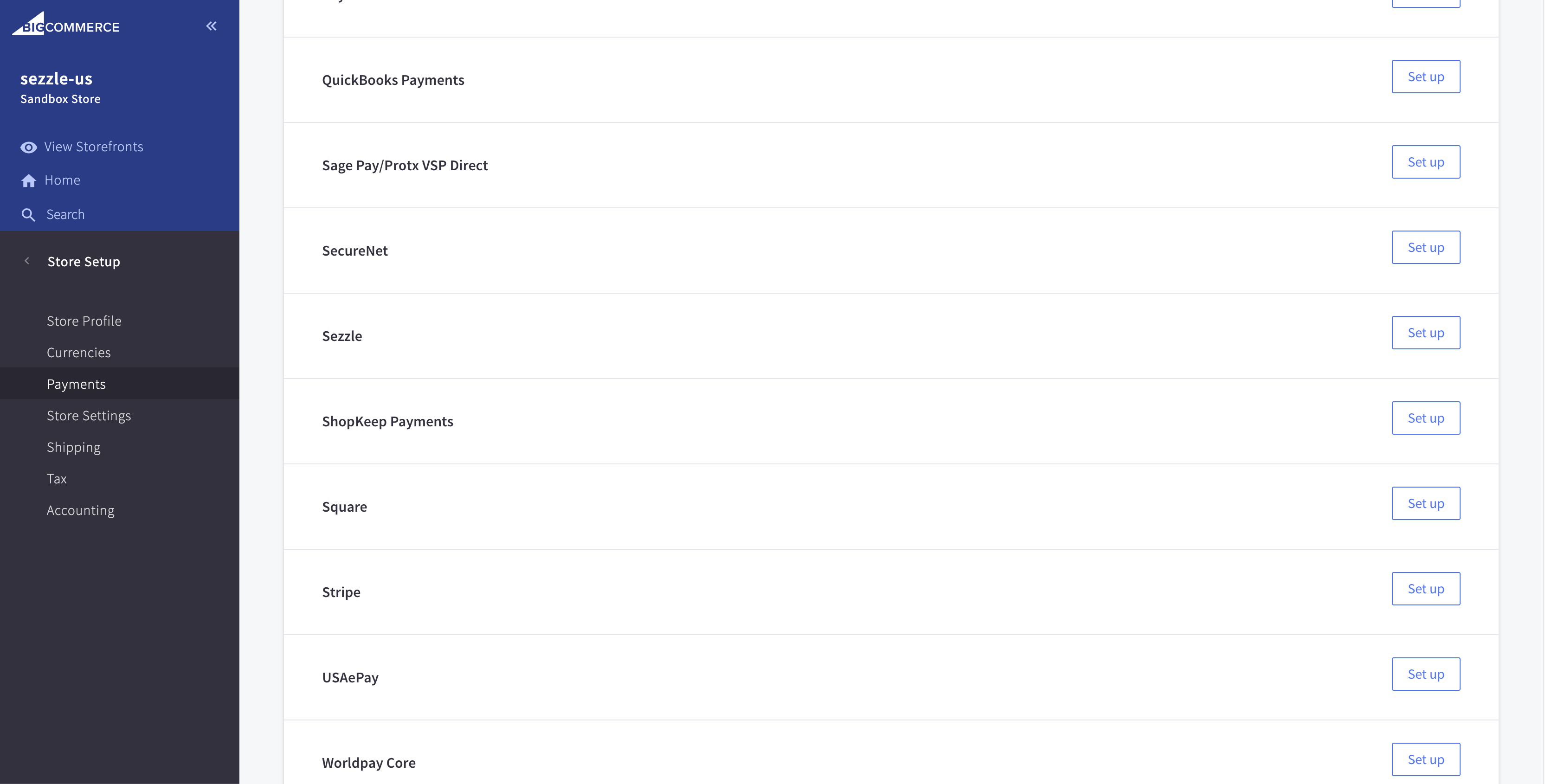
-
Copy your Public Key and Private Key from your Sezzle Merchant Dashboard
- Paste them into the corresponding fields
-
Select the
Transaction TypeIf you selectAuthorize only, payment will only be authorized and will have to be captured later in BigCommerce. -
Select the
Test Mode(No(Recommended) orYesfor testing) -
Click
Save
Install the Sezzle BigCommerce App
- Log in to your website’s BigCommerce store admin page
-
In the left sidebar, click
Apps > Marketplace -
Click
BigCommerce.com/Apps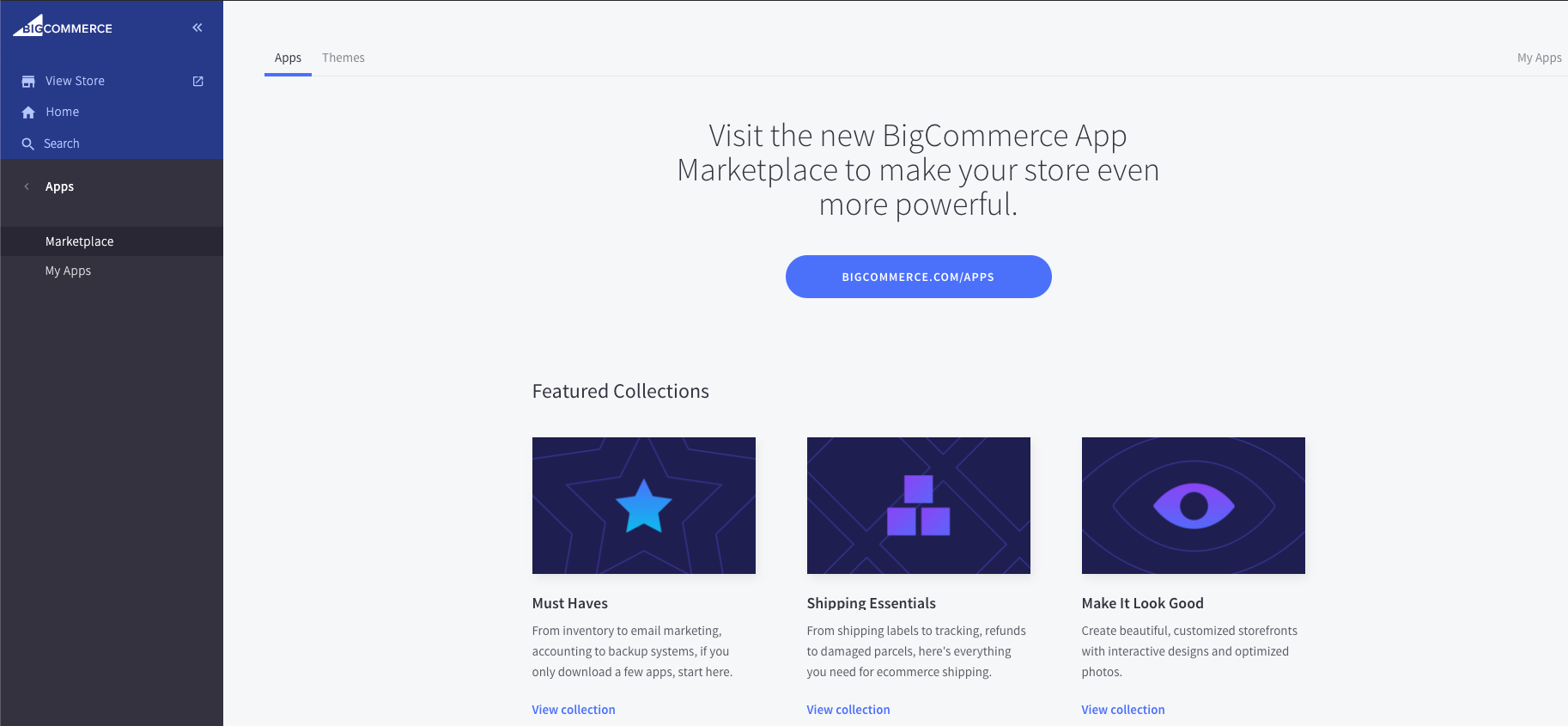
-
Search for
Sezzle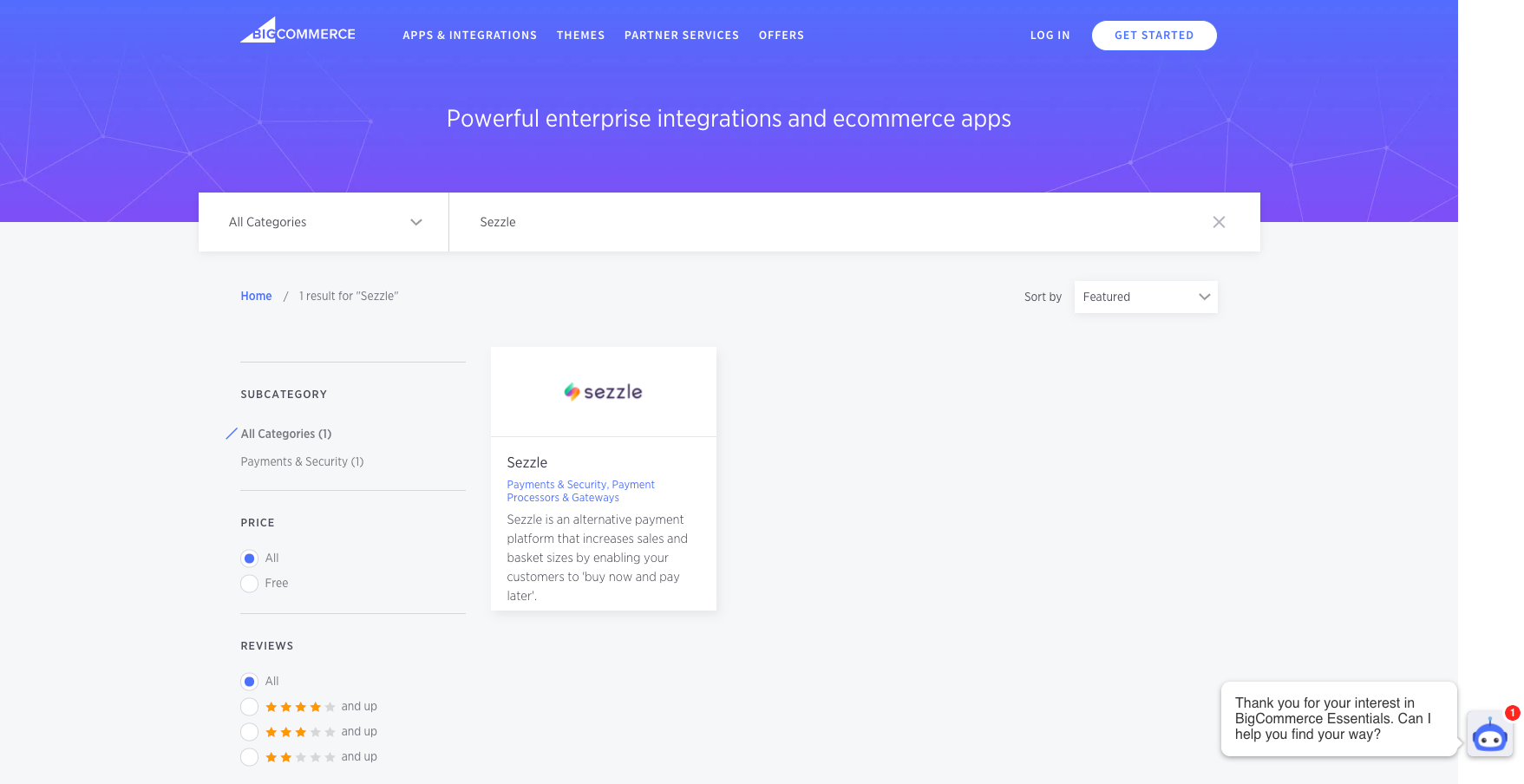
-
Click
Sezzle, then clickGet This App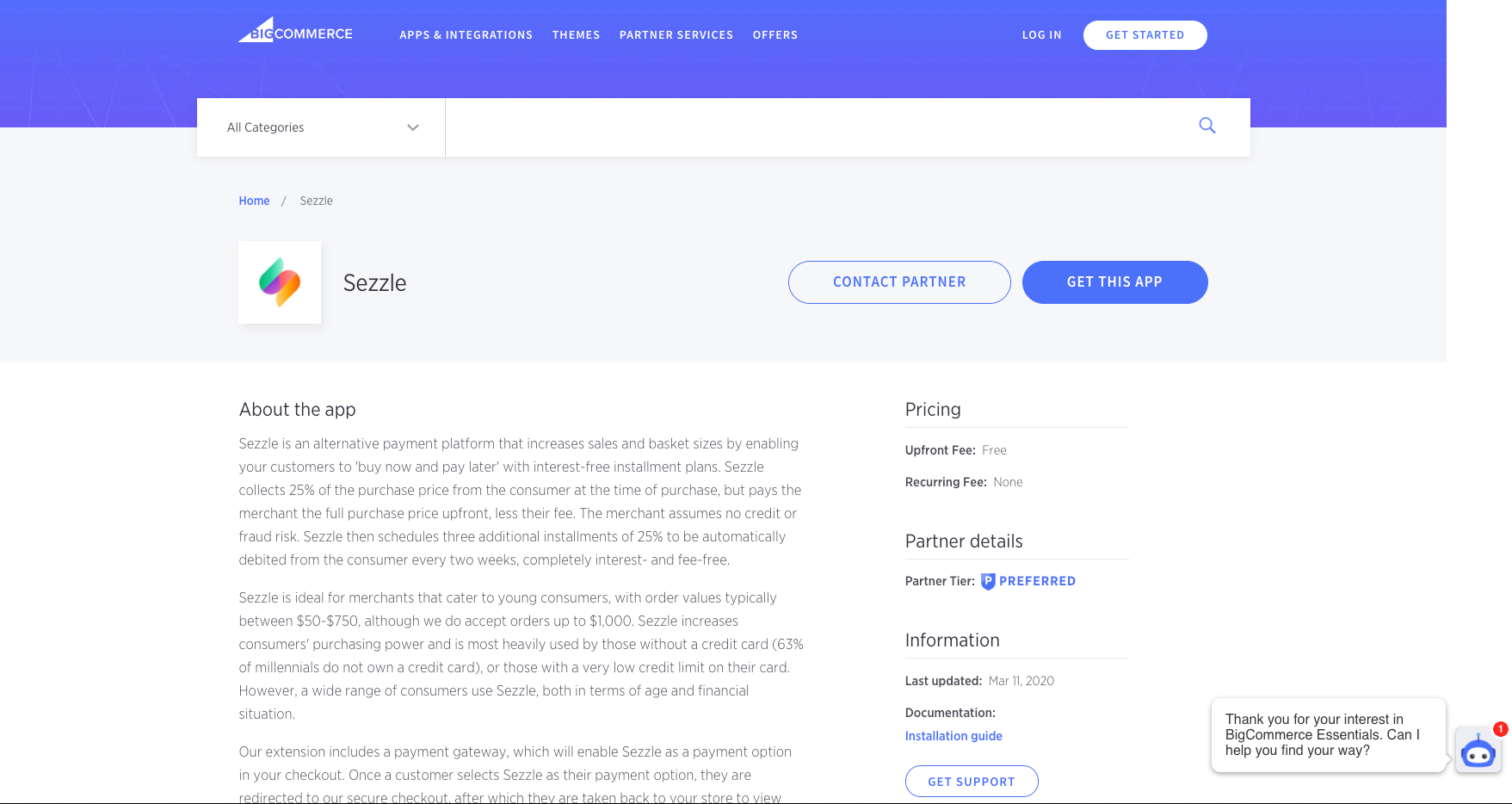
-
Click
Install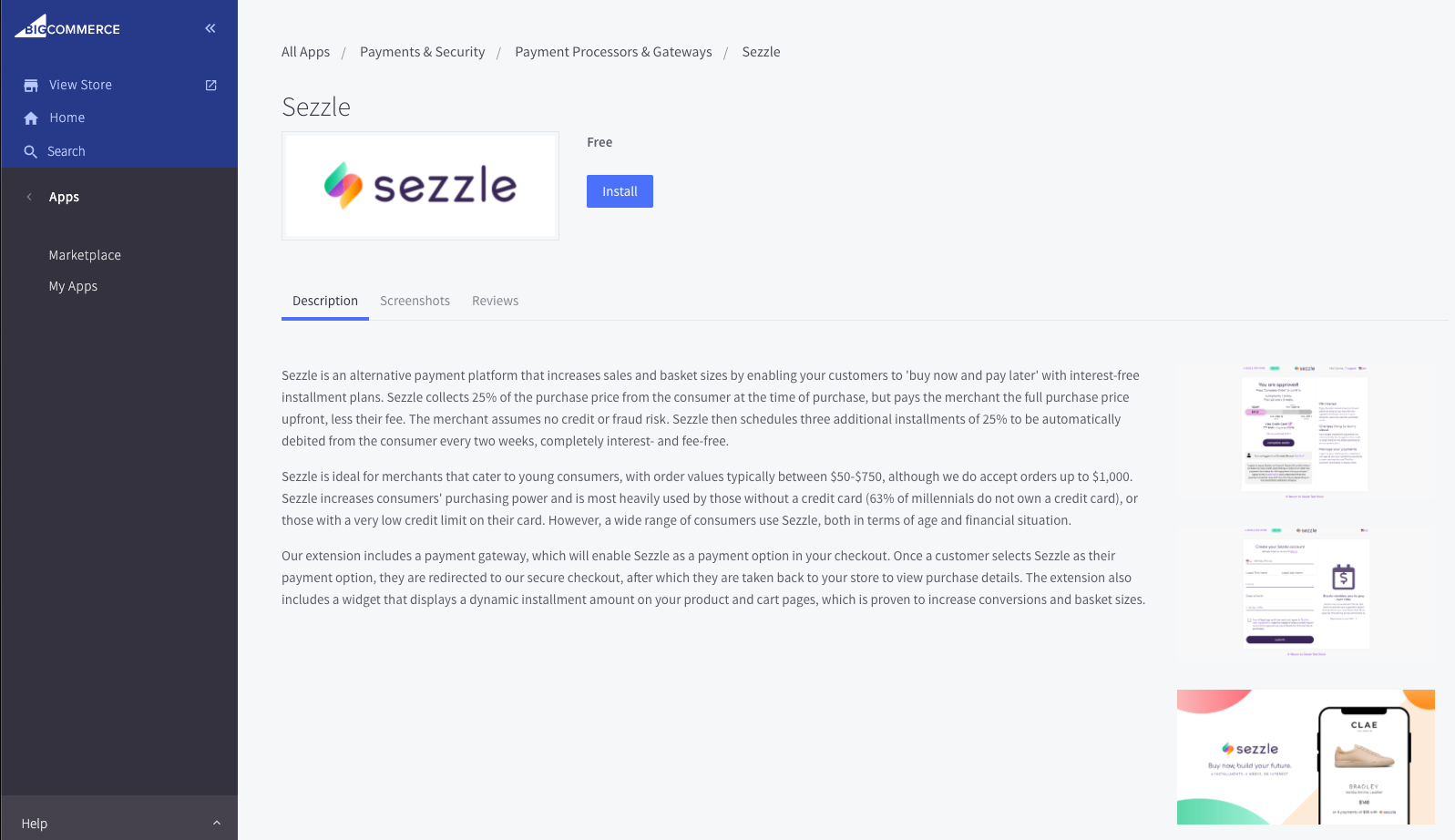
-
Check the PCI Compliance box, then click
Confirmto start the installation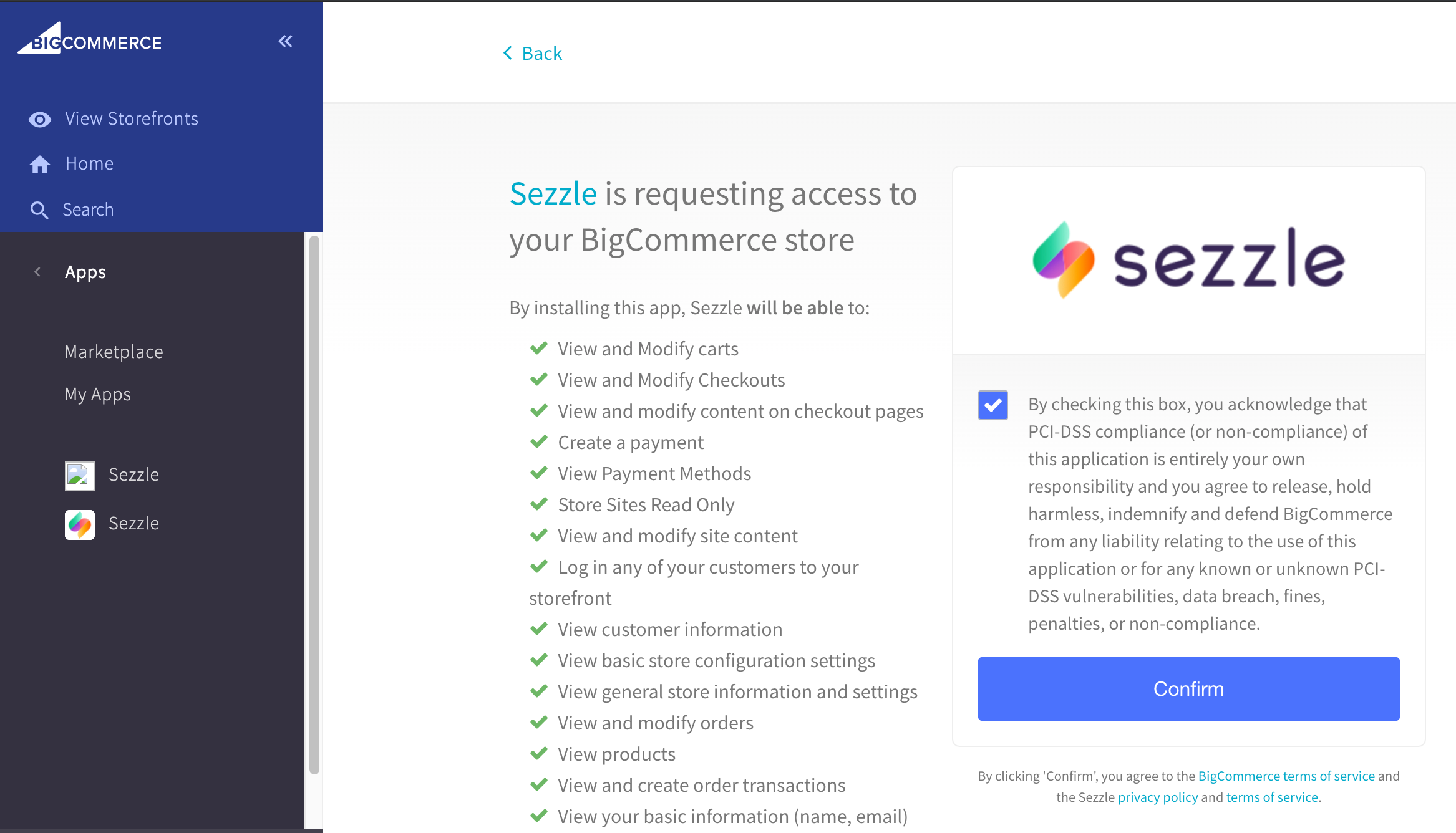
On-Site Messaging Widget
- Make sure you have the Sezzle App installed in your store
- Go to
Apps>Sezzle - Copy your Merchant ID from your Sezzle Merchant Dashboard
- Paste them into the corresponding fields in the Sezzle App of your BigCommerce admin
- Check the Add Sezzle Widget Script box
- This will inject the widget script into the product and cart pages of your store
- Save the configuration
- After saving if you don’t see the widget in PDP, contact merchantsupport@sezzle.com.
Validate
Step through a test checkout to validate the integration is properly installed.Troubleshooting
If testing was unsuccessful, review the following:- Site has Optimized One-Page Checkout enabled
- Go to
Advanced Settings>Checkout
- Go to
- API Keys were entered correctly
- To avoid typos or extra spaces, use the Copy icon in the Sezzle Merchant Dashboard
- If you have multiple accounts with Sezzle, each store has its own merchant ID and API Keys that are tied to the store’s URL
- Add Sezzle Widget Script box is checked
- Widget script is present on your website and reflects the Merchant ID from your Sezzle Merchant Dashboard
- Go to a product page on your website
- Right-click then select
Inspect - In the
Elementstab, search forwidget.sezzle
Manual Theme Integration
If the Sezzle App fails to maintain the widget script on the product pages, or to add the script manually for additional pages, complete the following steps:- Go to
Storefront>Script Manager - Click the
Create a Scriptbutton - Set
Name of scripttoSezzle Widget - Set
Location on pagetoFooter - Set
Select pageswhere script will be added toAll pages - Set
Script categorytoEssential - Set
Script typetoScript - In the Script content area, copy and paste the script, then click
Save
Template
Update
{sezzle_merchant_uuid} in the above script template with your
site’s Merchant ID (removing the curly brackets), which can be found in the
Sezzle Merchant
Dashboard.Example
- Go to
Storefront>My Themes - In your Current Theme, click
Advancedthen selectEdit Theme Files - In the confirmation window, click
Edit Theme Files - In the file list, go to
templates>pages, then selectproduct.html - Copy and paste the script into the very bottom of the file, then click
SaveandApply Files - Repeat the previous step for the
cart.htmlfile
Uninstall Steps
-
Go to
Apps>My Apps -
Under the Sezzle App, click
Uninstall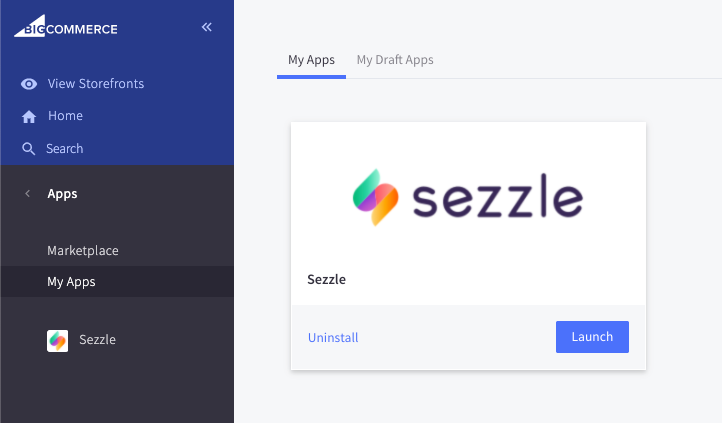
-
Toggle the button against Sezzle under
Store Setup>Payments>Online Payment Methodsto disable Sezzle as a payment option