

Install the Sezzle Shift4Shop Extension
- Log in to your website’s Shift4Shop admin
- Get the app
-
Copy and paste your Store URL into the input area, then click
Proceed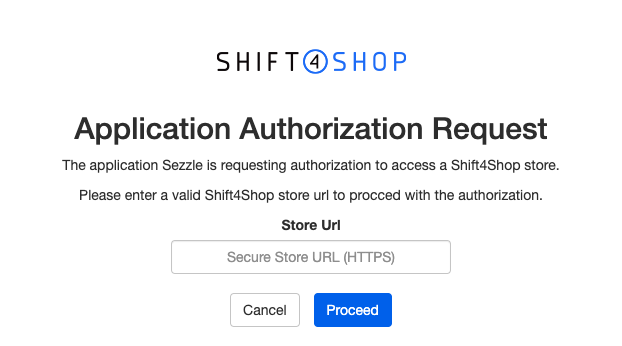
-
Check the PCI Compliance box, then click
Acknowledge and Authorize the Appto start the installation
Admin Configuration
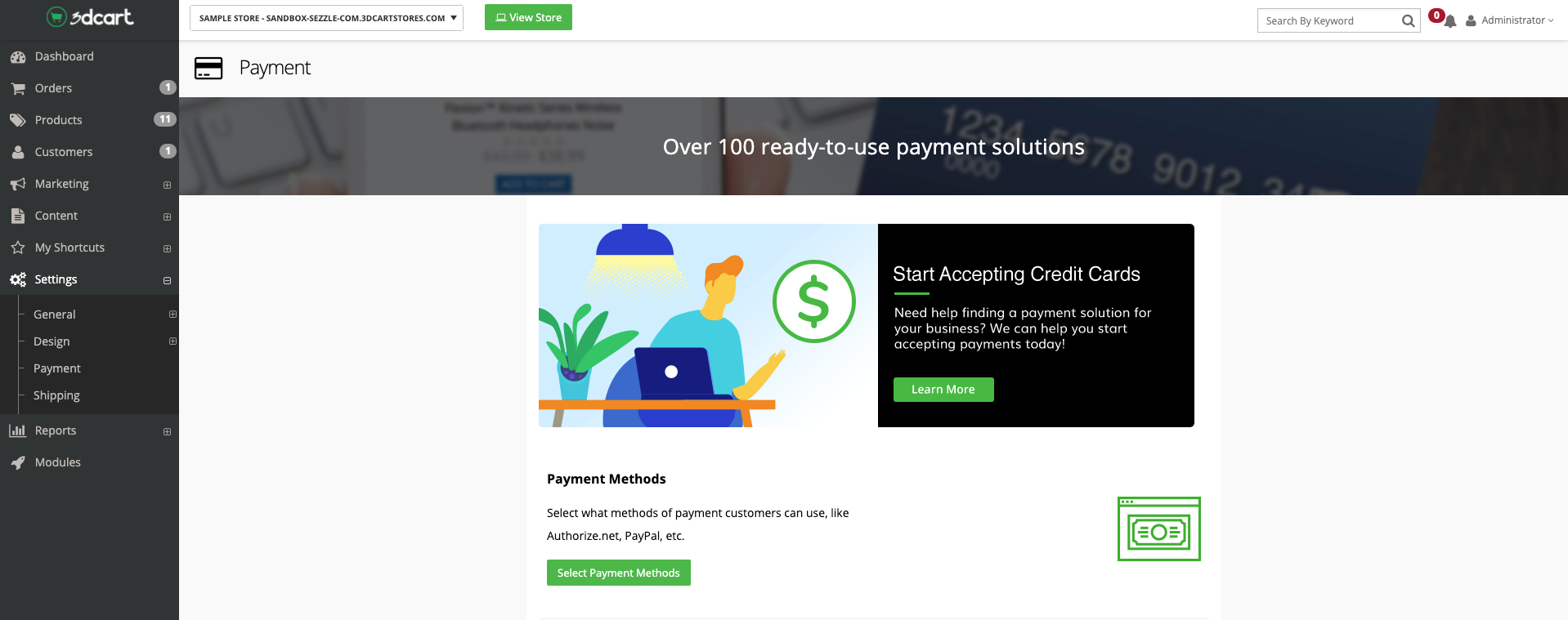
- In your Shift4Shop admin, go to Settings > Payment
-
Click Select Payment Methods
-
Turn the
Sezzleswitch toOn -
Copy your Public Key from your Sezzle Merchant Dashboard
- Paste it into the corresponding field in the Sezzle configuration page of your Shift4Shop admin
-
Next to Private Key, click
Change -
Copy your Private Key from your Sezzle Merchant Dashboard
- Paste it into the corresponding field in the Sezzle configuration page of your Shift4Shop admin
-
Click
Save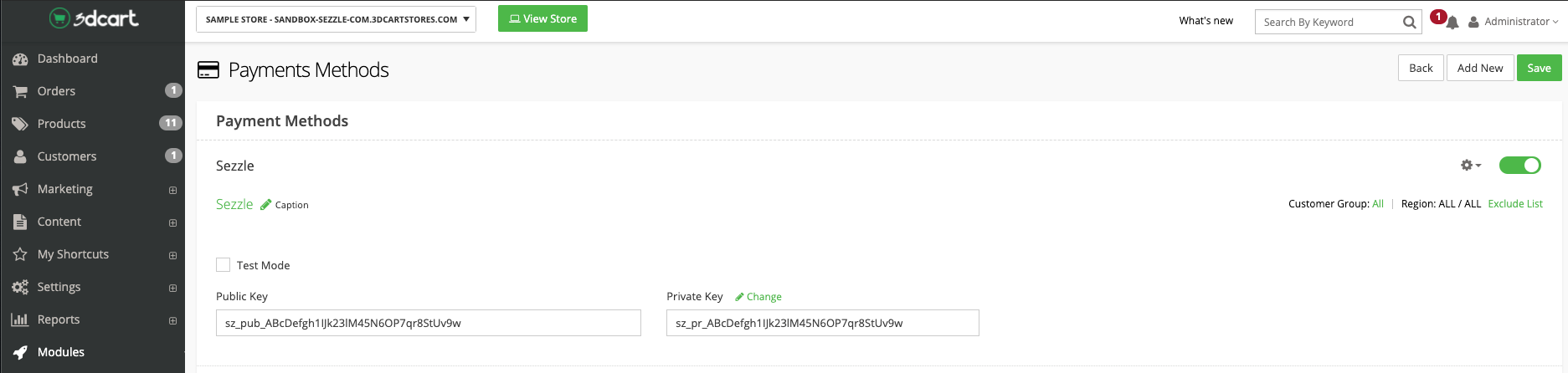
-
To restrict Sezzle usage by country, click the
Exclude Listhyperlink under theSezzleswitch -
Click
Add Location -
Select the desired country, then click
Add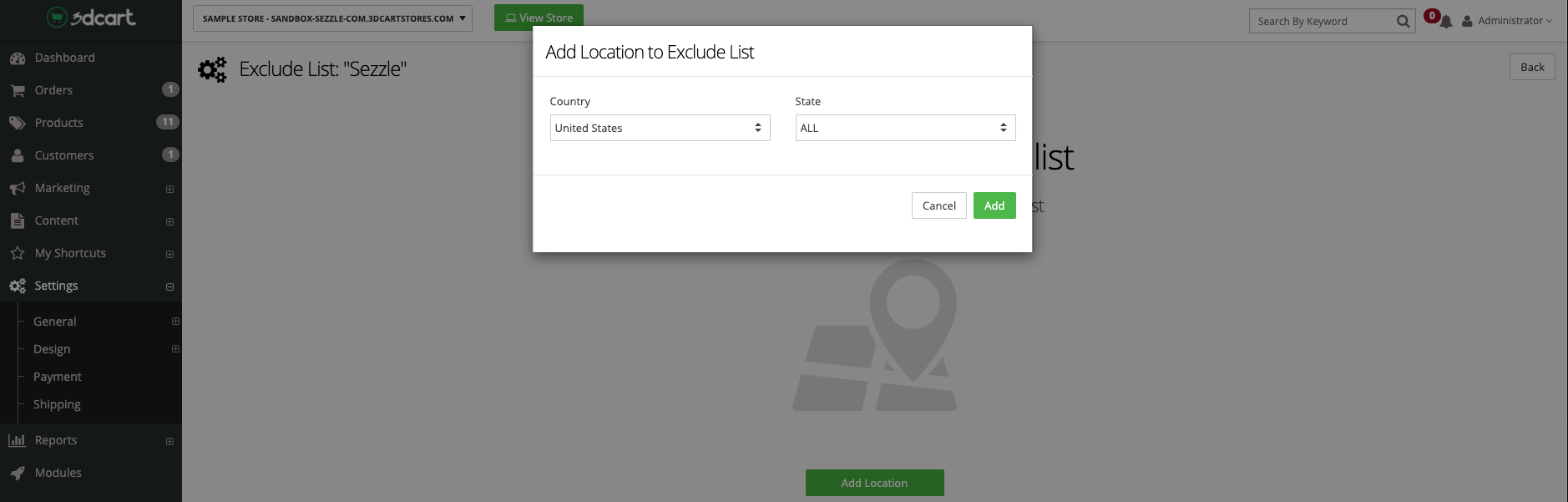
Installation is complete!
Validate
Step through a test checkout to validate the integration is properly installed.Troubleshooting
If testing was unsuccessful, review the following:- Sezzle Shift4Shop extension is the most updated version
- Sezzle payment method is enabled
- API Keys were entered correctly
- If you have multiple accounts with Sezzle, the merchant ID and API Keys are tied to only one URL
-
Sezzle on-site messaging widget script is present on your website and reflects the Merchant ID from your Sezzle Merchant Dashboard
- Go to a product page on your website
- Right-click then select
Inspect - In the
Elementstab, search forwidget.sezzle
Manual Theme Integration
If the Shift4Shop app fails to maintain the widget script on the product pages, or to add the script manually for additional pages, complete the following steps:- From your Shift4Shop admin, go to
Settings>Design>Themes & Styles - In your Current Theme, click the button labeled
Morethen selectEdit Template (HTML) - Find the copy of your theme under
Go to Folder - Click the gear icon next to the
product_items.htmlfile, then clickEdit - When the dashboard asks if you want to edit your theme files, click the
Edit Theme Filesbutton - In the Source Code text area, copy and paste the script at the very beginning of the file
- Click
Save
Insert Script into Webpage
Template:Update
{sezzle_merchant_uuid} in the above script template to reflect your site’s Merchant ID (removing the curly brackets), which can be found in the Sezzle Merchant Dashboard.Uninstall Steps
- Go to
Settings>Payment - Click
Select Payment Methods - Under the Sezzle App, click the gear icon then click
Delete