

Install the Sezzle Magento 2 Extension
Follow the instructions here to install the Sezzle extension to your Magento setupConfigure Sezzle
- Log in to your Magento admin site
-
Go to
Stores>Configuration>Sales>Payment Methods>Additional Payment Solutions -
Next to
Sezzle, clickConfigure -
Click
I've already setup Sezzle, I want to edit my settings
General
-
Set
EnabledtoYes - Enter Public Key and Private Key, as found in your Sezzle Merchant Dashboard
-
Select the
Payment Mode: Live- See Sandbox Testing for more information
-
Set
Min Checkout Amountto restrict Sezzle payment method below the given amount -
Select the
Payment ActionAuthorize Onlywill only authorize payment and requires that the payment be captured later- See Capture Payment for manual capture instructions
Authorize and Capturewill perform both in a single step- See Authorize Only vs Authorize and Capture for details
-
Select
Enable Customer TokenizationYesprompts the customer to allow their account to be tokenized- See Customer tokenization for details
-
Set
Sort Orderto manage the position of Sezzle in the checkout payment options list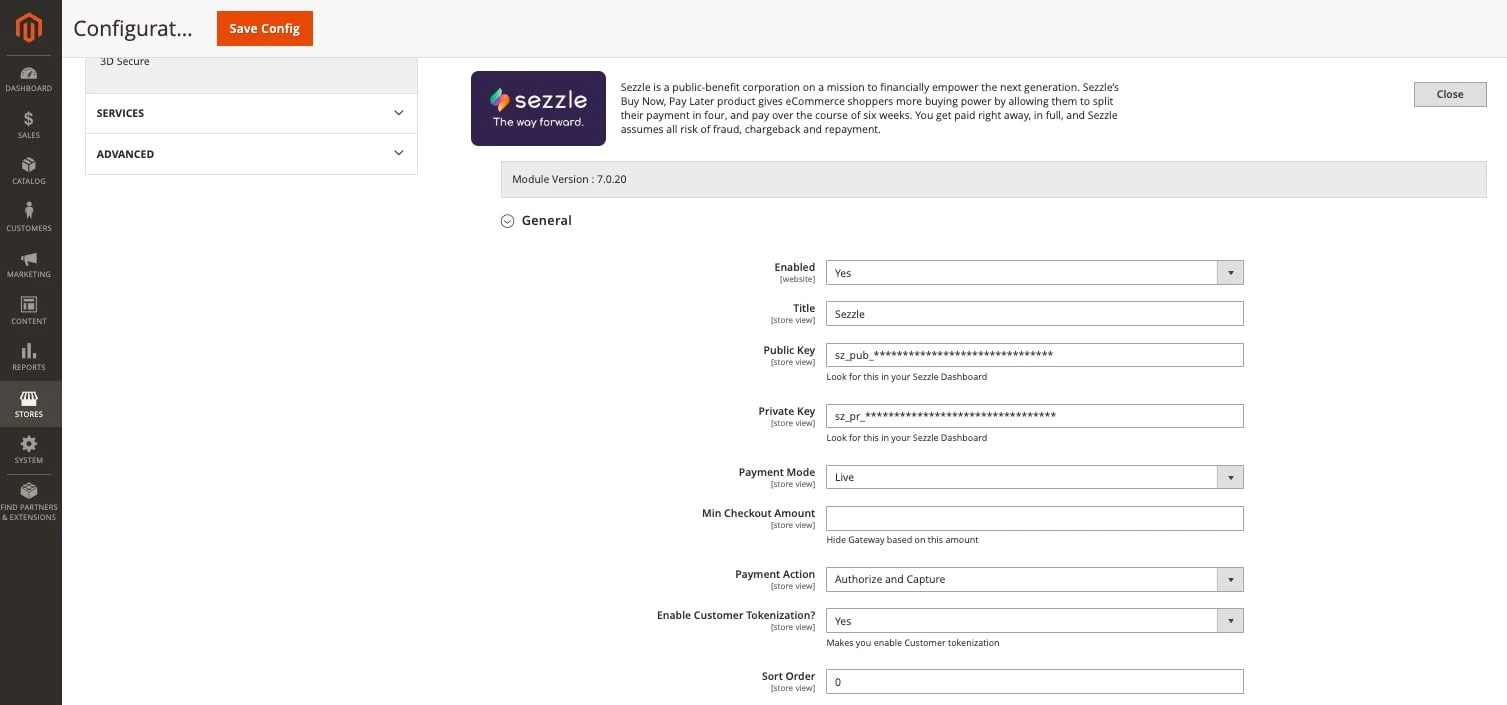
In-Context Settings
In-Context Solution opens Sezzle payment processing in an iframe or pop-up. When disabled, shoppers will be redirected to Sezzle for payment processing, then returned to the merchant site upon completion.- Set
Enable In-Context SolutiontoYesto enable In-Context Checkout. - Set
In-Context Checkout ModeIFramewill open Sezzle in a modal over the merchant site- For security reasons, Sezzle must whitelist site URL(s) wishing to use this option.
Pop Upwill open Sezzle in a new window- This option works without additional configuration from Sezzle’s end.

Settlement Report Settings
-
Set
Enable Settlement ReportstoYesto enable the Settlement Reports Dashboard- See Settlement Reports for details
-
Set
Rangeto a value based on which you want to fetch the Settlement Reports- Every time the Settlement Reports are fetched, this will be the default range for which to retrieve records
-
Set
Enable Automatic Syncingto fetch the Settlement Reports asynchronously- This requires
cronto be enabled in Magento. In your Magento root folder, runphp bin/magento cron:run
If Automatic Syncing is not enabled, the sync can still be triggered manually from theSezzle Settlementpage - This requires
-
Set
Scheduleto the frequency desired for the sync to occur -
Set
Time of Dayfor the automatic sync to run. This is based on UTC timezone.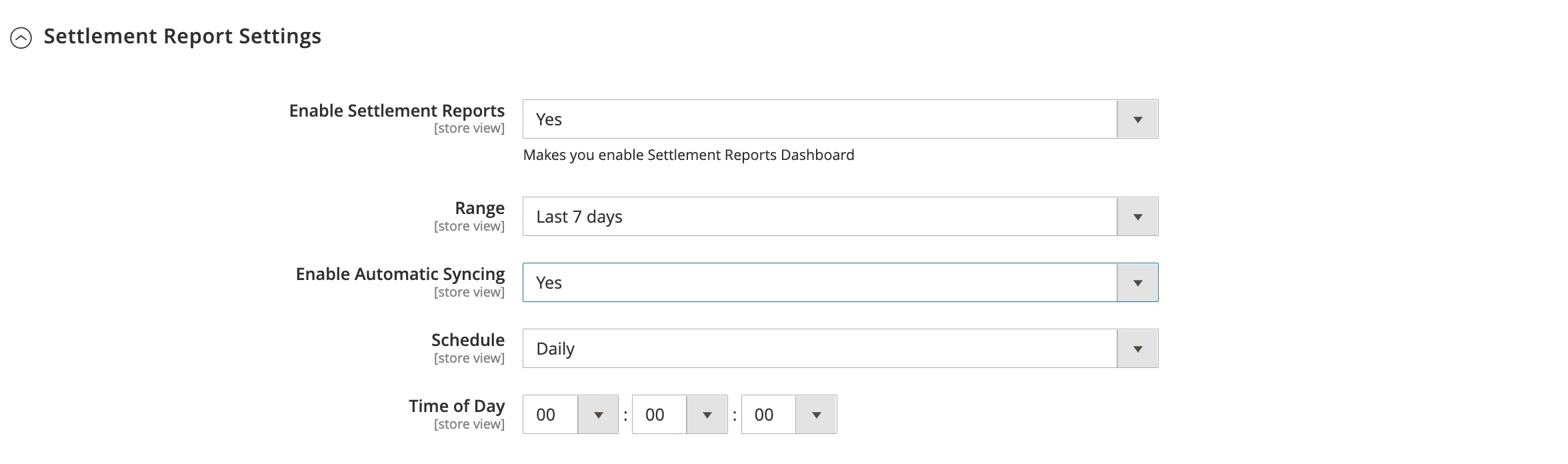
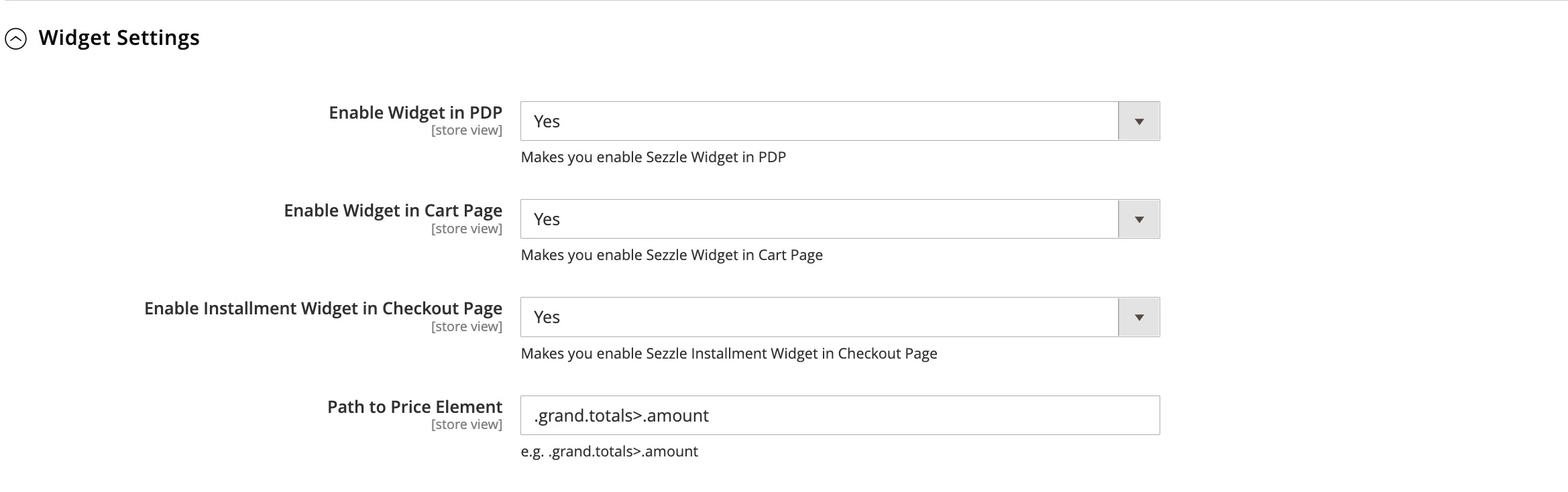
On-Site Messaging Widget Settings
-
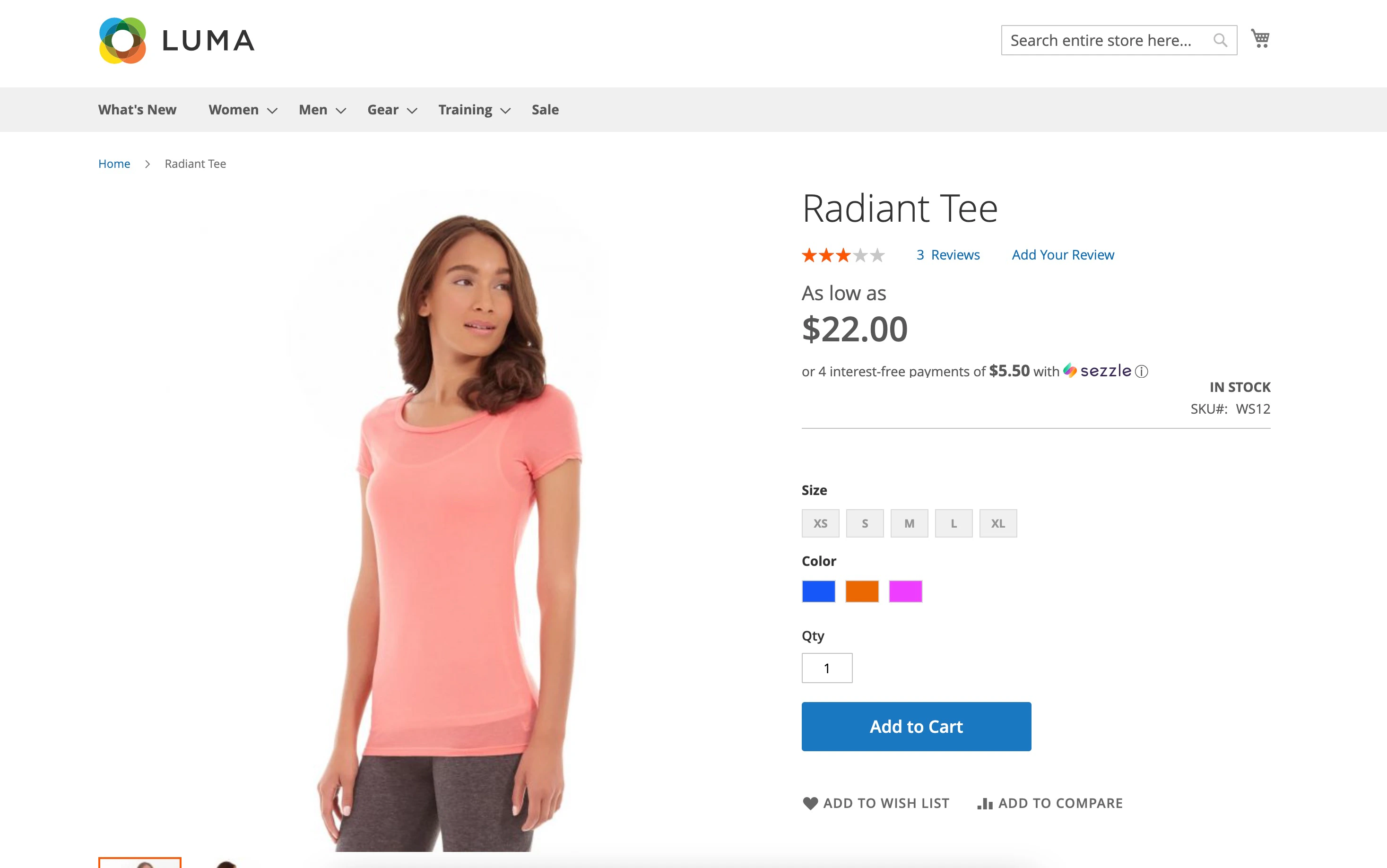
Set
Enable Widget in PDPtoYesto display Sezzle on-site messaging after the product price on the Product Detail Page -
Set
Enable Widget in Cart PagetoYesto display Sezzle on-site messaging after the cart total on the Cart Page -
Set
Enable Installment Widget in Checkout PagetoYesto show the Sezzle installment plan widget under the Sezzle payment option on the Checkout Page -
Set
Path to Price Elementto define where in the Checkout Page the order total text value will be detected for the installment widget -
Save the configuration and clear the cache
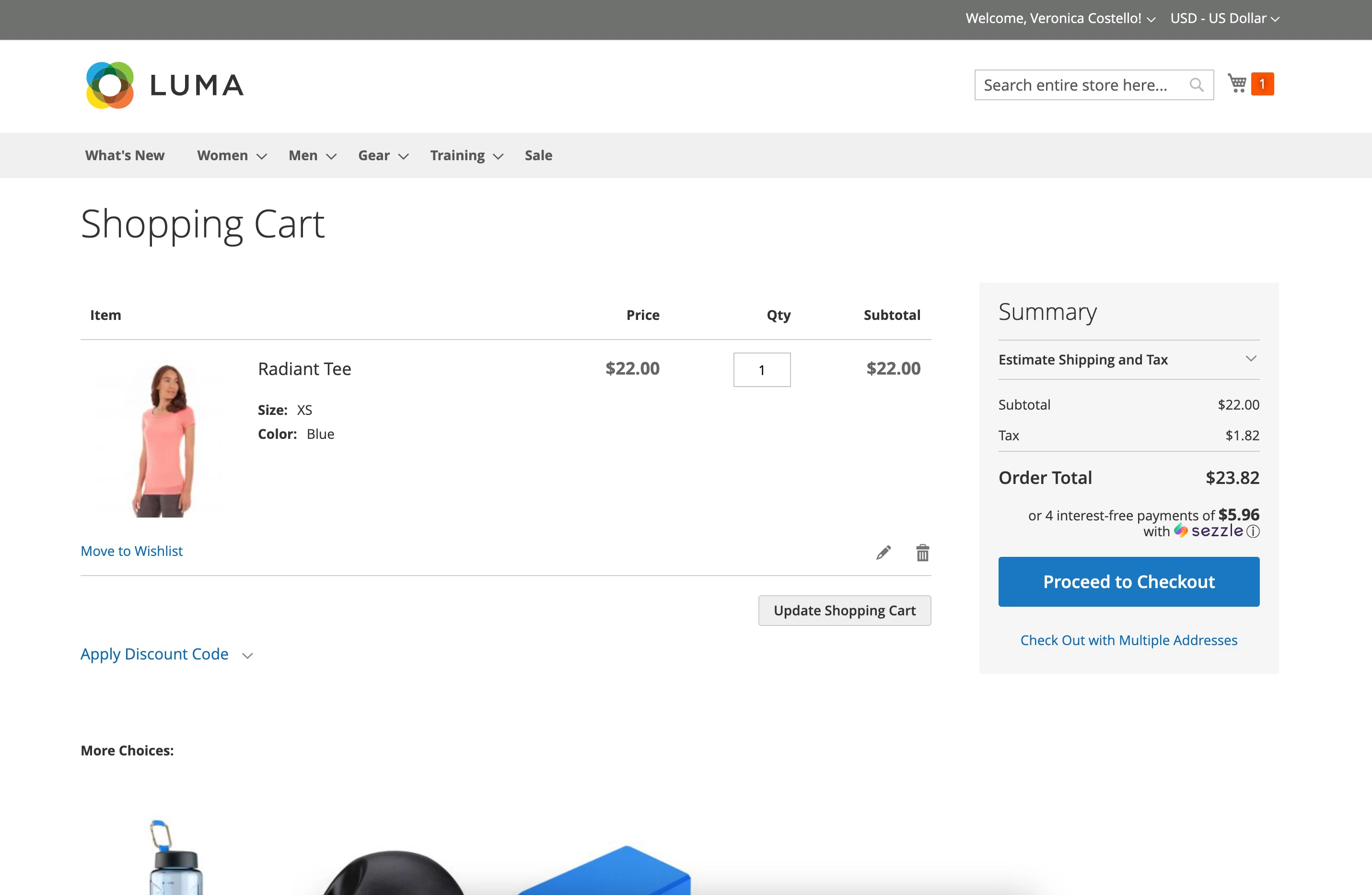
Widget Support
If widgets do not appear on the PDP and/or cart page after enabling theWidget Settings, click the Request button in this section to contact the Sezzle Widget team for assistance.

Developer Settings
- Set Enable Log Tracker to Yes to trace the Sezzle checkout process
-
Set Send Logs to Sezzle to Yes to send the logs to Sezzle automatically
- This requires
cronto be enabled in Magento. In your Magento root folder, runphp bin/magento cron:run - If this feature is disabled, please provide a copy of the logs with any support request related to the request.
- This requires
-
You may download the latest logs any time by clicking on Developer Logs: Sezzle Log
This button will only download the log file for the current date. To retrieve logs for a past date, go to
<magento root>/var/log/sezzlepay-YYYY-MM-DD.log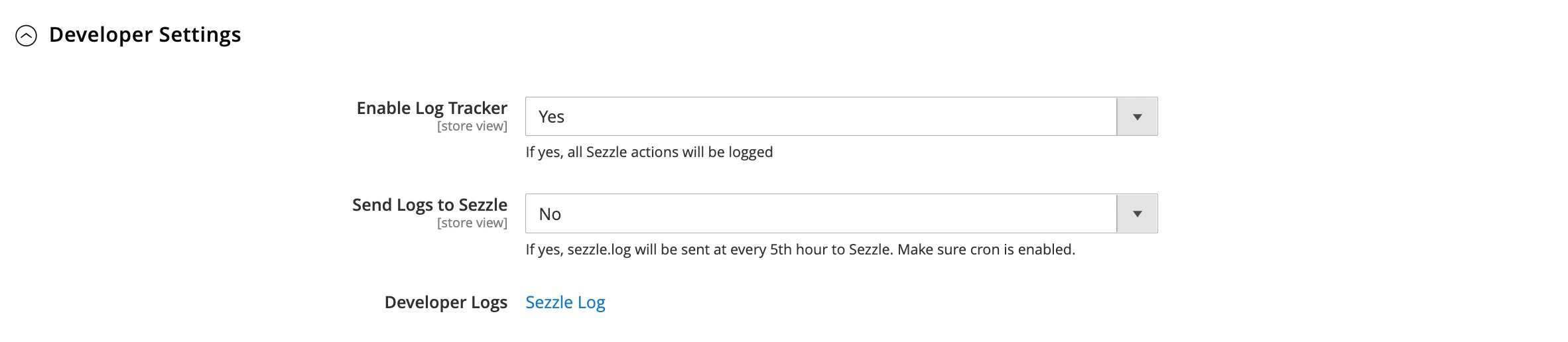
Clearing the Cache
- Navigate to
System>Cache Management - Click
Flush Cache Storage- Your store is now ready to accept payments through Sezzle
Sezzle Order Management
Sandbox Testing
-
On your dev/staging site, go to
Stores>Configuration>Sales>Payment Methods>Additional Payment Solutions -
Next to
Sezzle, clickConfigure -
Under
General, updatePayment Mode to Sandbox - Replace Public Key and Private Key with the API keys from your Sezzle Merchant Sandbox Dashboard
-
Click
Save Config -
On your website, add an item to the cart, then proceed to checkout and select Sezzle as the payment method
- If customer is not tokenized, click
Continue to Sezzle - If customer is tokenized, click
Place Order - If In-Context checkout, click
Pay with Sezzle
- If customer is not tokenized, click
- Sign In to Sezzle or Sign Up to continue
- Enter the payment details using test data, then proceed to the final page
-
If customer is tokenized, check the
Approve {Website Name}to process payments from your Sezzle account for future transactionsYou may revoke this authorization at any time in your Sezzle Dashboard to tokenize your account - If your account is already tokenized, order will be placed without redirection
- After payment is completed at Sezzle, you will be directed to your site’s Successful Payment page
Capture Payment
If Payment Action is set to Authorize and Capture
- The capture will be performed instantly from the extension after the order is created and validated in Magento.
If Payment Action is set to Authorize
- You will need to capture the payment manually from the Magento admin using the following steps:
-
- Navigate to
Sales>Orders, find the order to capture, and clickView
- Navigate to
-
- In the upper-right of the form, click
Invoice
- In the upper-right of the form, click
-
- Review the order details, then click
Submit Invoice
This will capture the payment in Sezzle and update the Magento order status to Processing - Review the order details, then click
Refund Payment
-
Navigate to
Sales>Orders, find the order to refund, and clickView -
In the left toolbar, click
Invoices, find the order to refund, and clickView -
In the upper-right of the form, click
Credit MemothenOKto confirm your action -
Review the refund details, then click
RefundThis will refund the payment amount in Sezzle and update the Magento order status to Closed
Release Payment
-
Navigate to
Sales>Orders, find the order to release, and clickView -
In the upper-right of the form, click
CancelorVoidthenOKto confirm your actionThis will release the payment amount in Sezzle and update the Magento order status to Canceled if the Sezzle authorization has been released successfully or has already expired
Order Verification in Magento Admin
- Log in to Magento admin
-
Navigate to
Sales>Orders, find the order to verify, and clickView
Order Verification in Sezzle Merchant Dashboard
- Log in to Sezzle Merchant Dashboard
-
Navigate to
Orders, then find and click the order to verify
Customer Tokenization Details
- Navigate to
Customers>All Customers- Select the customer to view tokenization details
- If the customer is tokenized, the Sezzle tab will appear
-
The
Status,Token, andToken Expirationwill appear on the tab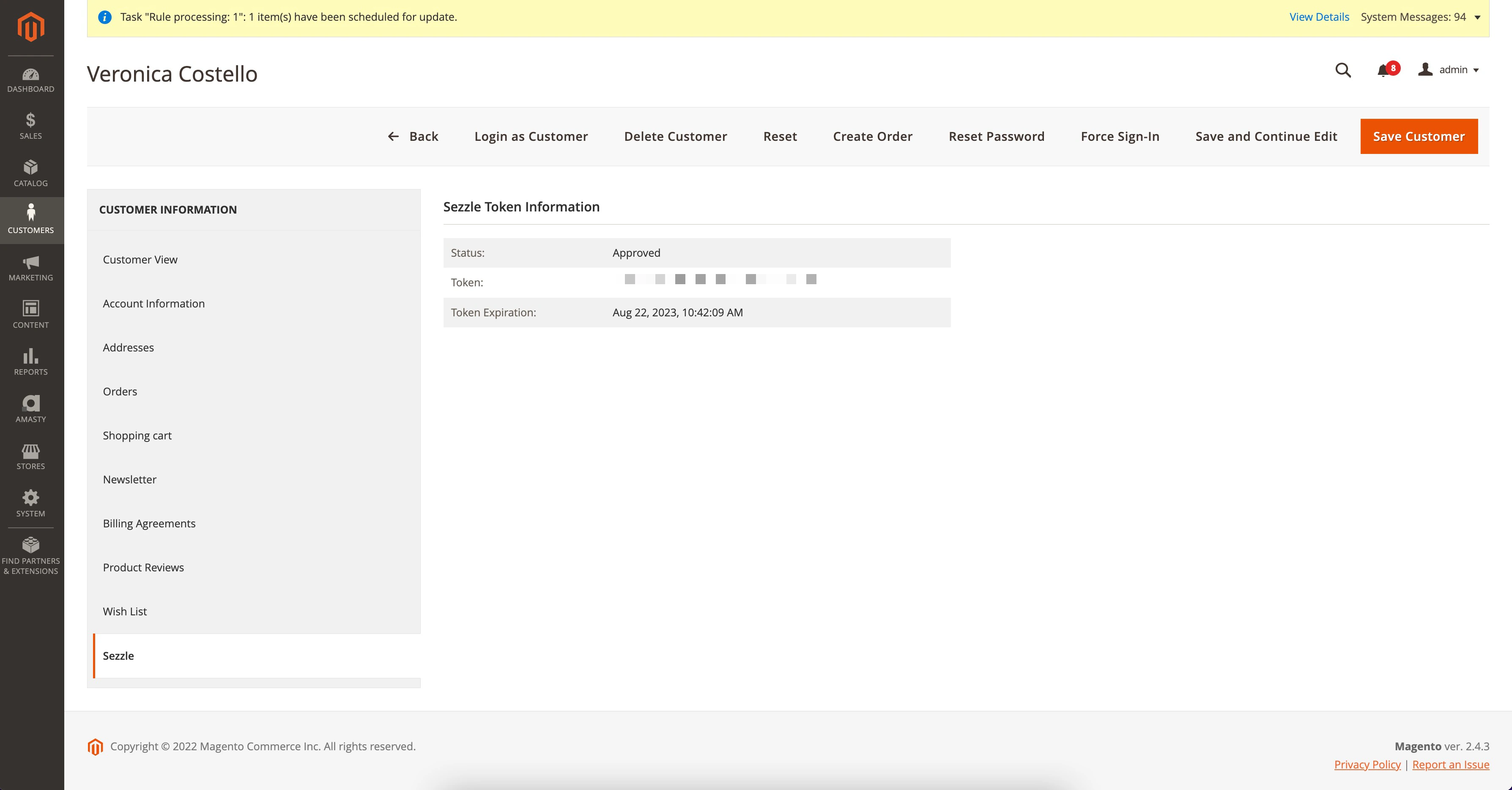
-
The
Settlement Reports
- Navigate to
Reports>Sales>Sezzle Settlement- A list of recent Settlement Reports will be shown
- To make a Quick Sync, enter the From and To Date and click
Sync - To view details of a report, in the
Actioncolumn, clickView - To download a report, in the
Actioncolumn, clickDownload-
You can download the Settlement Report in
CSVorExcelformat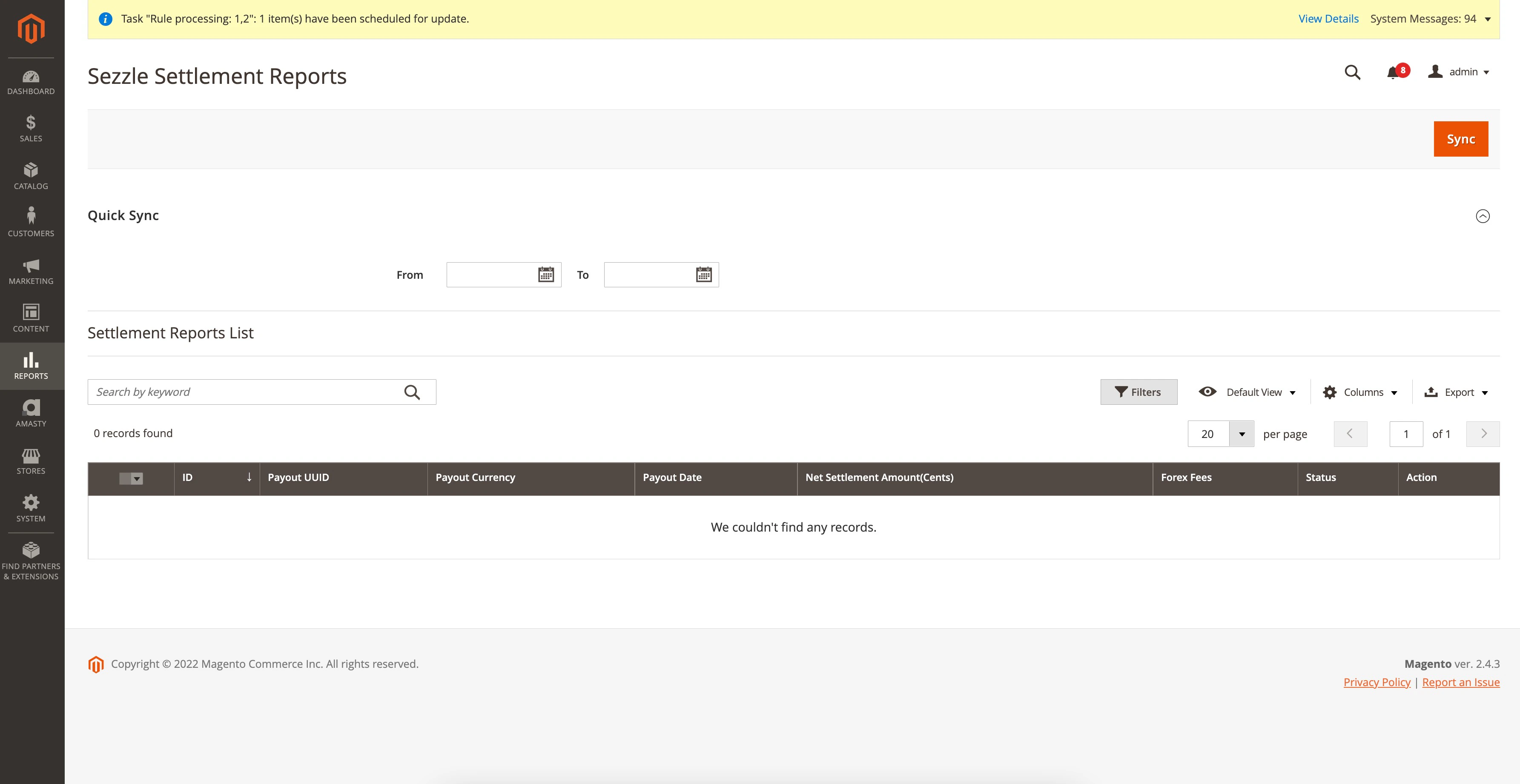
-
You can download the Settlement Report in
Troubleshooting
If testing was unsuccessful, review the following:- Sezzle-Magento2 extension is the latest version
-
Sezzle extension is enabled
- Go to
Stores>Configuration>Sales>Payment Methods>Additional Payment Solutions - Next to
Sezzle, clickConfigure - Ensure
Enabledis set toYes
- Go to
- API Keys were entered correctly, and for the correct environment
- Cache Storage was flushed
-
Widget script is present on your website and reflects the Merchant UUID from your Sezzle Merchant Dashboard
- Go to a product page on your website
- Right-click then select
Inspect - In the
Elementstab, search forwidget.sezzle