

Install the Sezzle Zoey Extension
Contact Zoey Support to install the Sezzle app.
Admin Configuration
-
Go to
Set-up>Payment Methods>Sezzle -
Click
Configure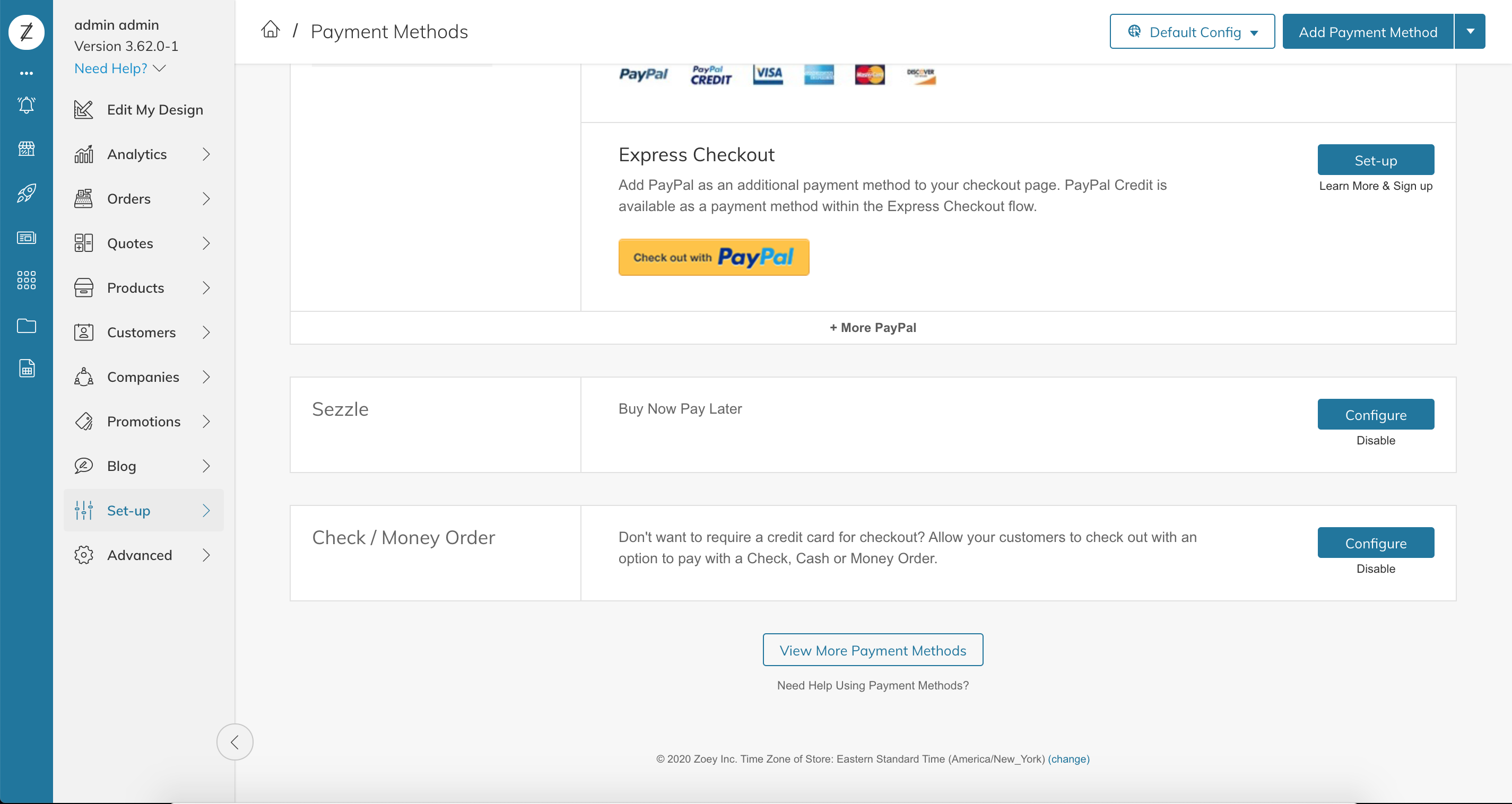
-
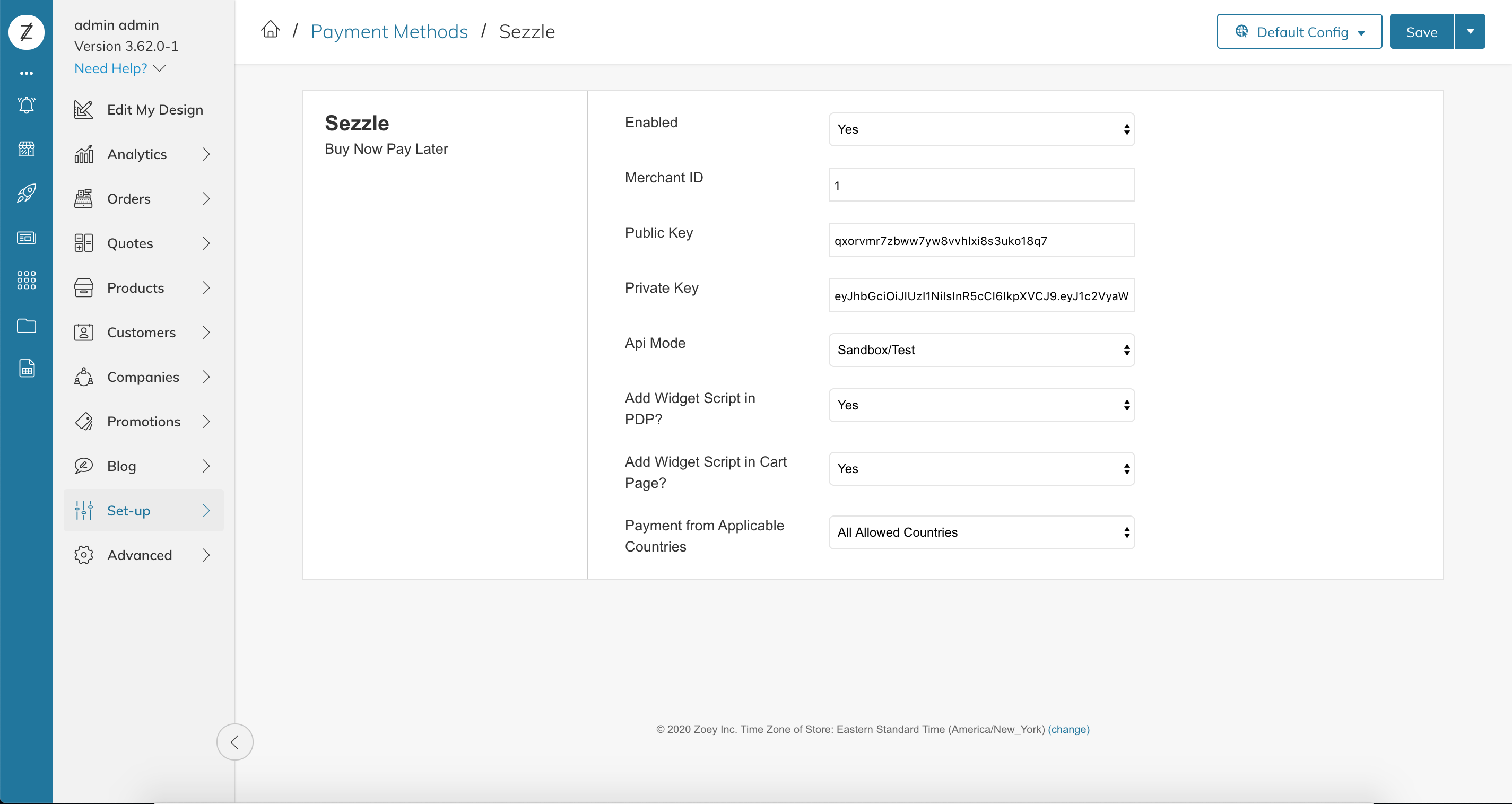
Configure the extension
-
Set
EnabledtoYes -
Copy your Merchant ID from your Sezzle Merchant Dashboard
- Paste it into the corresponding field in the Sezzle configuration page of your Zoey admin
-
Copy your Public Key and Private Key from your Sezzle Merchant Dashboard
- Paste them into the corresponding fields in the Sezzle configuration page of your Zoey admin
- Widget Script Placements
-
Set
Payment from Applicable CountriestoSpecific Countries -
Set
Payment from Specific CountriestoUnited StatesorCanadaas applicable -
Save the configuration
-
Click
Advanced/Refresh Your StoreInstallation is complete!
-
Set